

High Contrast Mode
Typing.com can draw a student's screen in a high contrast theme, for students who find the standard one hard to read. There are three ways to switch it on: for a whole class, for one student, or by the student in their own account. This article covers all three, and shows what changes.
What changes on the student's screen
High contrast replaces the student's theme. Here is the same page with it off and then on.
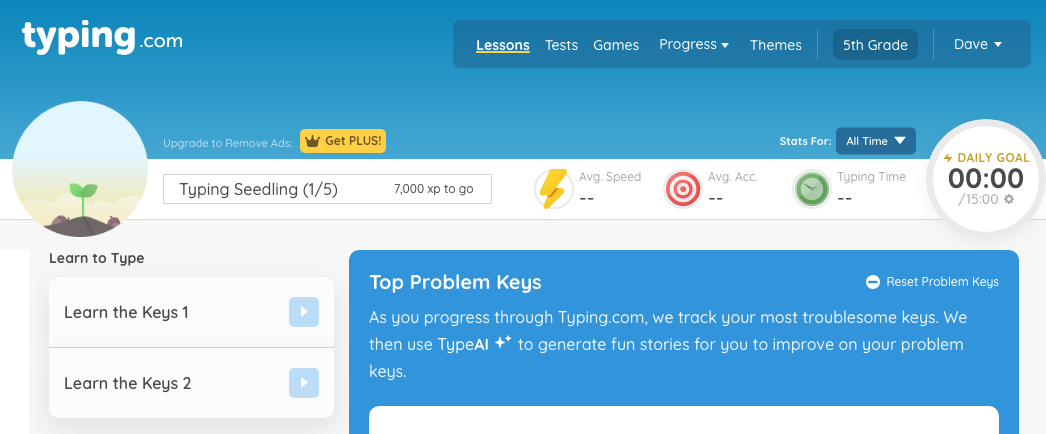
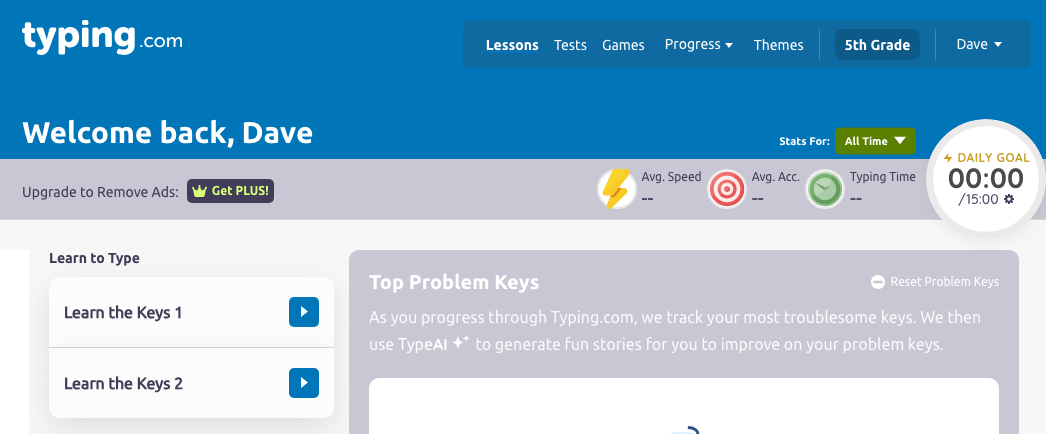
The illustrated header and the theme artwork give way to flat blocks of color, the badge in the header becomes a plain greeting, and the type is set in a plainer face. The lessons, the tabs and the buttons stay where they were.
One setting, two names
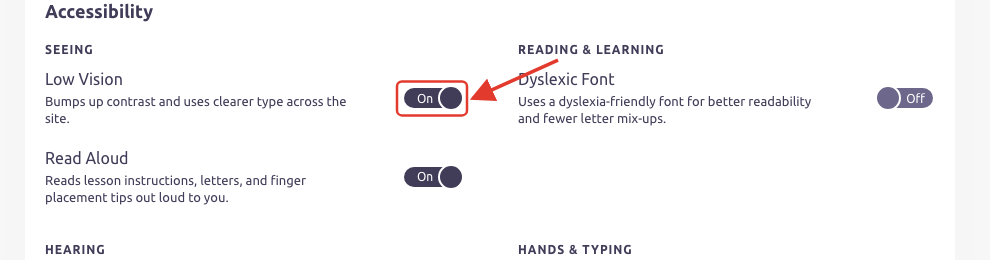
In your Teacher Portal it is called High Contrast Theme Enabled, and it sits on the Accessibility tab of both Class Settings and Student Settings. On the student's own Account Settings page the same switch is called Low Vision.
They are one setting under two names. Tick High Contrast Theme Enabled for a student and, the next time they log in, their screen is drawn the way it is above and Low Vision on their own page already reads On.
Turn it on for a whole class
Step 1: Log in to your Teacher Portal here.
Step 2: Click Classes in the left-hand menu, then open the class.
Step 3: Click Class Settings, at the top right of the class page.
Step 4: Open the Accessibility tab and tick High Contrast Theme Enabled, under Vision Impairment.
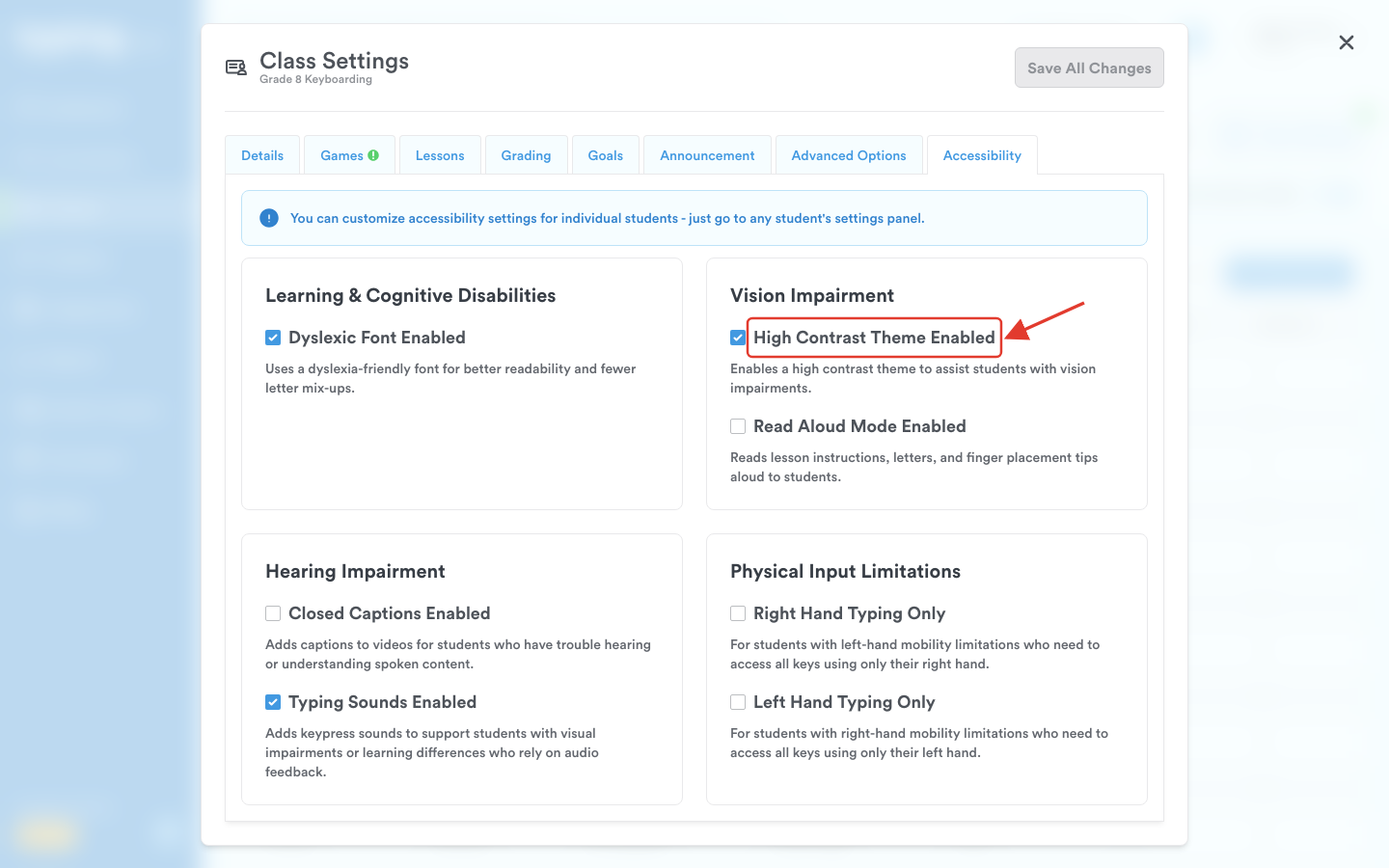
Step 5: Click Save All Changes. It applies to every student in the class.
Turn it on for one student
Step 1: Open the class, on its Students tab.
Step 2: Tick the box beside the student, then click Student Settings above the roster. It stays grayed out until you select someone.
Step 3: Open the Accessibility tab and tick High Contrast Theme Enabled. The window carries the student's name, and says which class its defaults came from.
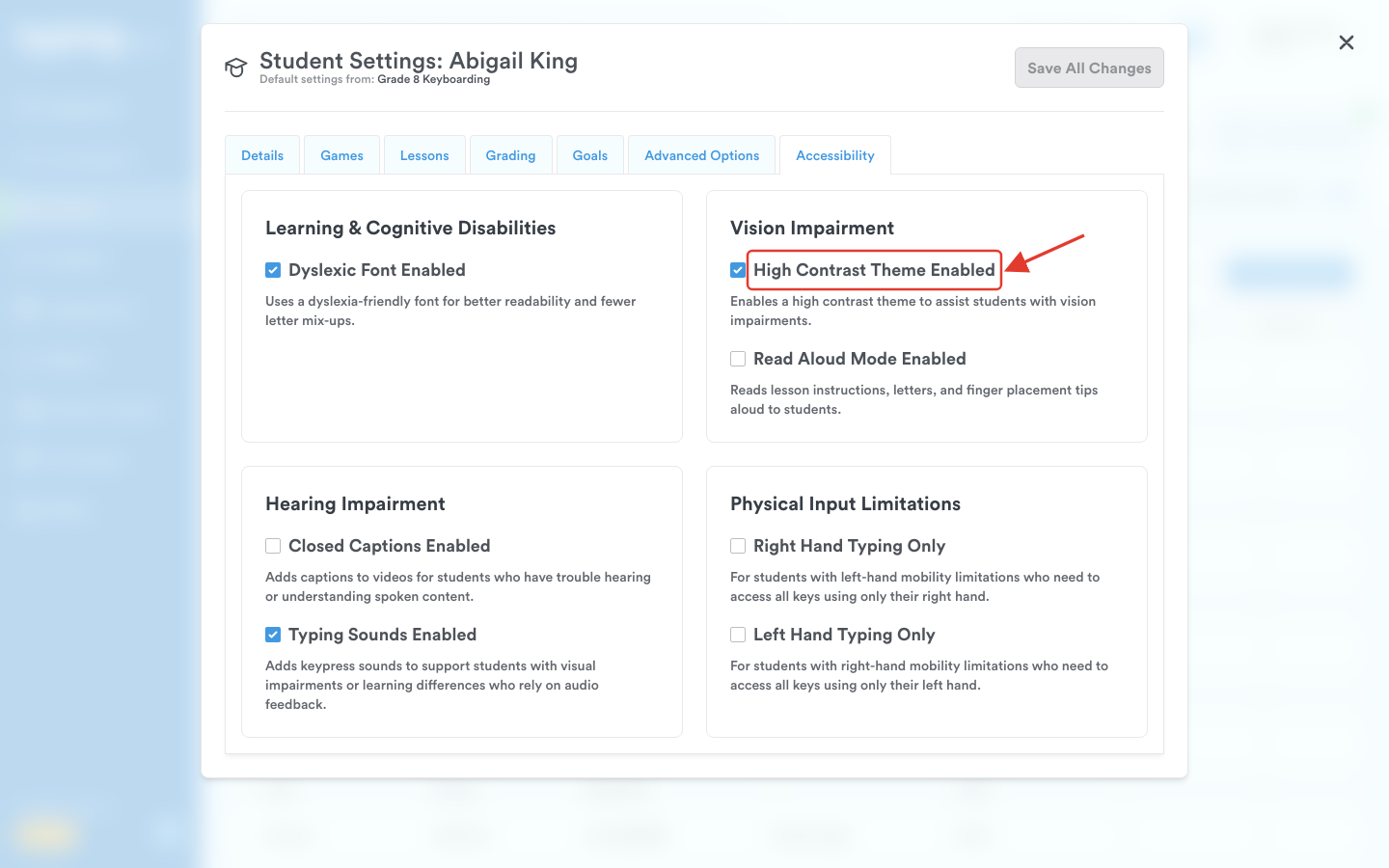
Step 4: Click Save All Changes.
How a student turns it on
Step 1: Log in to your student account here.
Step 2: Click your name in the top right corner, then click Account Settings.
Step 3: Scroll to the Accessibility card and switch Low Vision to On. It takes effect straight away, and there is nothing to save.
A button in your portal with a similar name
Your own Teacher Portal carries a separate control. Press Tab on any page of the portal and a button reading Toggle High Contrast Mode slides into view at the top left; press Enter and the portal's own menus and toolbars deepen. That one is a display option for your screen, for as long as you stay on the page, and it leaves your students' screens as they were.
Pro-Tip: A student who switches Low Vision off is left on the Classic Typing.com theme, so a student who had chosen a theme of their own will want to pick it again from Themes.