

Accessibility Settings for Students
Typing.com has a set of switches that change how the site looks, sounds and behaves, so you can set it up to suit the way you work. They all sit in one place. This article shows you where they are and what each one does.
Find your accessibility settings
Step 1: Log in to your account here.
Step 2: Click your name in the top right corner, then click Account Settings.

Step 3: Scroll down to the card headed Accessibility. It sits between Language & Keyboard and Permanently Delete Account, and holds seven switches in four groups.
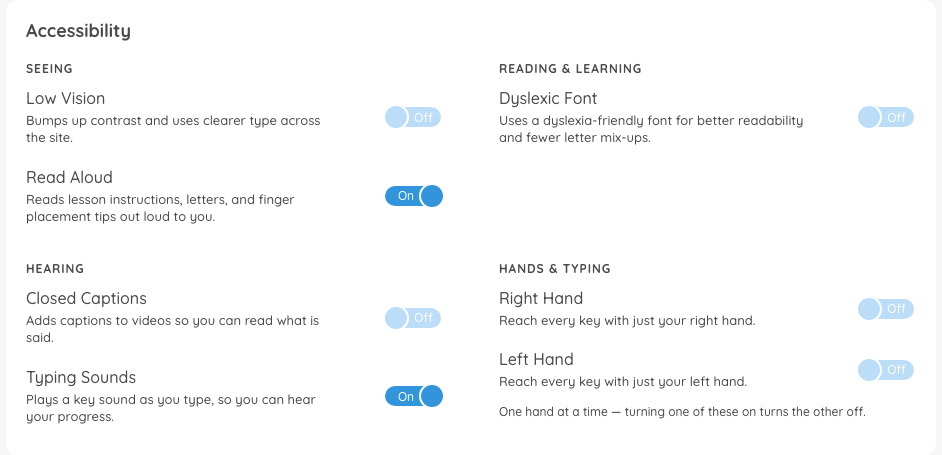
Every switch reads On or Off on its face and takes effect the moment you flip it. There is nothing on this card to save.
Seeing
Low Vision - bumps up contrast and uses clearer type across the site.
Read Aloud - reads lesson instructions, letters and finger placement tips out loud to you.
Low Vision works by changing your theme. Turning it on replaces whatever theme you were using, and turning it off leaves you on Classic Typing.com, so you may want to pick your theme again afterwards.
Read Aloud has settings of its own once it is on. You choose how much it reads, how loud it is and how fast it goes from a window inside the lesson itself.
Reading & Learning
Dyslexic Font - uses a dyslexia-friendly font for better readability and fewer letter mix-ups.
Hearing
Closed Captions - adds captions to videos so you can read what is said.
Typing Sounds - plays a key sound as you type, so you can hear your progress.
Hands & Typing
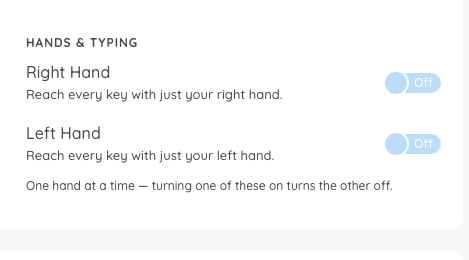
Right Hand - reach every key with just your right hand.
Left Hand - reach every key with just your left hand.
Only one of these two can be on at a time. Turning one on turns the other off, and the card says so underneath them.
If a setting is missing
If you are in a class, your teacher decides which of these you are allowed to change. Three of them have a class setting behind them:
Low Vision follows Students can change theme.
Read Aloud follows the class setting Allow student to toggle Read Aloud, and is offered only when your Website Language is US English or UK English.
Typing Sounds follows Allow student to toggle typing sounds.
If clicking Account Settings puts you straight back on the lessons page, your teacher has turned off account changes for your class. Ask your teacher if you need one of these switched for you.
Pro-Tip: The language the site is written in and the layout of the keyboard you are typing on are set in the card just above this one, Language & Keyboard. There is more about that here.