

Reset Student Progress (Teacher)
Whether you need to give a student a fresh start or just reset specific lessons, we've got you covered. Our step-by-step instructions will make the process quick and easy, ensuring your students can keep improving their typing skills without a hitch.
The Reset Progress feature clears a student's progress, and you choose exactly what goes. You pick the curriculum and then untick anything you want to keep, so you can wipe lesson progress while leaving test history alone, or clear everything. Read the options carefully before confirming - achievements can be reset too, and nothing can be undone afterwards.
Pro-Tip: You can also reset progress for individual lessons as shown in the image below. Skip ahead to the "Reset Individual Lesson" section to learn more.

Let’s get started.
Reset Account Progress
Step 1: Log in to your Teacher Portal HERE.
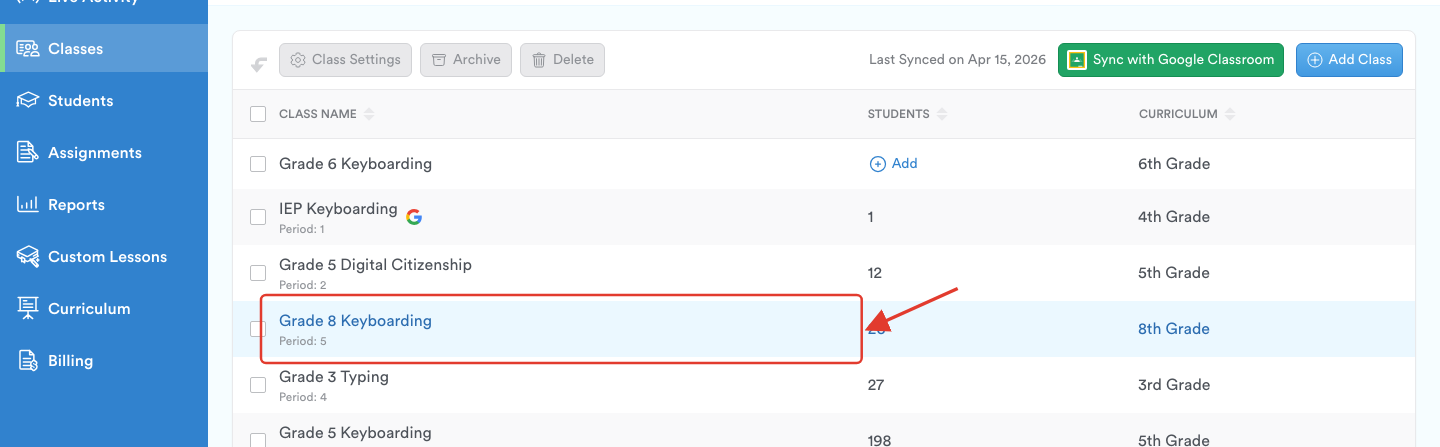
Step 2: Click on Classes

Step 3: Select the class with the student(s) whose progress you want to reset.
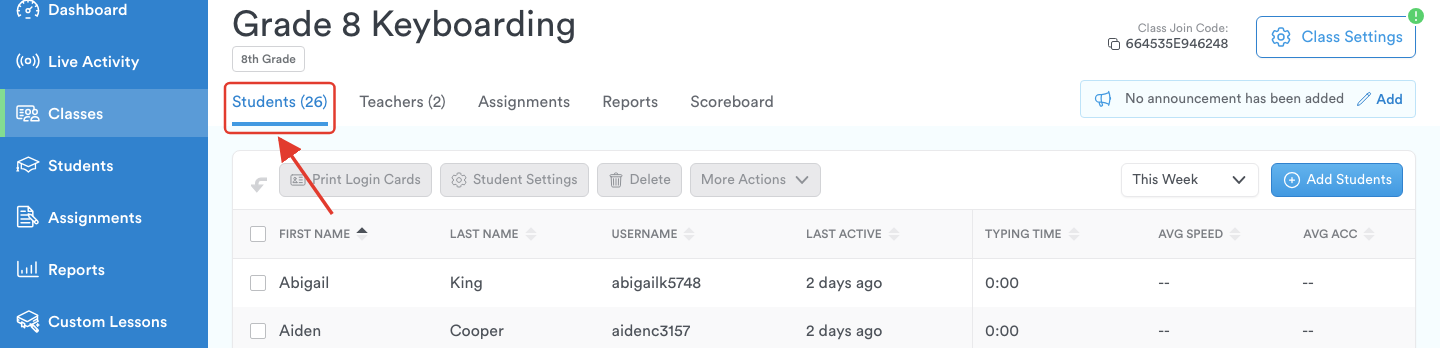
Step 4: Inside the class page, click the Students tab to access the class roster.
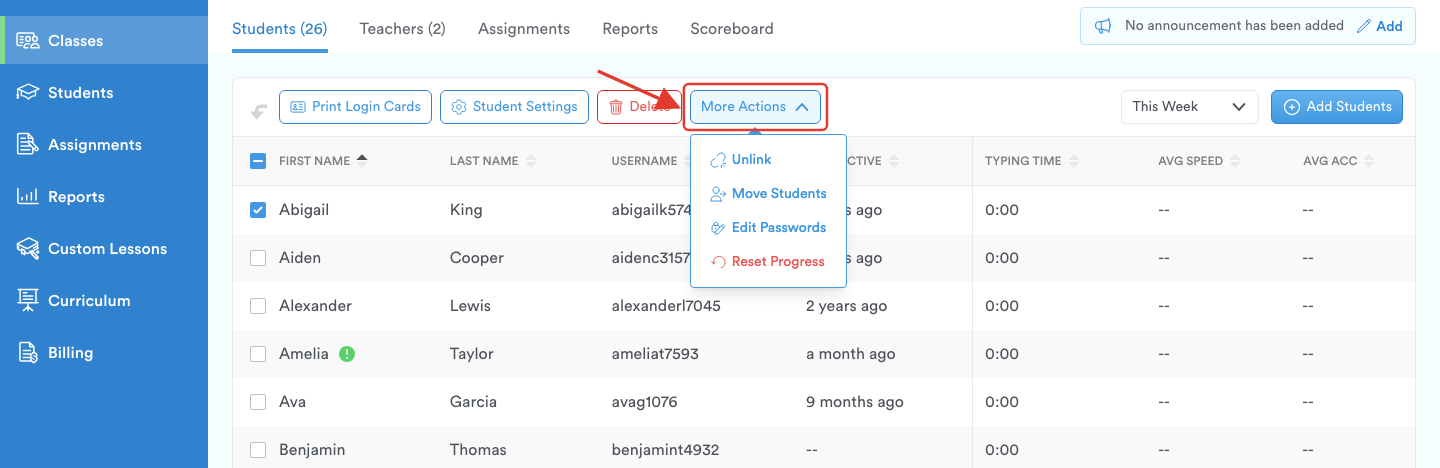
Step 5: (1) Select the student or students by clicking the checkbox next to their name. (2) To select everyone, use the checkbox in the header row above the list.

Step 6: Click More Actions and choose Reset Progress. The dropdown also holds Unlink, Move Students and Edit Passwords.
In a rostered class: if your class syncs through Google Classroom, Clever, ClassLink or Microsoft Teams, More Actions is the only control in the toolbar, and Reset Progress is the only option inside it.
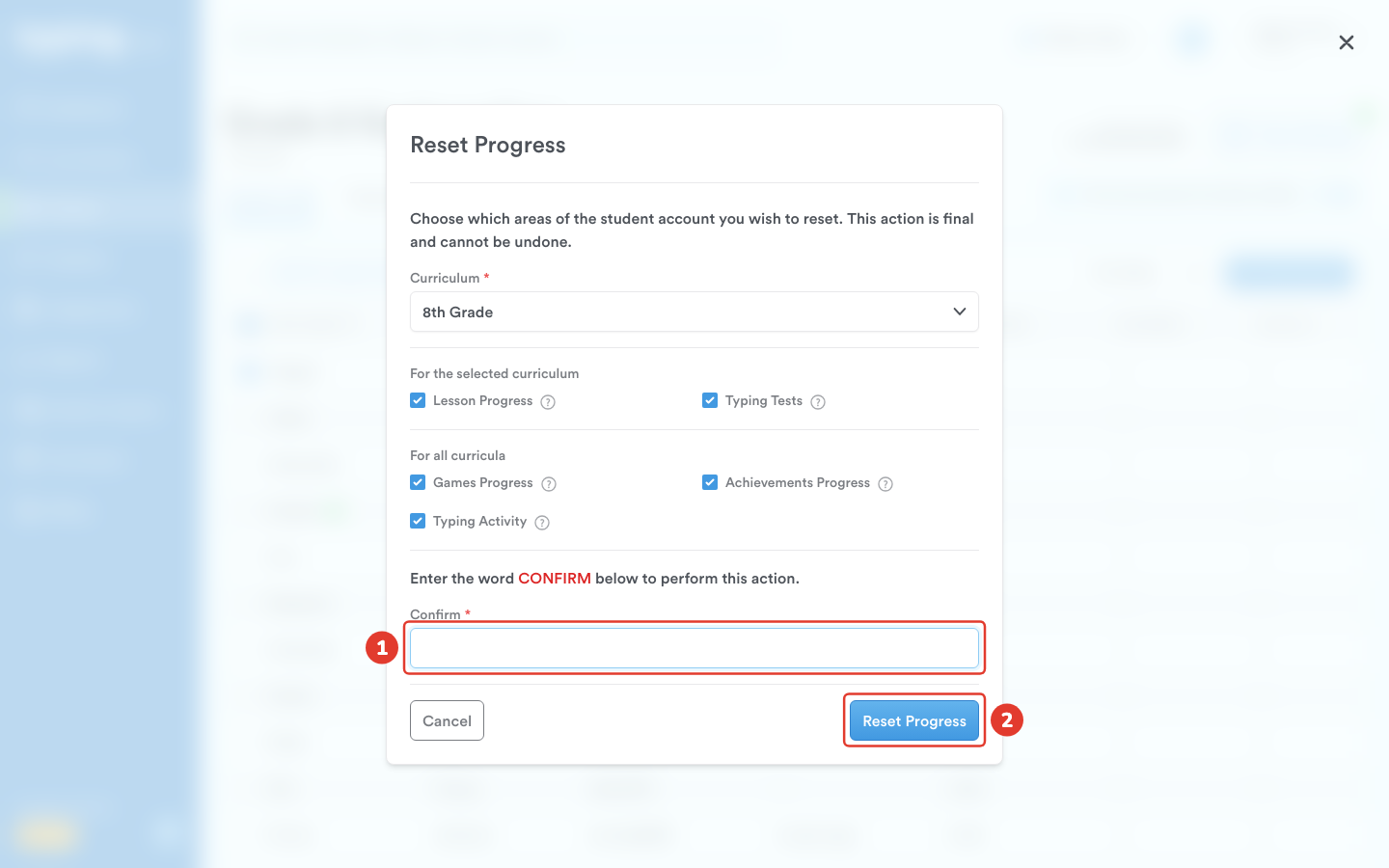
Step 7: The Reset Progress dialog opens with every area ticked. Choose the Curriculum first, then untick anything you want to keep. The two areas under For the selected curriculum apply to that curriculum only; the three under For all curricula apply to everything the student has done. Hover the question mark beside an area to see what it covers:
Lesson Progress - completion and scores for every lesson in the selected curriculum, including custom lessons and teacher-created tests.
Typing Tests - typing test results and the scores they contribute to reports.
Games Progress - game scores, levels and high scores.
Achievements Progress - every badge and achievement the student has earned.
Typing Activity - the record of time spent typing, words typed and accuracy behind reports and the activity calendar. Lesson completion is kept separately.
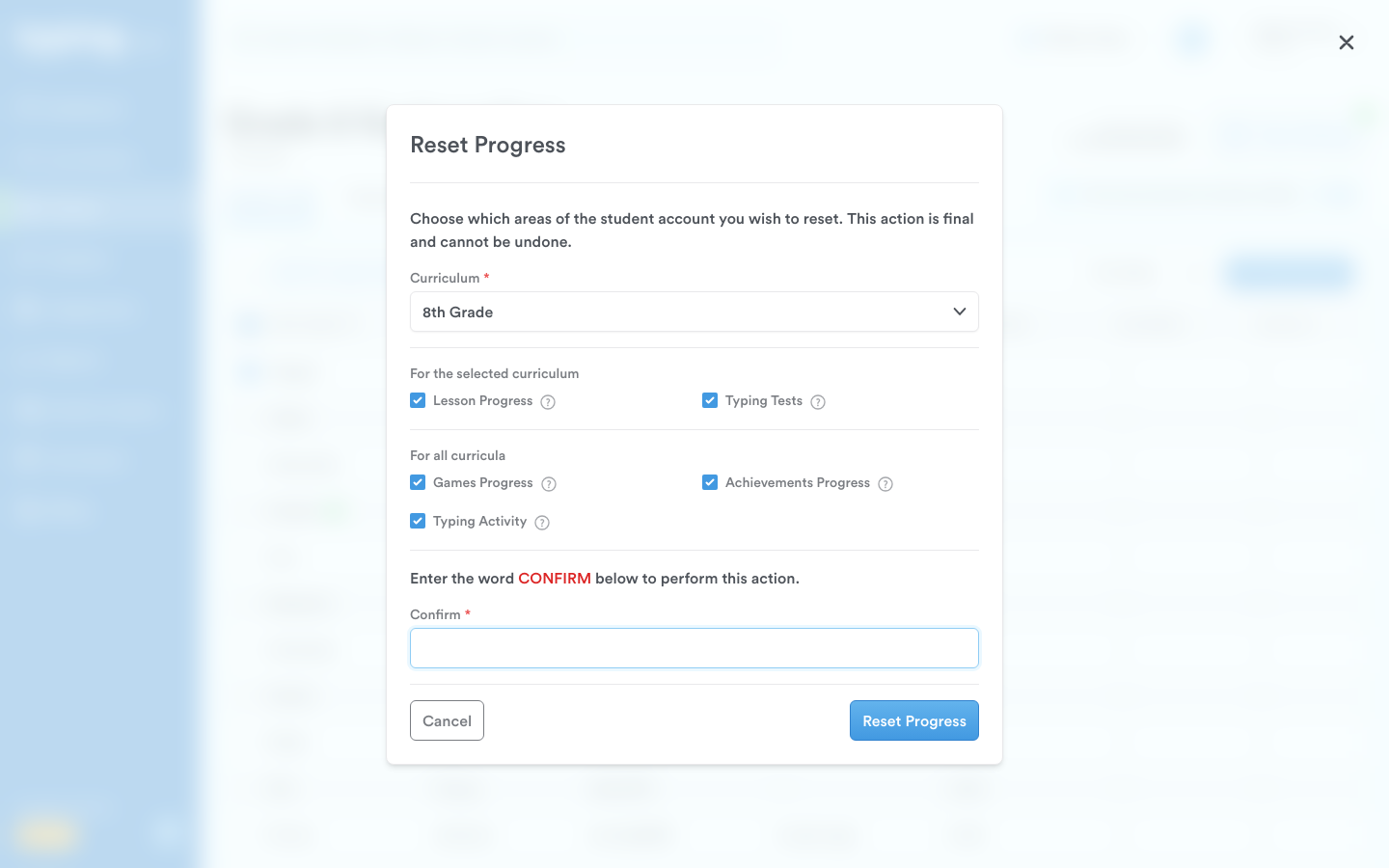
Step 8: (1) Type the word CONFIRM, then (2) click Reset Progress. This is final and cannot be undone - including for every area you left ticked, such as Achievements Progress.
Reset Individual Lessons
Need to reset only one lesson or a few? Follow these steps:
Step 1: Locate the student's profile using the search bar or by clicking directly on their name from your class roster.


Step 2: In the student's profile, click on the 'Lesson Progress' tab.

Step 3: Scroll down to find the lesson you want to reset. Move your mouse over that lesson's row and a red trash icon appears at the right-hand end of it - click that.

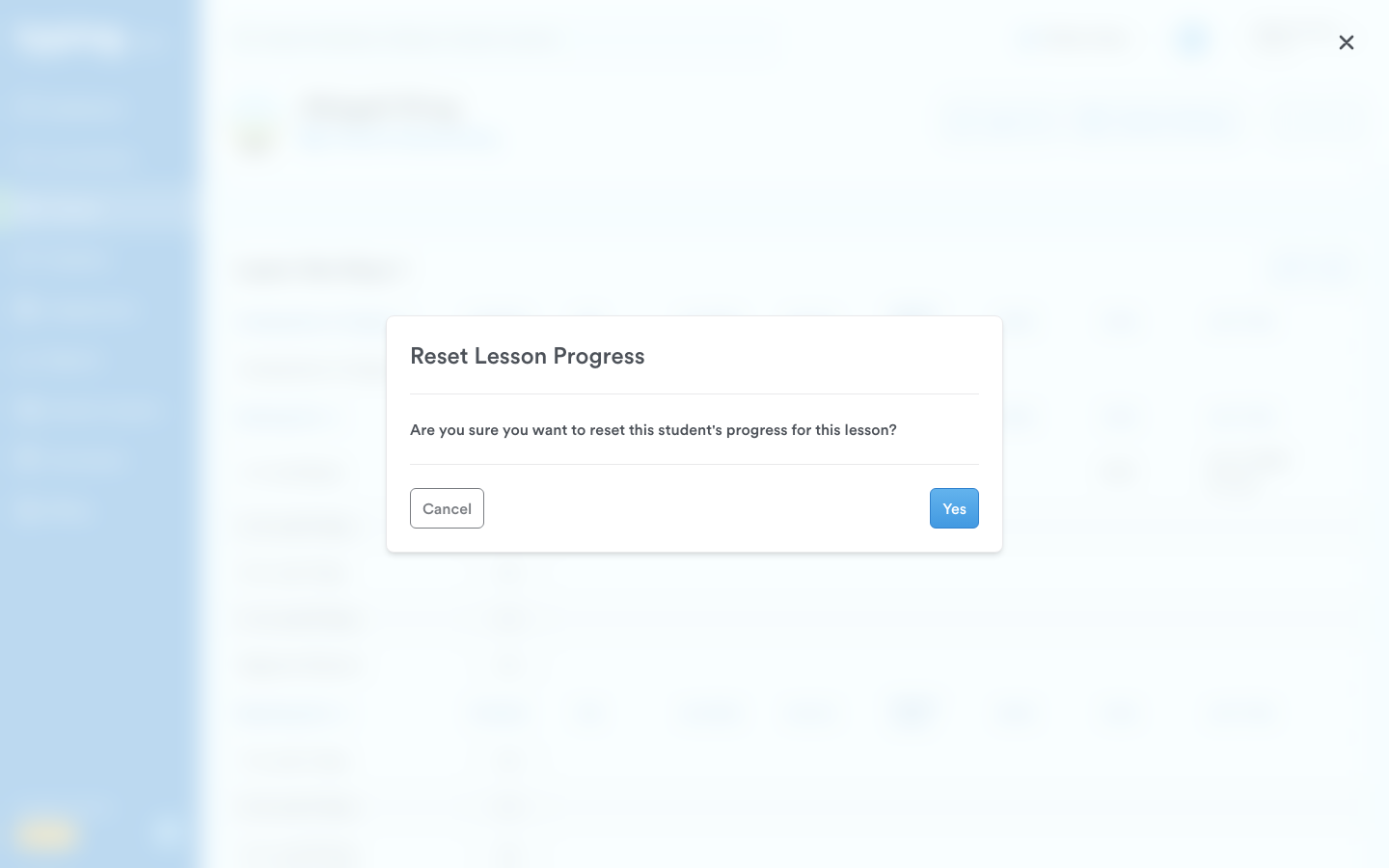
Step 4: A dialogue pop-up box will appear. Click Yes to finalize this action. This action cannot be undone.
That's it! Now you know how to reset students' account and lesson progress. Keep up the great work in supporting your students' learning journey! 😊