

Sync With Google Classroom (Teacher)
Syncing your Typing.com account with Google Classroom is a breeze! This powerful integration allows you to easily import and manage your Google Classroom classes within Typing.com, providing a centralized and seamless experience for both you and your students. Follow these simple steps to get started and make the most of this fantastic feature.
Pro-Tips
Ensure you log in to your Typing.com account using your Google credentials.
Verify that the email in your Typing.com account matches your Google account email.
After linking your account to Google, a Sync with Google Classroom button appears at the top of the Classes page, with the date of your last sync beside it.
Step 1: Log in to your Teacher Portal HERE and click Google under Log in with:.

Step 2: Click Classes in the left-hand menu.

Step 3: Click Sync with Google Classroom.

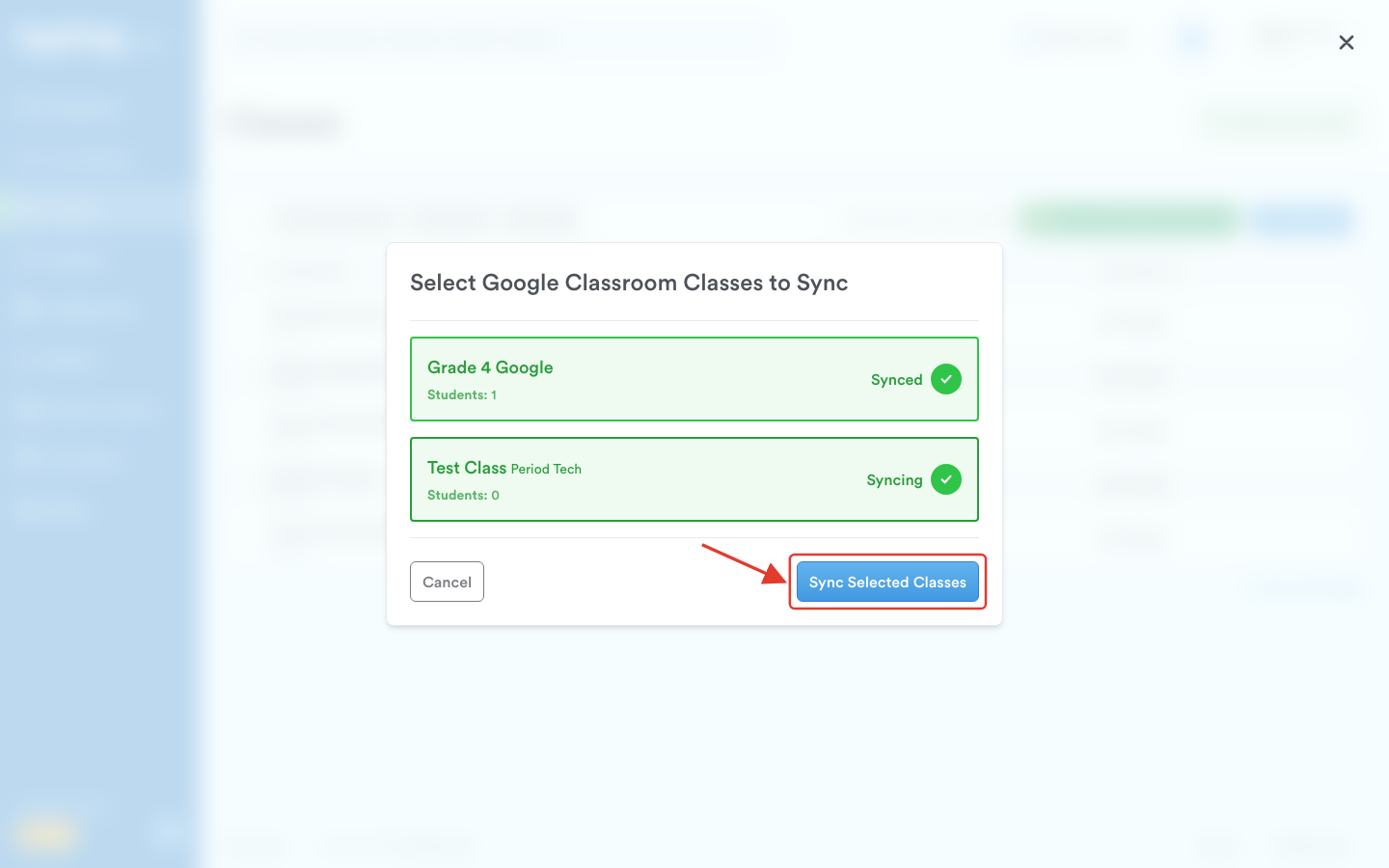
Step 4: A window opens, headed Select Google Classroom Classes to Sync, with one card for each of your Google Classroom classes. Click the card of every class you want to bring in; it turns green and reads Syncing. A class you have already synced is green and reads Synced.
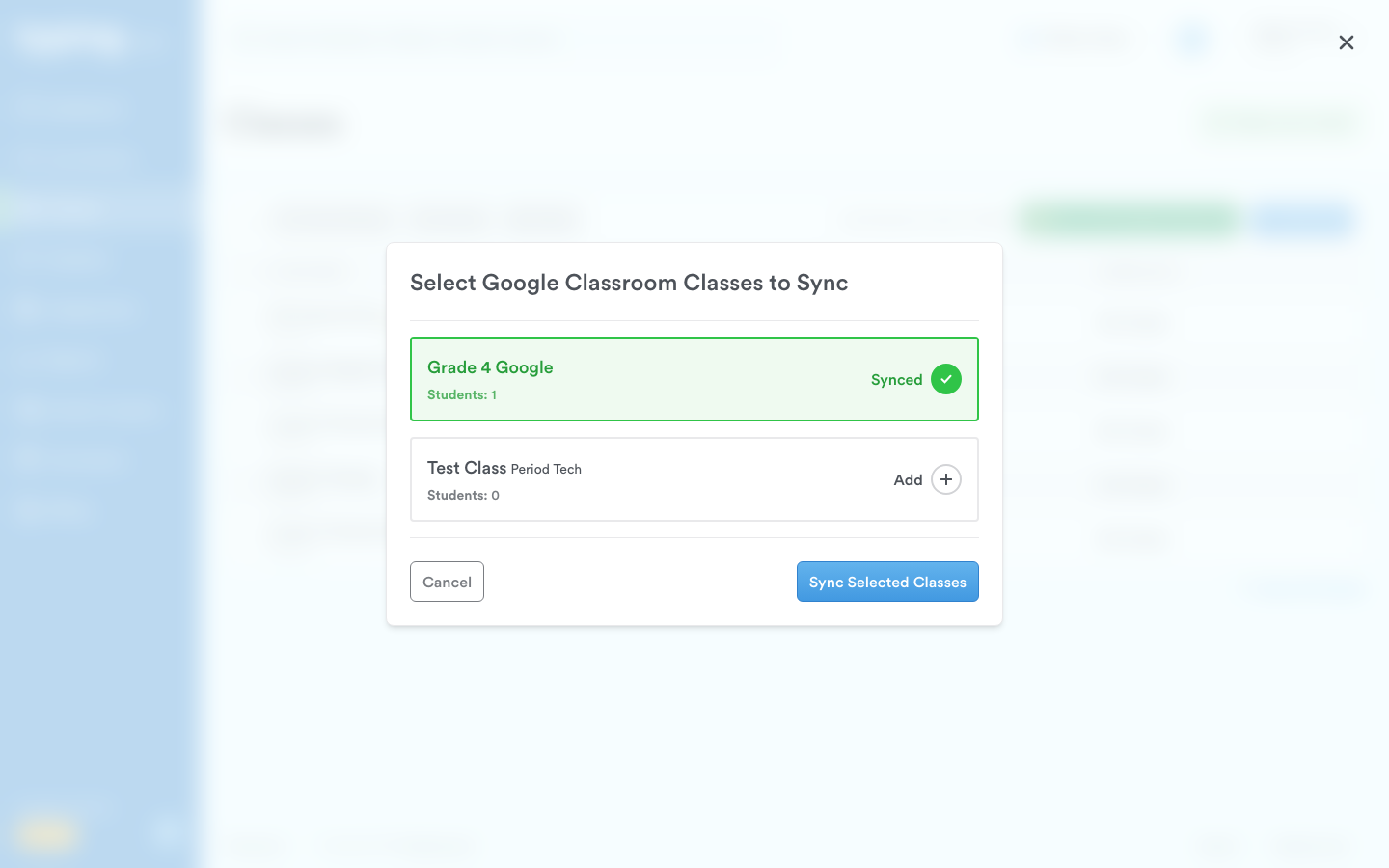
Step 5: Click Sync Selected Classes.
Pro-Tip: Ensure students have accepted the invitation to join your Google Classroom class. If they haven't accepted yet, they will not appear in your Typing.comclass.
Removing Classes Synced With Google Classroom
Step 1: Log in to your Teacher Portal HERE with Google.
Step 2: Go to the Classes page.
Step 3: Click Sync with Google Classroom again.
Step 4: The same window opens. Click the green card of any class you want to take out of Typing.com; it turns red and reads Removing, and tells you that the students keep their progress and can still log in, but will no longer be in that class.
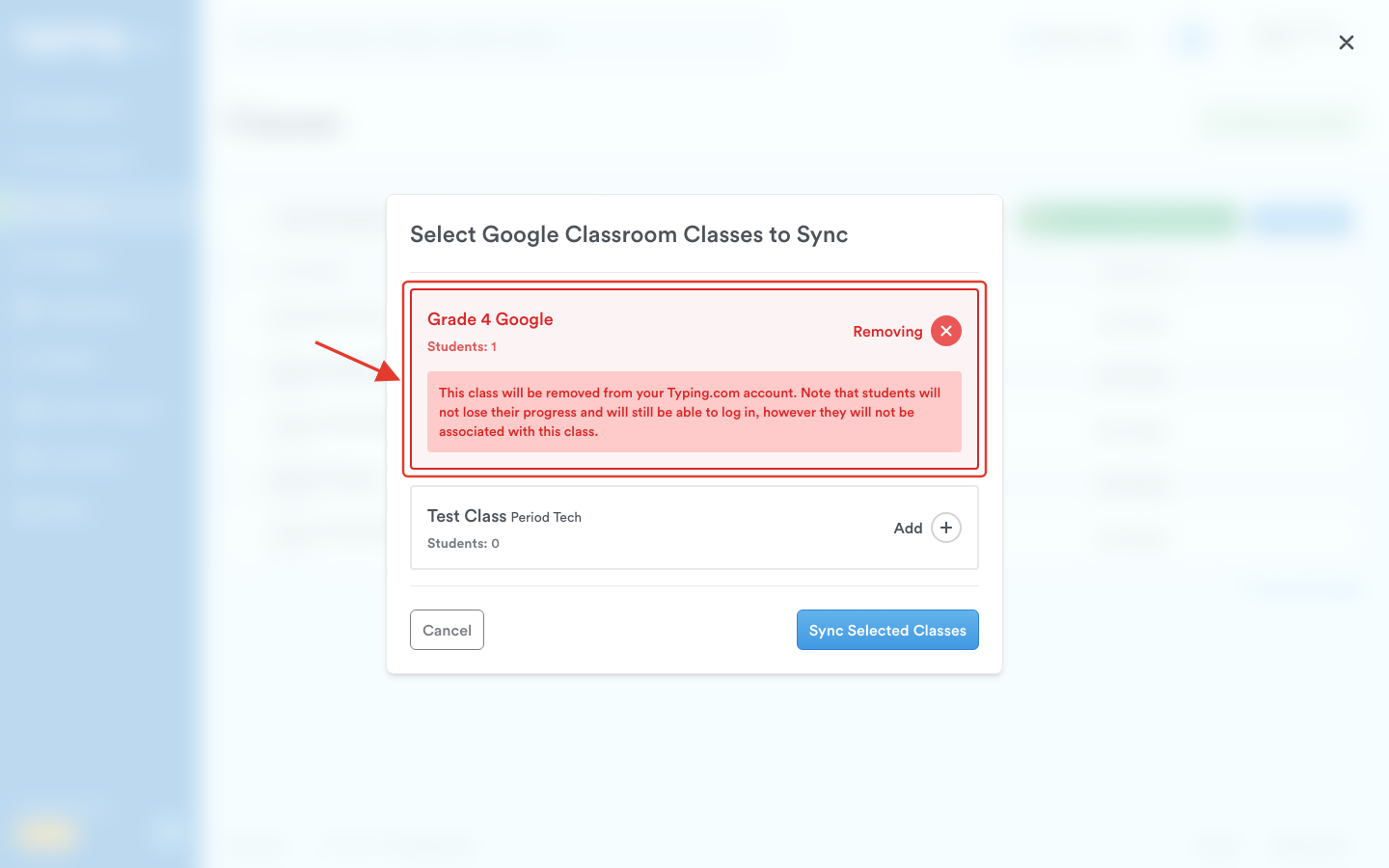
Step 5: Click Sync Selected Classes.
That's it! Now you know how to sync your classes with Google Classroom. Enjoy the convenience and efficiency of managing all your classes in one place. 😊