

Import a List of Students to Your Account (Teacher)
Welcome to your guide on importing a list of students to your Typing.com account! This process is straightforward and will help you get your class roster set up in no time. Follow these steps to ensure a smooth import and get your students ready to learn.
Before You Import
Pro-Tips for a Successful Import:
To import a list of students you need a file in Comma Separated Values (.csv) format with the exact column headers Typing.com expects. The quickest way to get one is to let Typing.com hand you one, which the import panel offers, or follow Create a File Using the Comma Separated Values (.CSV) Format (Teacher).
Usernames must be unique across all of Typing.com, not just your class. If you see an error saying a username is already in use, edit it. If "fernandocote" is taken, try cotefernando, fcote, fernandoc or ferco-2019.
A username can be up to 30 characters. It must begin with a letter and contain only letters, numbers, underscores and dashes, so check that your school domain does not push usernames over the limit or introduce a character the field will not take.
Including an email address for each student is not mandatory, but the email column header must be present in the CSV file.
Open the Import CSV Panel
Step 1: Log in to the Teacher Portal at https://teachers.typing.com/login.
Step 2: Click Classes in the left-hand menu.

Step 3: Click the name of the class you want to import into, or create a new class first.
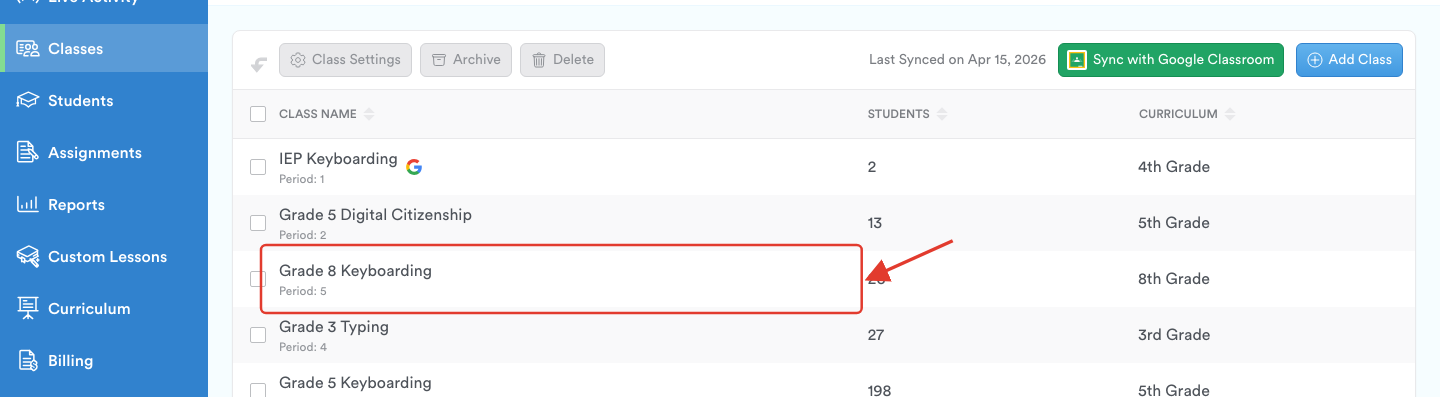
Step 4: Open the Students tab to see the class roster.
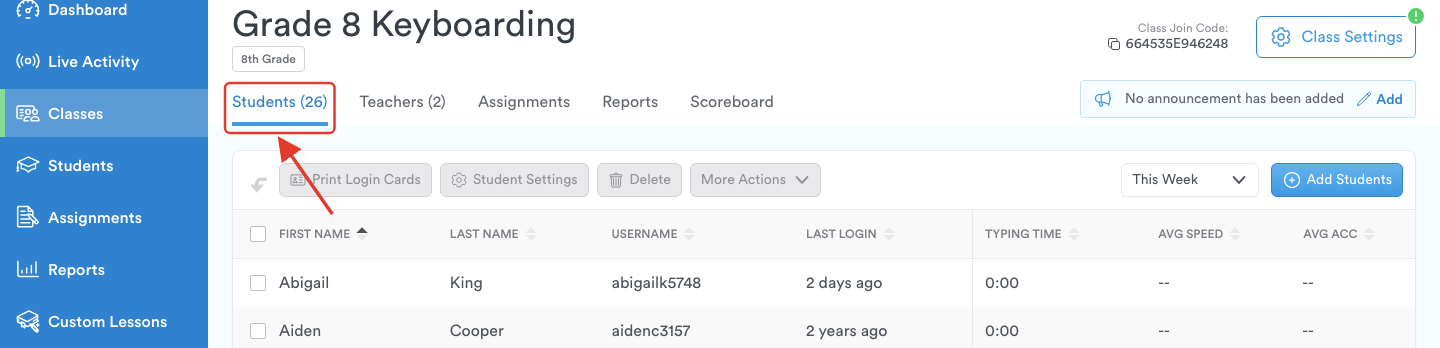
Step 5: Click Add Students, at the right-hand end of the toolbar above the roster.

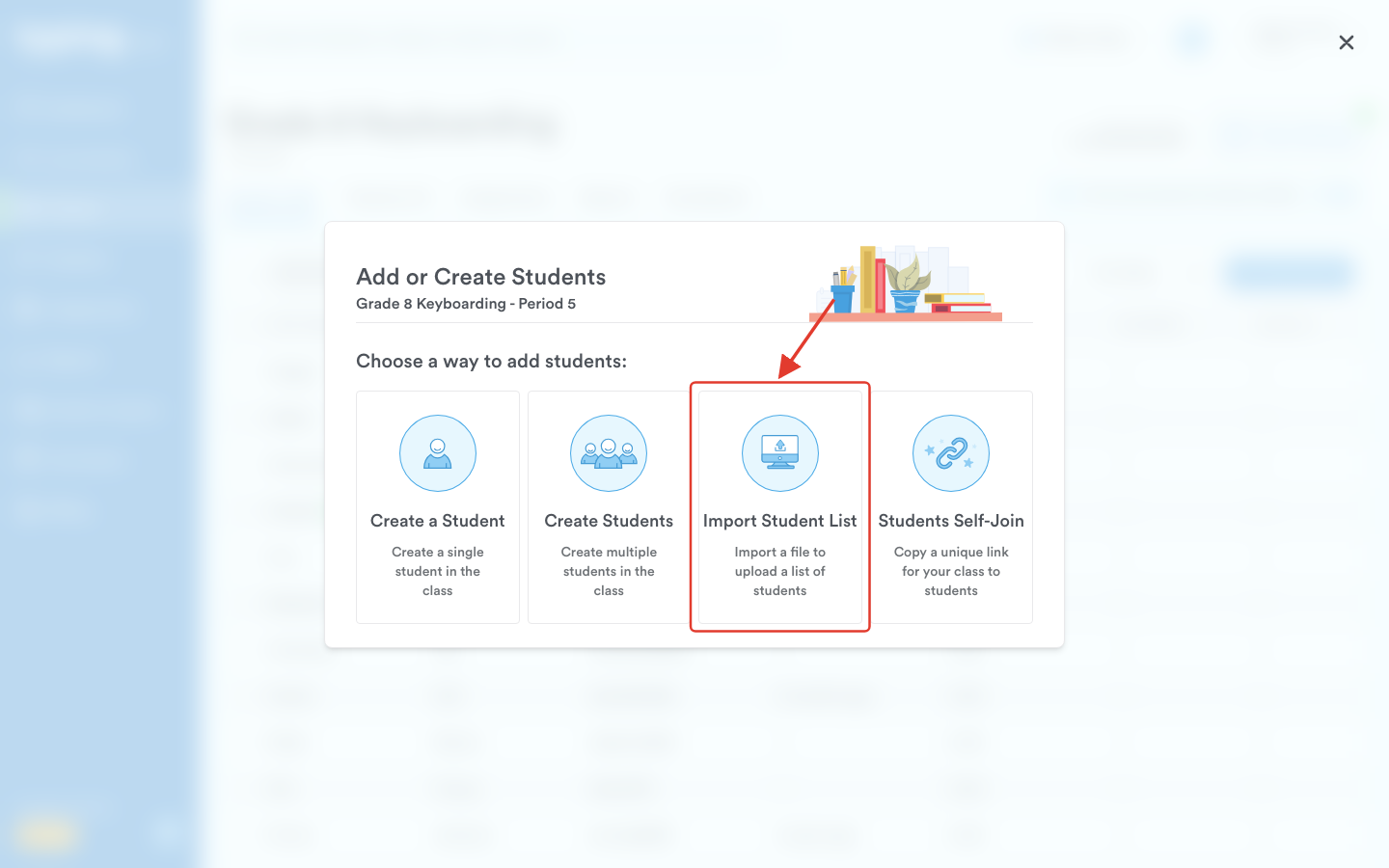
Step 6: The window Add or Create Students opens with four cards. Click Import Student List.
Step 7: The Import CSV panel opens. Click Choose File and pick your .csv file, or drag the file onto the panel.
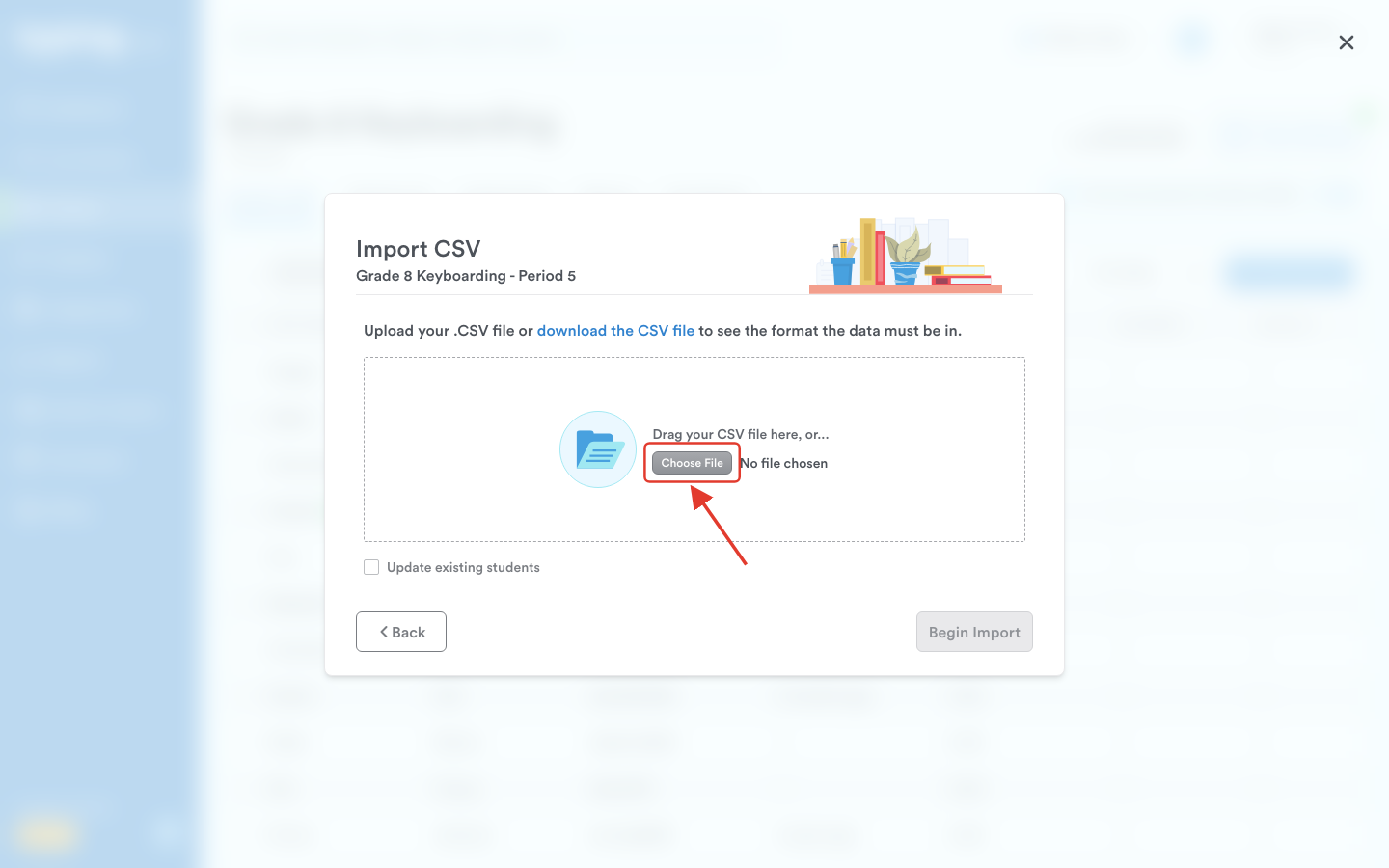
Pro-tip: If you do not have a file yet, click download the CSV file in this panel. Typing.com sends you sample_student.csv, already carrying the header row and three example rows, so you can replace the examples with your own students.
Pro-tip: Tick Update existing students if some of the people in your file already have Typing.com accounts. Their records are updated and they are placed in the class the import is for, instead of the import failing on a username that is already taken.
Whether your students can change their own name and password after they log in is a class setting: open Class Settings, go to Advanced Options and look under Account Settings.
What Your CSV File Must Contain
IMPORTANT:
The file must be in Comma Separated Values (.csv) format.
The first row in your CSV file must exactly match the following:
Student_Username,Password,First_Name,Last_Name,EmailEvery student needs a username, a password, a first name and a last name. Only the email address is optional.
A password must be at least 4 and at most 30 characters, and it is case sensitive.
One file can hold at most 200 students. Split a bigger roster and import it in batches.
If you are building the file by hand, Create a File Using the Comma Separated Values (.CSV) Format (Teacher) walks through it.
Begin the Import
Step 8: Click Begin Import. It stays grayed out until you have chosen a file.
Step 9: Typing.com checks the file and shows you every row before anything is created. If nothing is wrong, click Add Students to finish.
If a row has a problem, the panel flags the cell in red and offers a Re-upload CSV file link. Correct the file and upload it again.
The review table lists every student's password on screen, so it is worth doing the import somewhere your class cannot see it.
That's it! You have successfully imported your list of students to your account. Now your students are ready to start their typing journey. 😊