

Read Aloud: Having Lessons Read to You
Typing.com can read your lessons out loud while you work. This article shows you how to turn Read Aloud on, where its controls are once you are in a lesson, and how to change how much it reads, how loud it is and how fast it goes.
Turn Read Aloud on for your account
Step 1: Log in to your account here.
Step 2: Click your name in the top right corner, then click Account Settings.
Step 3: Scroll down to the Accessibility card. Under Seeing you will find Read Aloud, which reads lesson instructions, letters and finger placement tips out loud to you. The switch reads On or Off on its face, and flipping it is the whole action - there is nothing to save.

The Read Aloud control in a lesson
Step 1: Start any lesson from your lesson list.
Step 2: Look along the top of the lesson. Three controls sit there: Redo, Sounds, and one that prints its own state - it reads Read Aloud On or Read Aloud Off.

Step 3: Click it. A window headed Read Aloud Settings opens. The first time you reach a lesson, that same phrase appears under the control for a few seconds, so you can spot it.
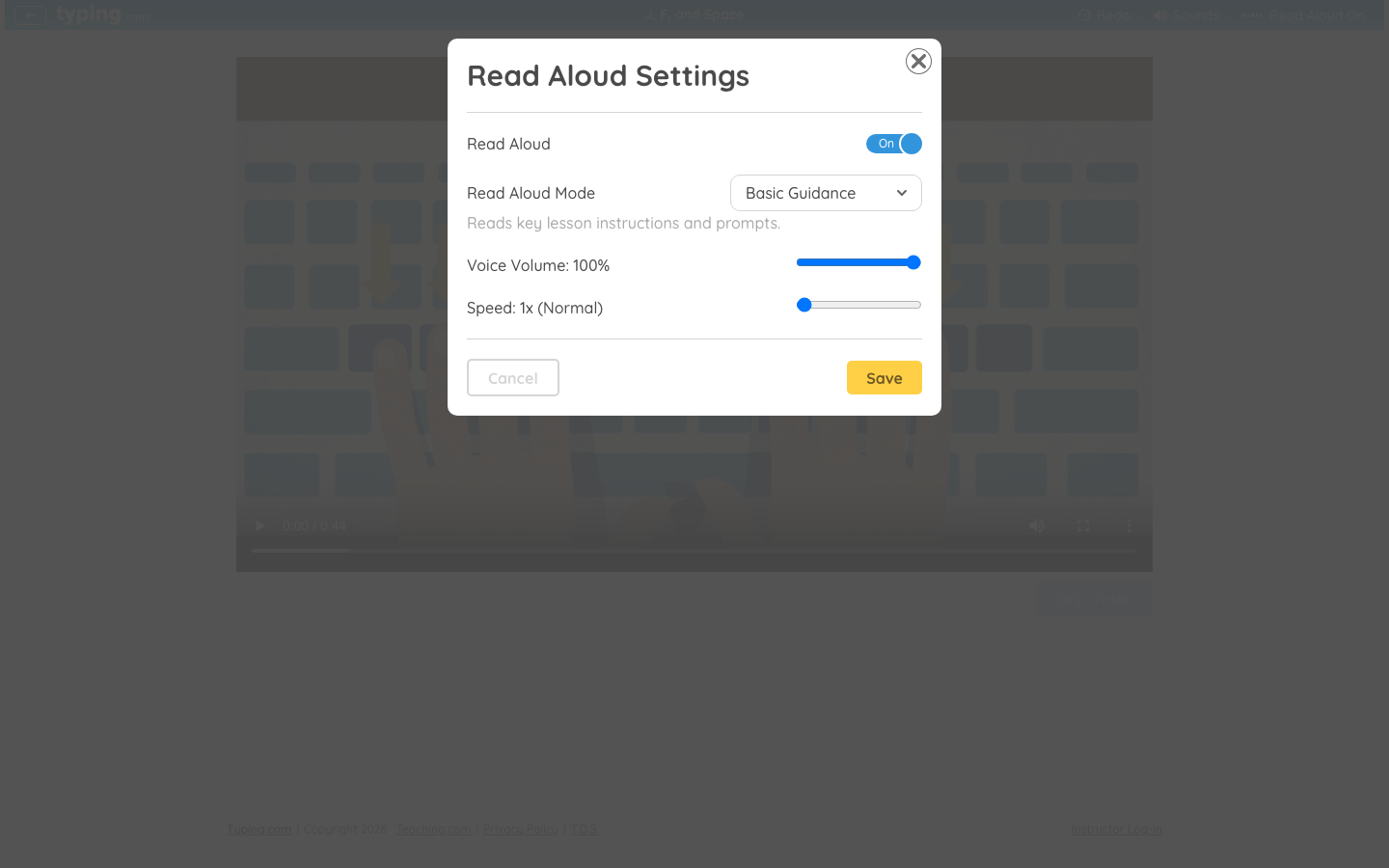
The first row of the window is a Read Aloud switch. While it is Off the rest of the window stays hidden, so turn it on to reach the settings below it.
Choose how much it reads
Read Aloud Mode decides how much the voice says. There are three choices, and the gray line under the dropdown describes whichever one you are on.
Basic Guidance - reads key lesson instructions and prompts.
Guidance + Words - reads lesson instructions and speaks words as you type.
Fully Guided Typing - reads lesson instructions, letters and finger placement tips.
Read Aloud Mode is offered on lesson screens that have words for the voice to guide you through, so on some screens the window carries the switch, the volume and the speed and nothing else.
Voice volume and speed
Voice Volume is a slider from 0 to 100, and the percentage in its label follows the slider as you move it. Speed has three settings: 1x (Normal), 1.5x (Fast) and 2x (Super Fast).
Click Save to keep your choices, or Cancel to leave things as they were.
If your theme comes with a character voice of its own, the window carries one more switch, Use Default Voice, which swaps that character for the standard voice.
If you cannot find Read Aloud
Read Aloud is offered when your Website Language is US English or UK English.
If you are in a class, your teacher decides whether you can switch it. The class setting is called Allow student to toggle Read Aloud, and your teacher can find it here.
If clicking Account Settings puts you straight back on the lessons page, your teacher has turned off account changes for your class, so the switch cannot be reached there. Ask your teacher to turn it on for you.
Pro-Tip: Read Aloud is not the same as the key clicks you hear while typing. Those belong to Sounds, next to it in the lesson bar, which opens a Sound Settings window of its own.