

Read Aloud and Typing Sounds Options (Teacher)
Enhancing your classroom's learning environment is easy with Typing.com's customizable features! You have the power to allow students to turn typing sounds and Read Aloud on or off. Whether you prefer a quiet classroom or need to support students with verbal instructions, you can easily manage these settings. Let’s get started!
Step 1: Log in to your Teacher Portal HERE.
Step 2: Click on Classes.

Step 3: Open the class, then click the gear beside the class name to open Class Settings.

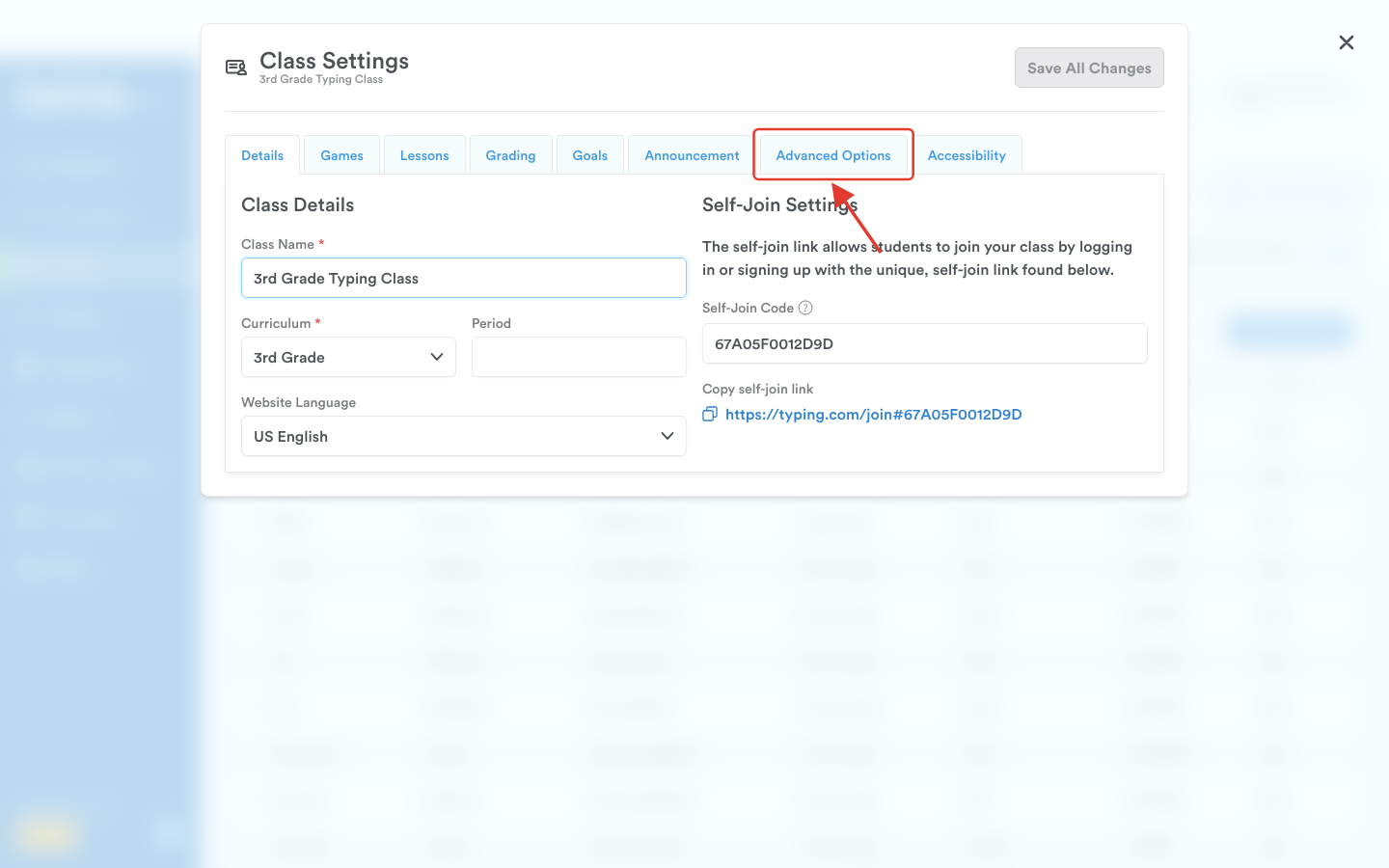
Step 4: In Class Settings, click on the Advanced Options tab.
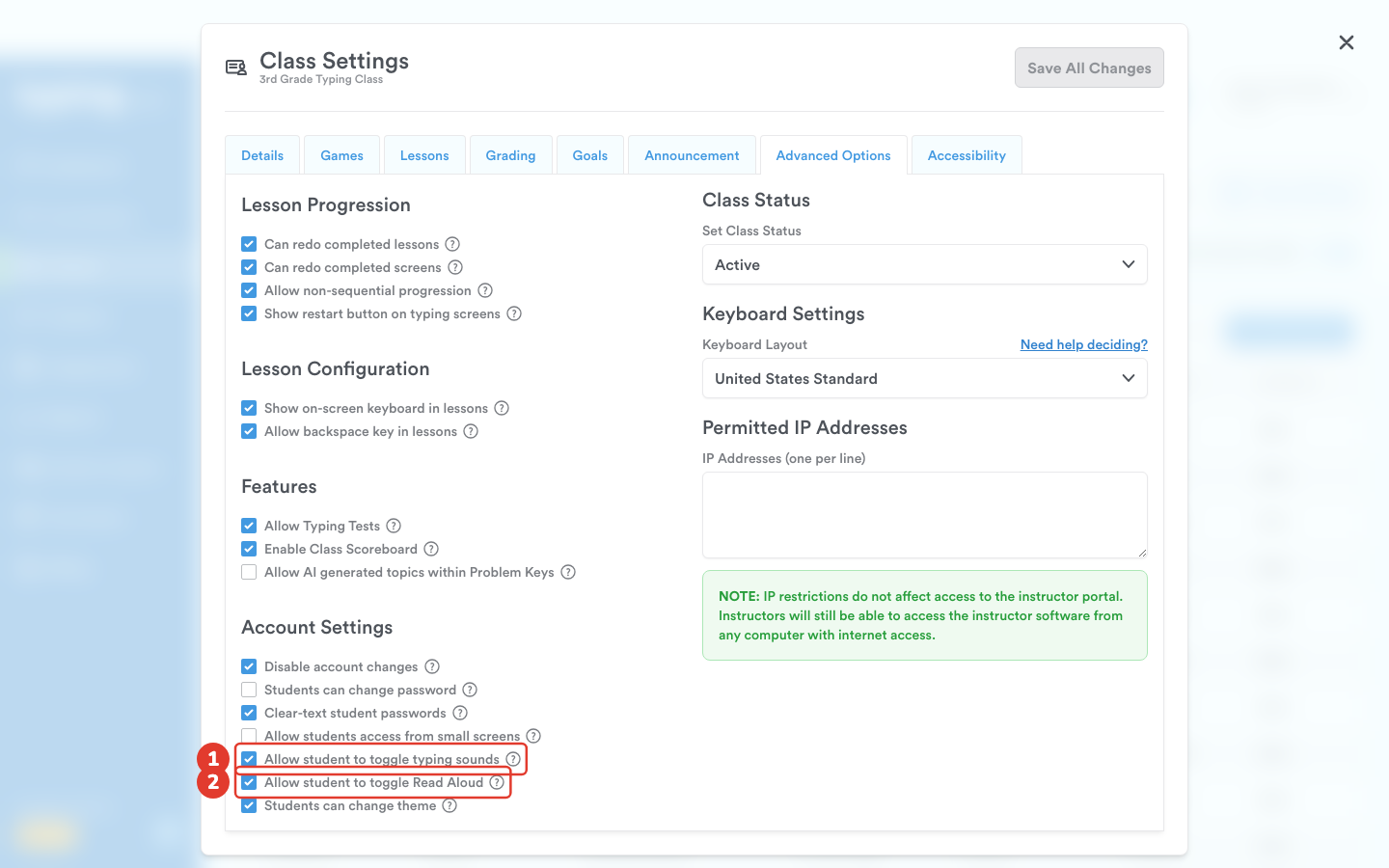
Step 5: Tick a box to allow it, untick to withhold it. Both of these decide whether students can switch the feature on and off for themselves:
Allow student to toggle typing sounds
Allow student to toggle Read Aloud
Step 6: Click Save All Changes.
Where students find these
Along the top of any lesson a student has Sounds, which opens Sound Settings - typing sounds and error sounds - and Read Aloud, which opens its own window with a Read Aloud switch, a Read Aloud Mode choice of Basic Guidance, Guidance + Words or Fully Guided Typing, and sliders for Voice Volume and Speed.
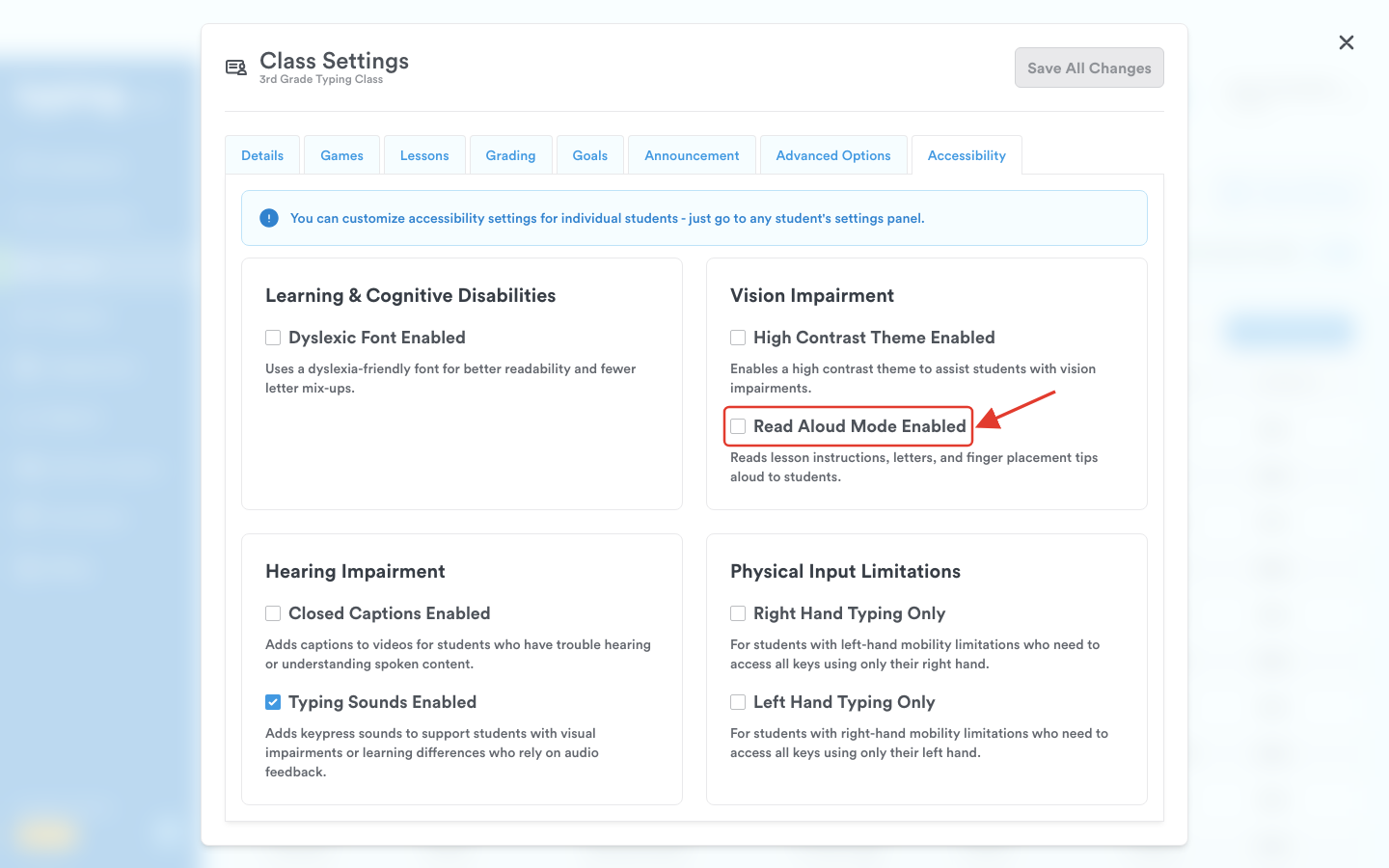
To switch reading aloud on for a whole class rather than leaving it to each student, use Read Aloud Mode Enabled on the Accessibility tab of Class Settings.
That's it! Now you know how to enable or disable typing sounds and Read Aloud for your students. Enjoy creating the perfect learning atmosphere in your classroom! 😊