

Change Your Keyboard Settings (Student)
If you ever find the on-screen keyboard or hands too distracting, you can change your settings to hide them. You can also change your keyboard layout. Continue reading to learn how!
Pro-Tip: If any of the settings are unavailable in your account, these means your teacher has restricted access to them. Please contact your instructor for further assistance.
Change Your Keyboard Settings in a Lesson
Step 1: Log in to your account here.
Step 2: Go to any of the lessons and click on Resume or Start.

Step 3: Once you're on a typing screen, look for Keyboard Settings - it's the small gear link at the top right of the on-screen keyboard, just above the keys.

Step 4: Click it and a small window opens where you can change:
Show Keyboard - show or hide the on-screen keyboard.
Show Hands - show or hide the hands over the keyboard.
Right Hand Only - shows just your right hand, for typing one-handed.
Left Hand Only - shows just your left hand, for typing one-handed.
Animated Hands - let the hands move as you type, or keep them still.
Keyboard Letter Case - show the keys in Uppercase or Lowercase.
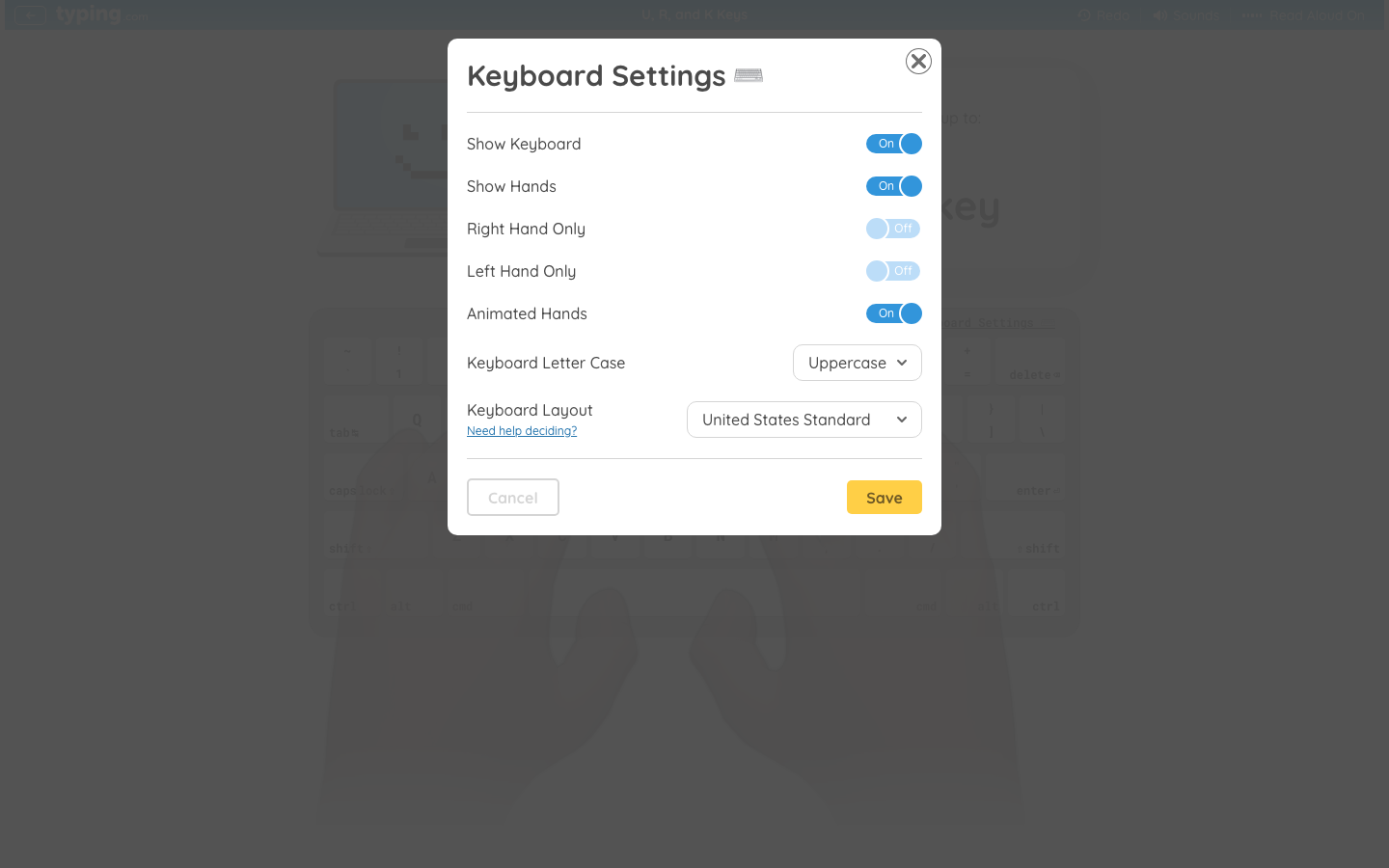
Step 5: Click Save to keep your changes, or Cancel to leave things as they were.
Sounds and Read Aloud
Two more controls worth knowing. Along the top of a lesson you'll also find Sounds, which turns Typing Sounds and error sounds on or off, and Read Aloud, which reads the lesson to you. Each opens its own window and has its own Save button, separate from Keyboard Settings.
Change Your Keyboard Layout
Typing.com offers 30 keyboard layouts to accommodate different languages, typing lessons, and user preferences - regional layouts as well as Dvorak and Colemak.
Step 1: Keyboard layout is set in your account settings. Click your name in the top right corner, then click Account Settings.

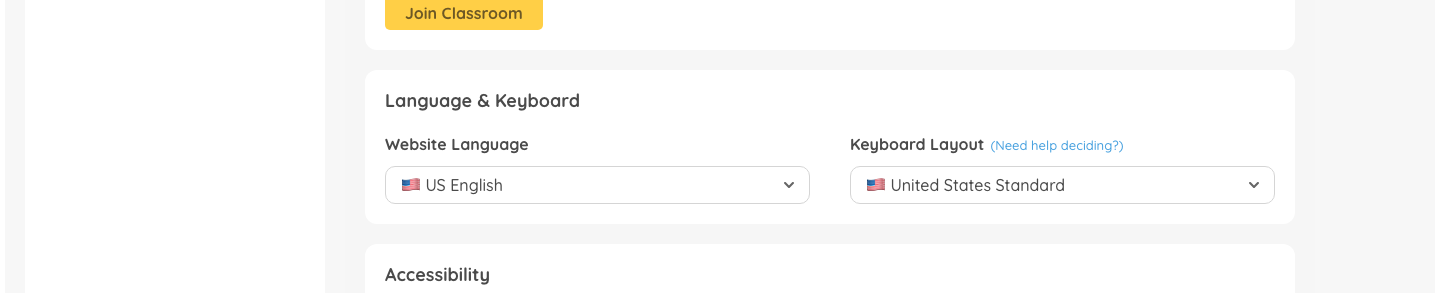
Step 2: Find the Language & Keyboard section, open the Keyboard Layout dropdown and choose the layout you need.
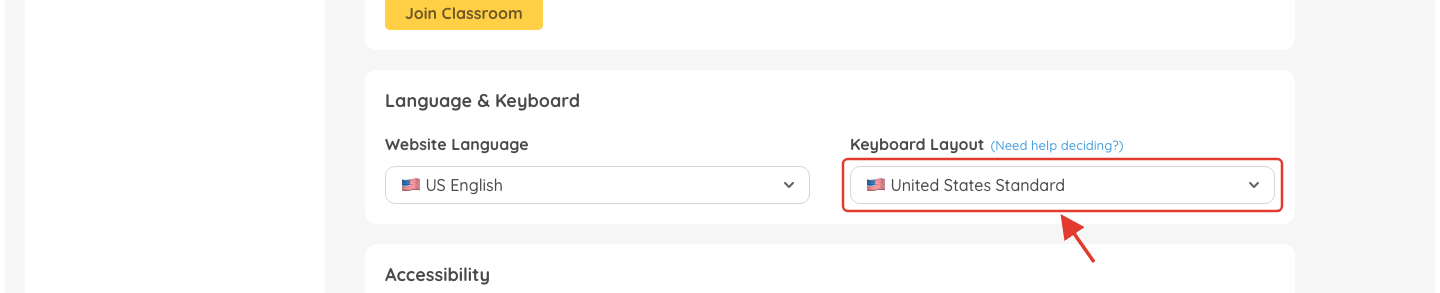
Step 3: That's it - your choice is saved as soon as you pick it.
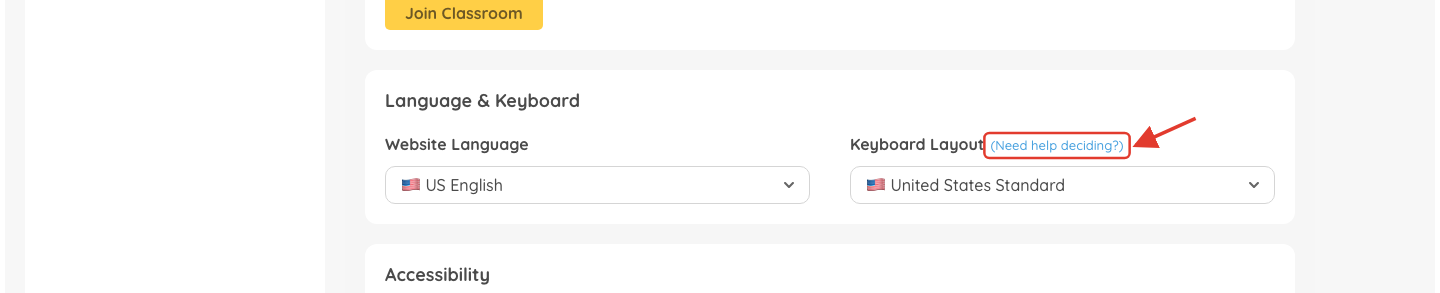
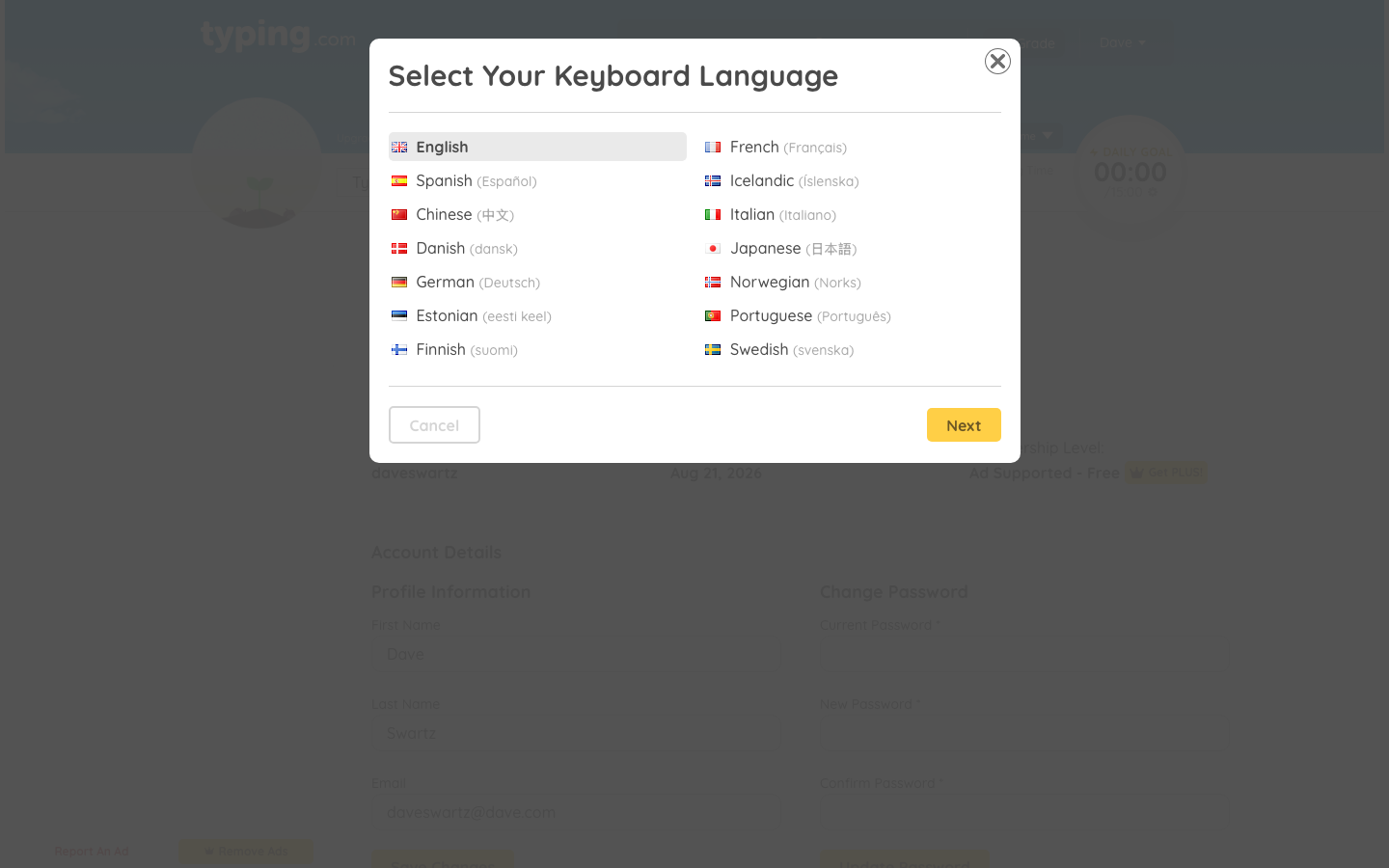
Need Help Deciding?: If you're unsure which layout to choose, click the (Need help deciding?) link next to Keyboard Layout and Typing.com will help you work it out.
Follow the Prompts: First pick your keyboard's language and click Next. Then you'll see a few pictures of key placements - choose the one that matches your keyboard and click Next again.
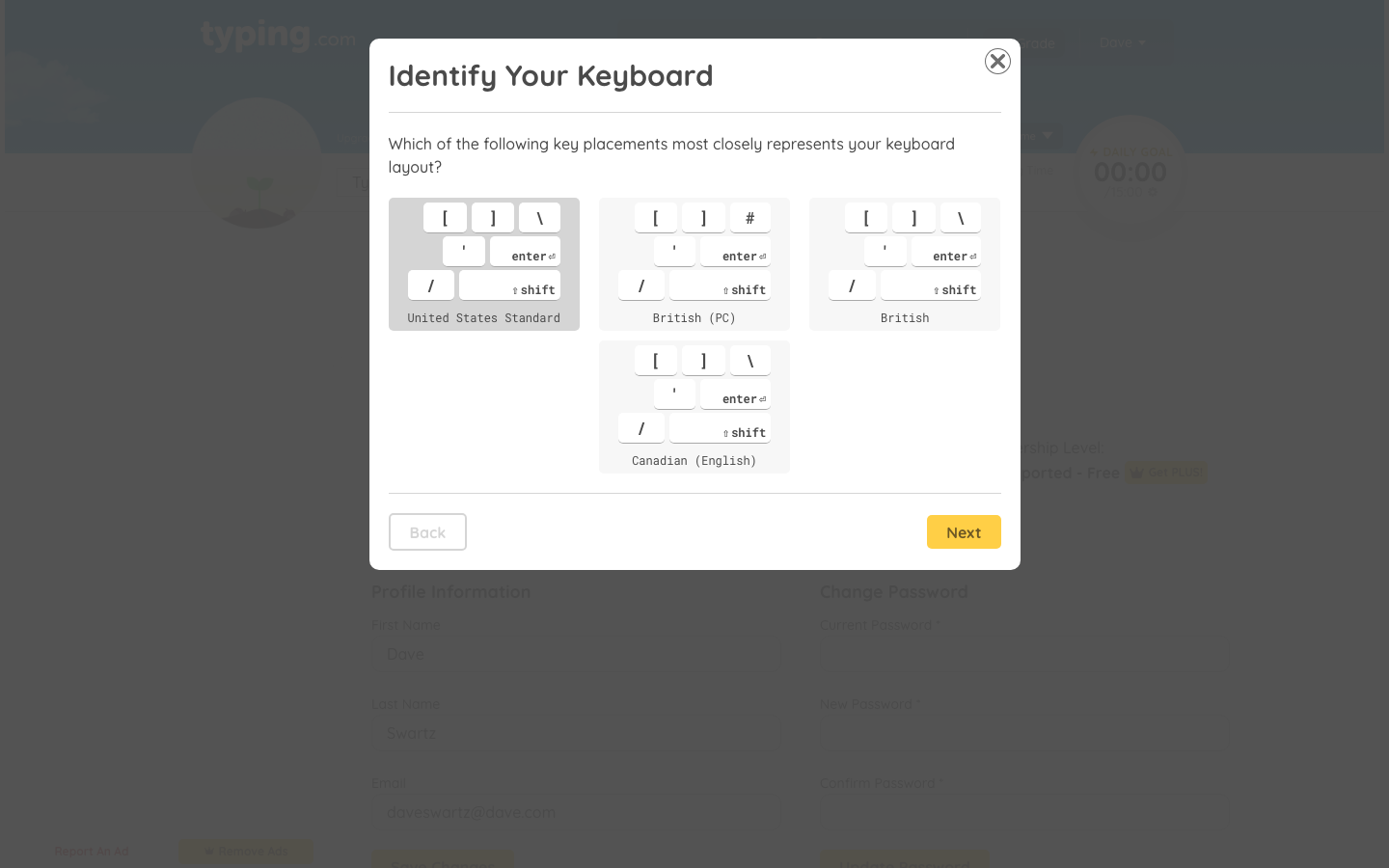
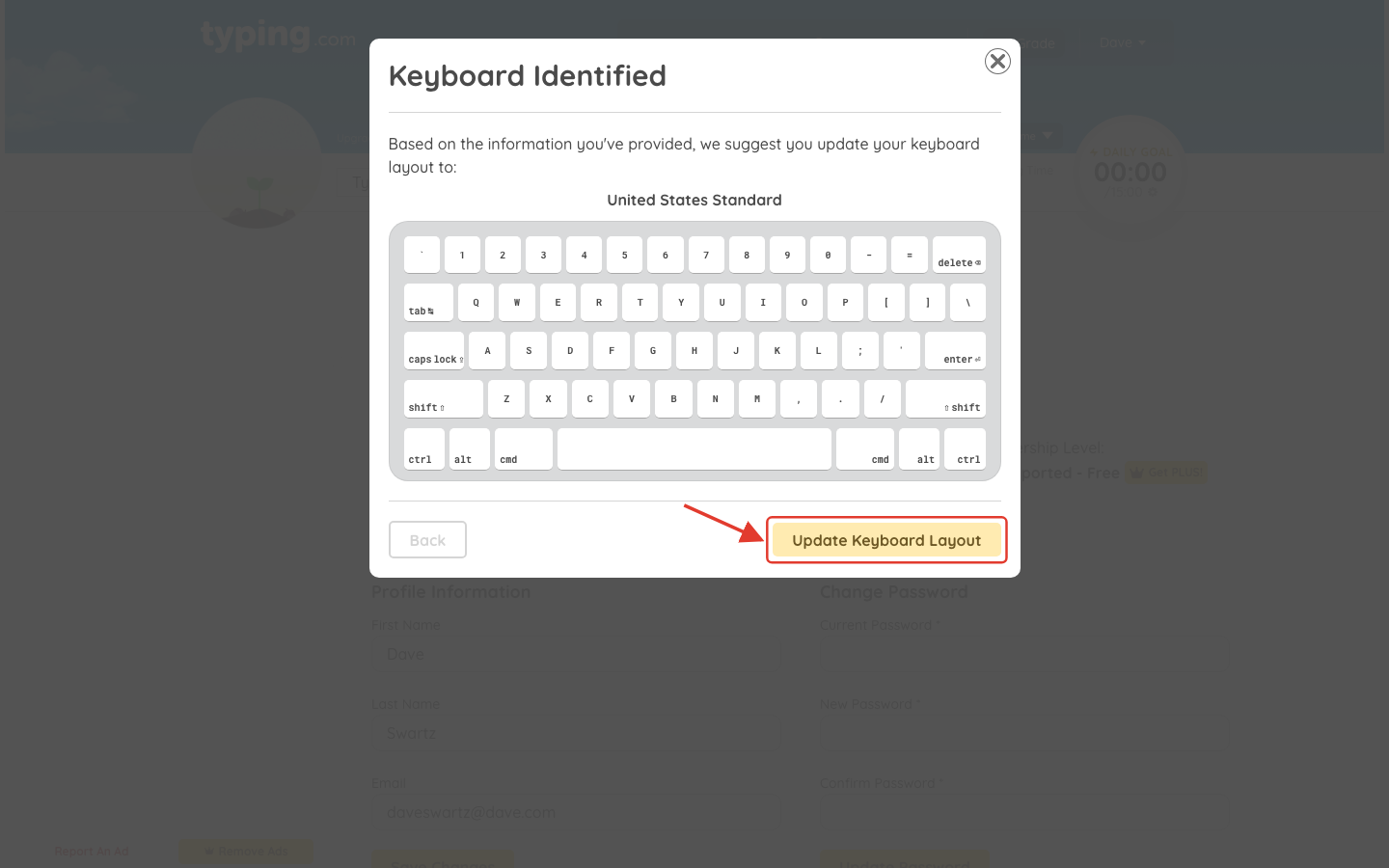
Update Keyboard Layout: After making your selections, click Update Keyboard Layout to confirm your choice.
Remember, it's essential to match the Typing.com keyboard layout with your computer's settings. If you encounter any issues or need further assistance, don't hesitate to reach out to our support team at support@typing.com. We're here to help you succeed!
Now you know how to change your keyboard settings. 😊