

How to Adjust Class Settings
Welcome to the ultimate guide on adjusting Class Settings on Typing.com! Whether you’re customizing lesson plans, setting grading criteria, or personalizing your class environment, we’ve got all the steps to help you create an engaging and efficient classroom experience. Ready to dive in? Let's make your Class Settings work for you and your students!
Accessing Class Settings
From the Classes list: tick the box beside the class you want to change. Class Settings sits above the table and stays grayed out until you do.
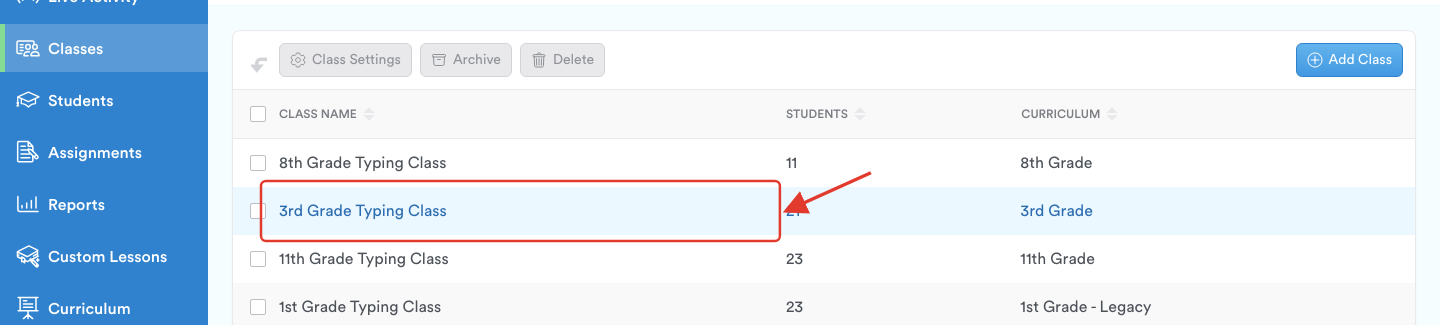
From inside the class: open the class and click Class Settings.

You will know you are in the right place when the window is titled Class Settings, with the class name underneath.
Pro-Tip: If a setting already looks set before you touch it, your school or district may have preset it. Admins can define Default Class Settings that apply to new classes, and to existing classes whose settings haven't been adjusted.
Tabs in Class Settings
Class Settings has eight tabs: Details, Games, Lessons, Grading, Goals, Announcement, Advanced Options and Accessibility.
'Details' Tab
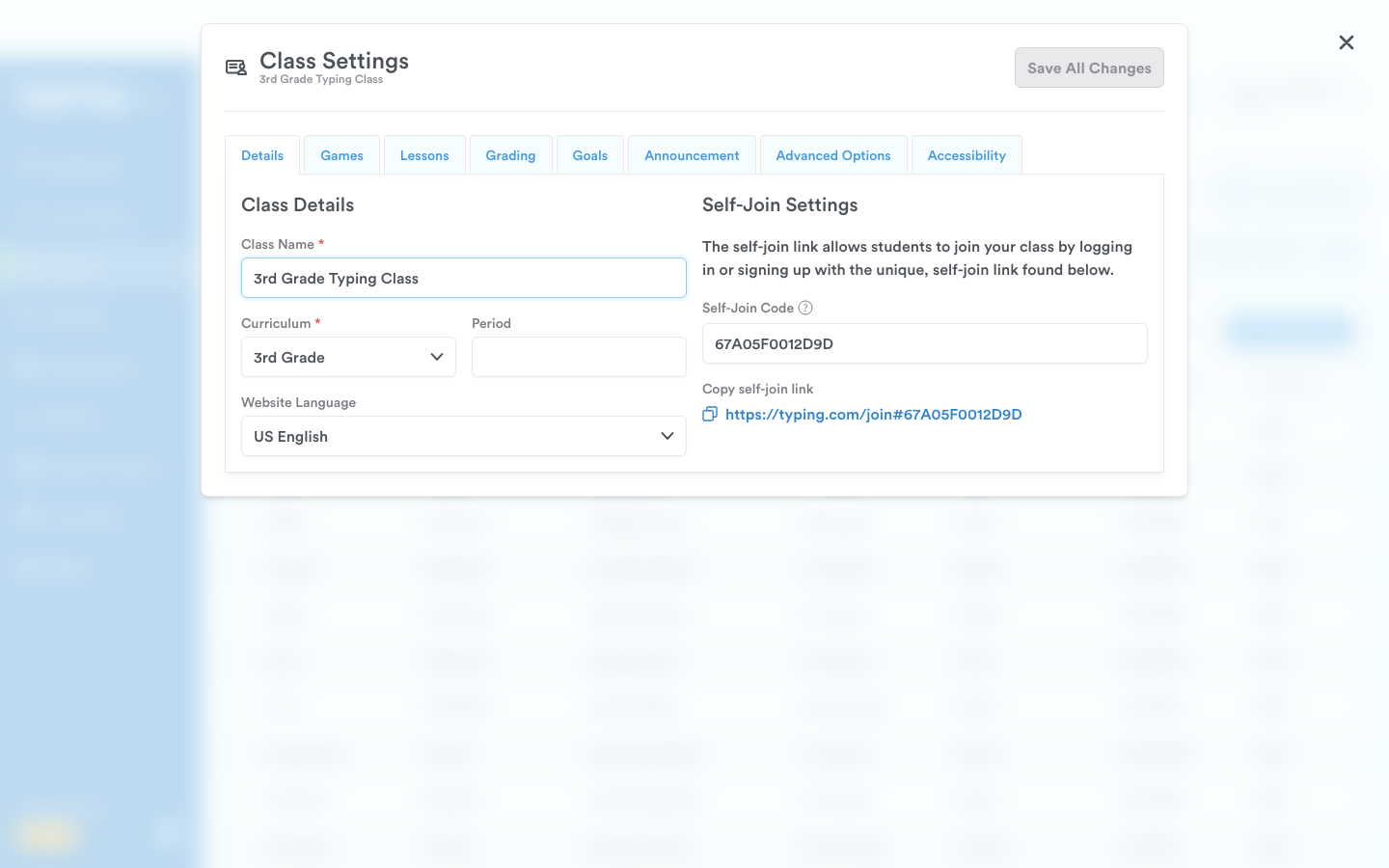
This tab contains all the essential information about your class, including the class name, curriculum, grade level, and website language. You can also set the class period and self-join settings, allowing students to join your class using a unique link or code.
'Games' Tab
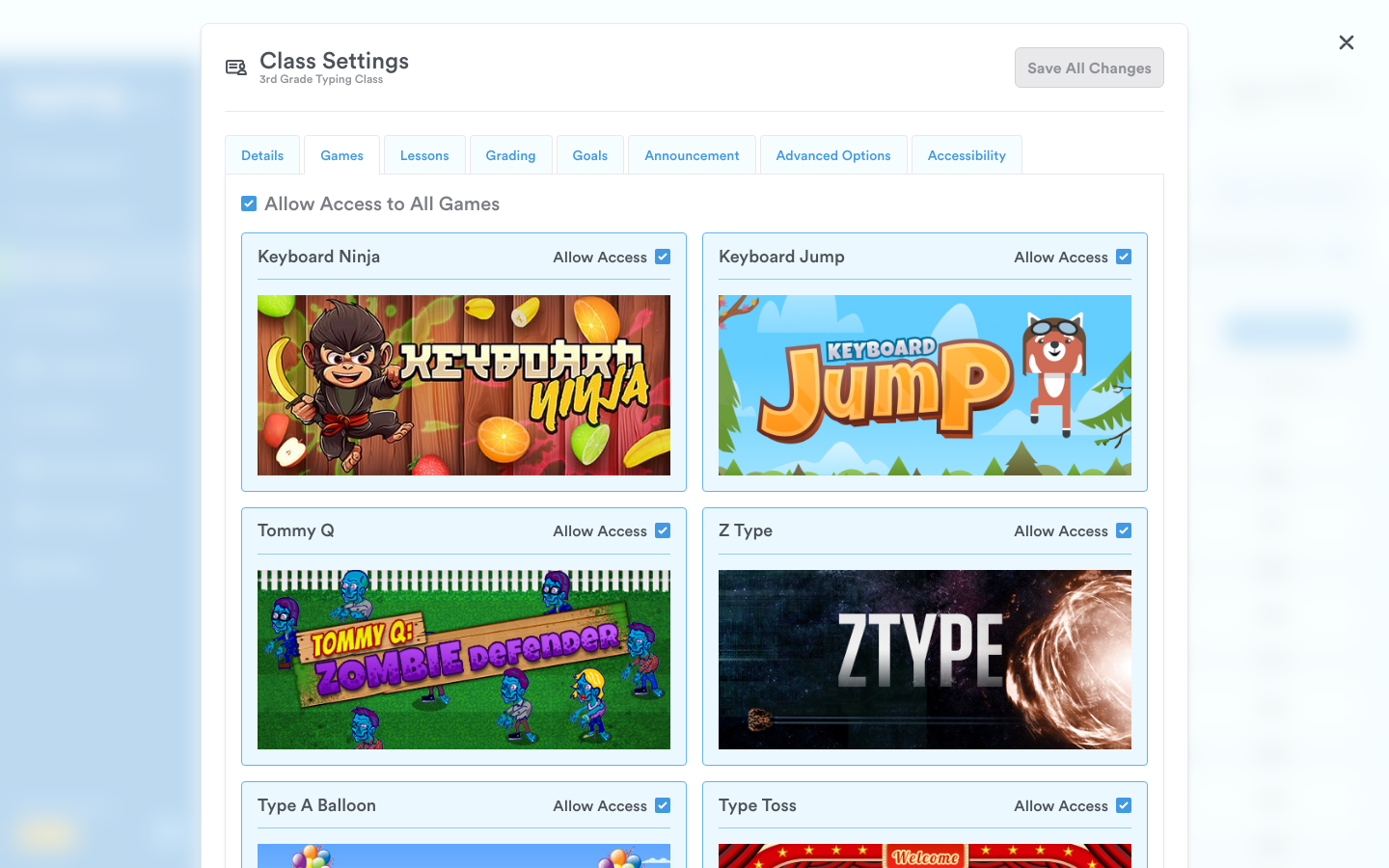
In this tab, you can manage access to typing games. By default, all games are available to students, but you can choose to restrict access to some or all games. Click HERE for a step-by-step guide on managing games.
'Lessons' Tab
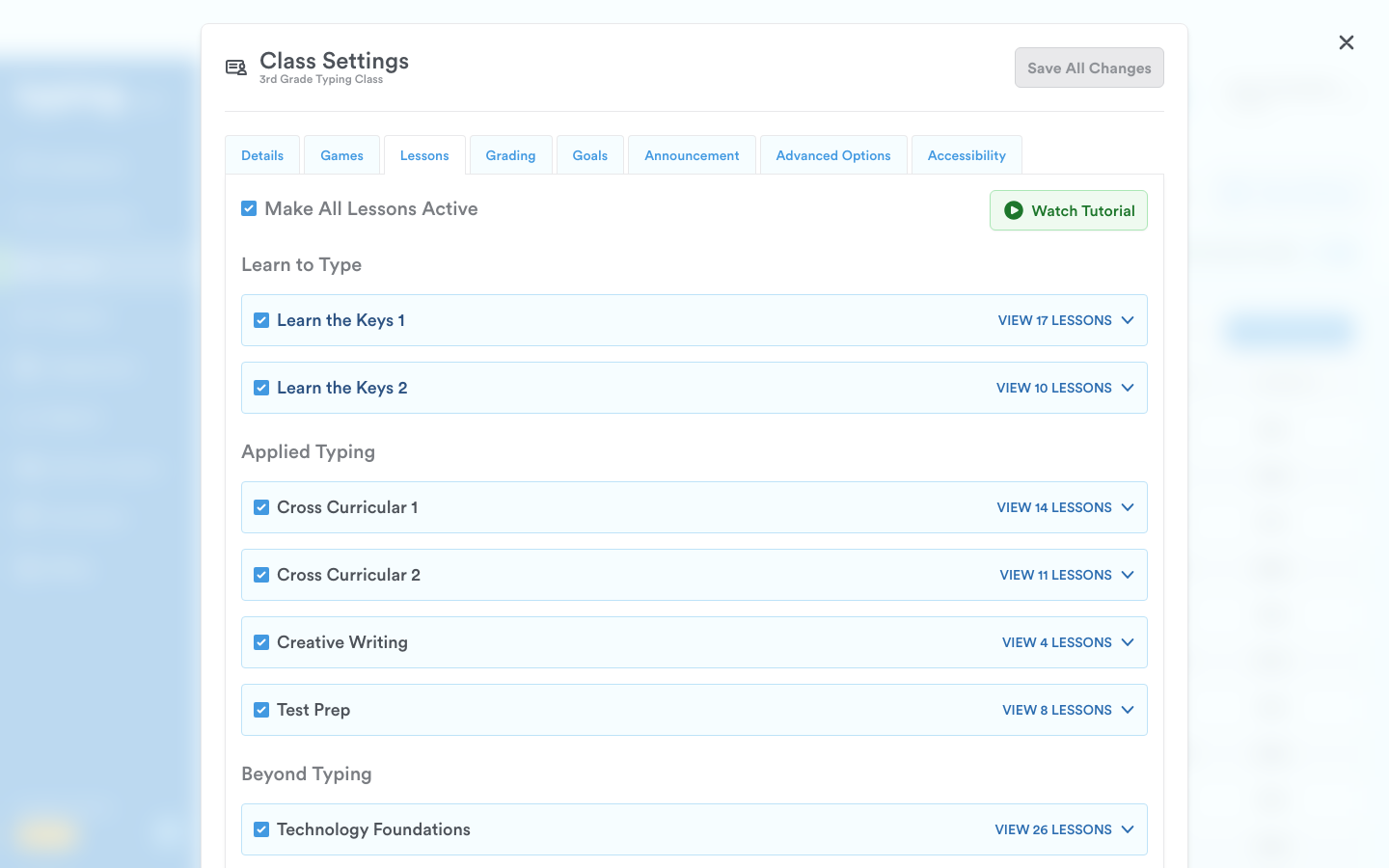
Here, you can manage which lessons are available to your students, including custom lessons. Ensure at least one lesson is active for students to access the curriculum. To learn more on how to manage lessons for your classes, click HERE.
'Grading' Tab
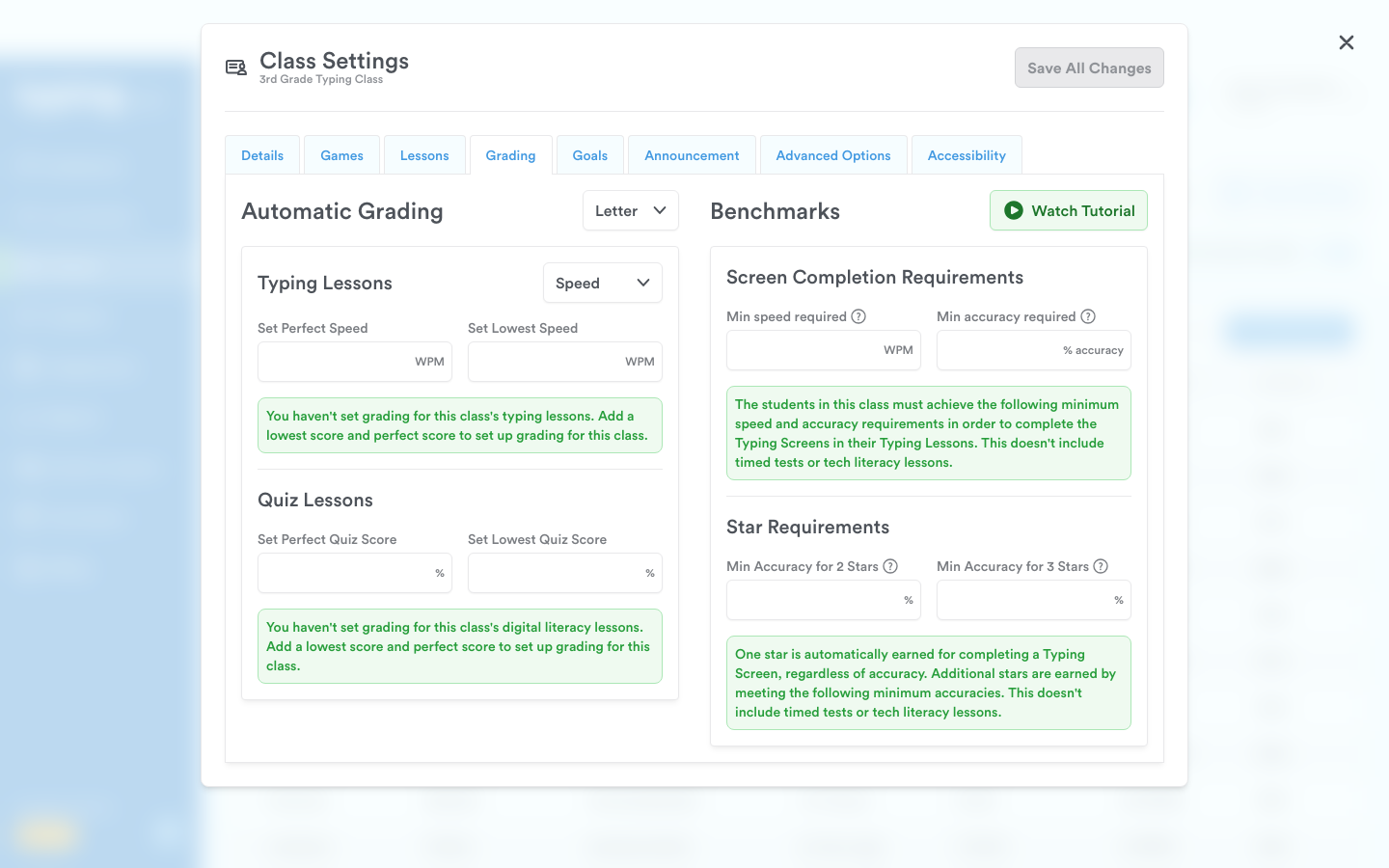
Exclusive to PLUS users, this tab allows you to customize grading criteria using either letter grades or points. You can set criteria for typing speed or accuracy and manage benchmarks for your students. Learn more about customizing your benchmarks HERE.
'Goals' Tab
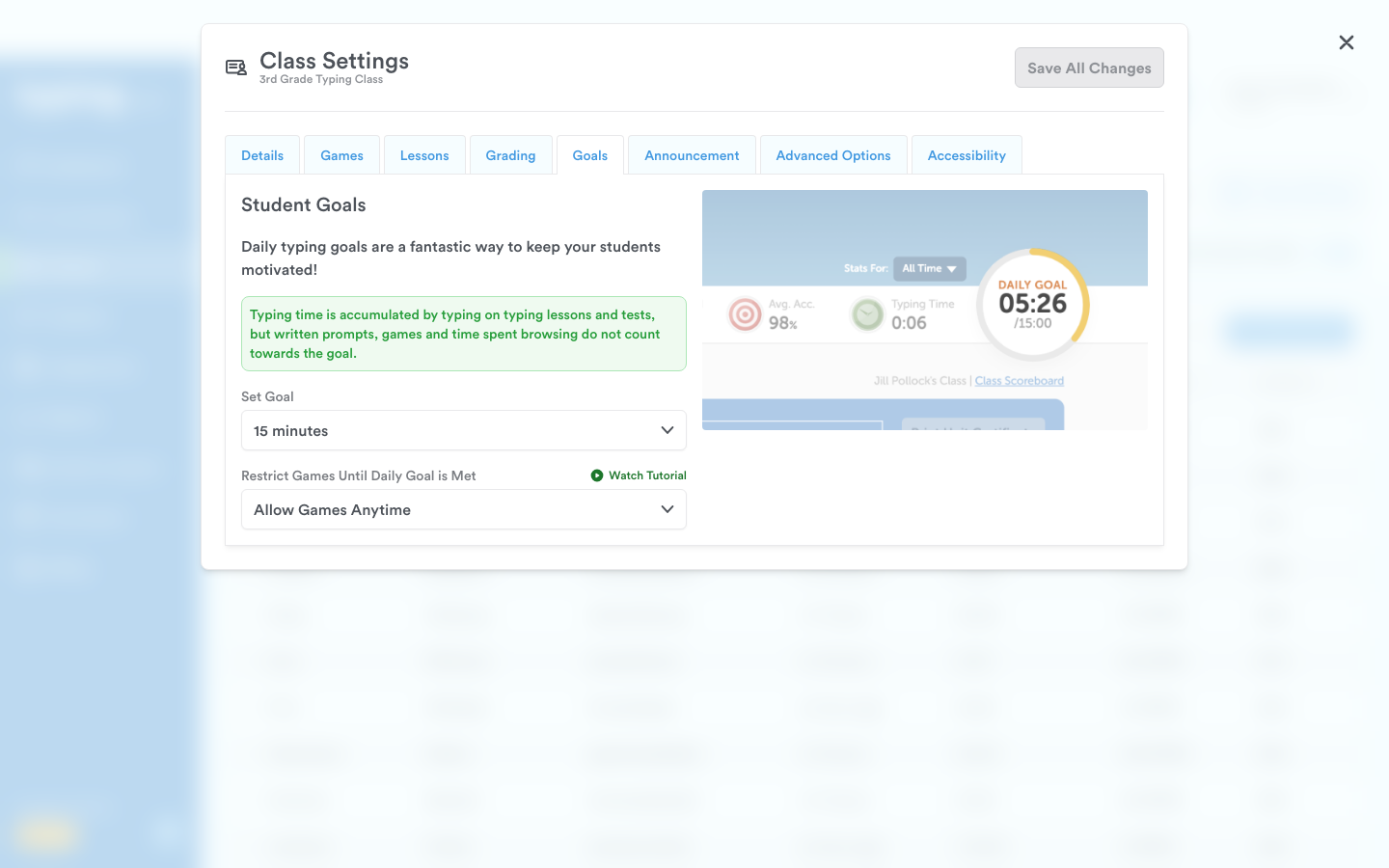
Also a PLUS feature, this tab allows you to set daily typing goals for your class or individual students, ranging from no goal to up to an hour in five-minute increments. Typing time is accumulated through lessons and tests, but not written prompts, games, or browsing. Underneath, Restrict Games Until Daily Goal is Met decides whether games are a reward or a distraction: leave it on Allow Games Anytime, or switch it to Restrict Until Goals are Met so students can only reach the games once they have hit their daily typing goal.
'Announcement' Tab
Write a custom announcement for your class - up to 500 characters - and it will show on the student dashboard whenever your students are logged in to Typing.com. Use it for motivational notes, lesson instructions or reminders.
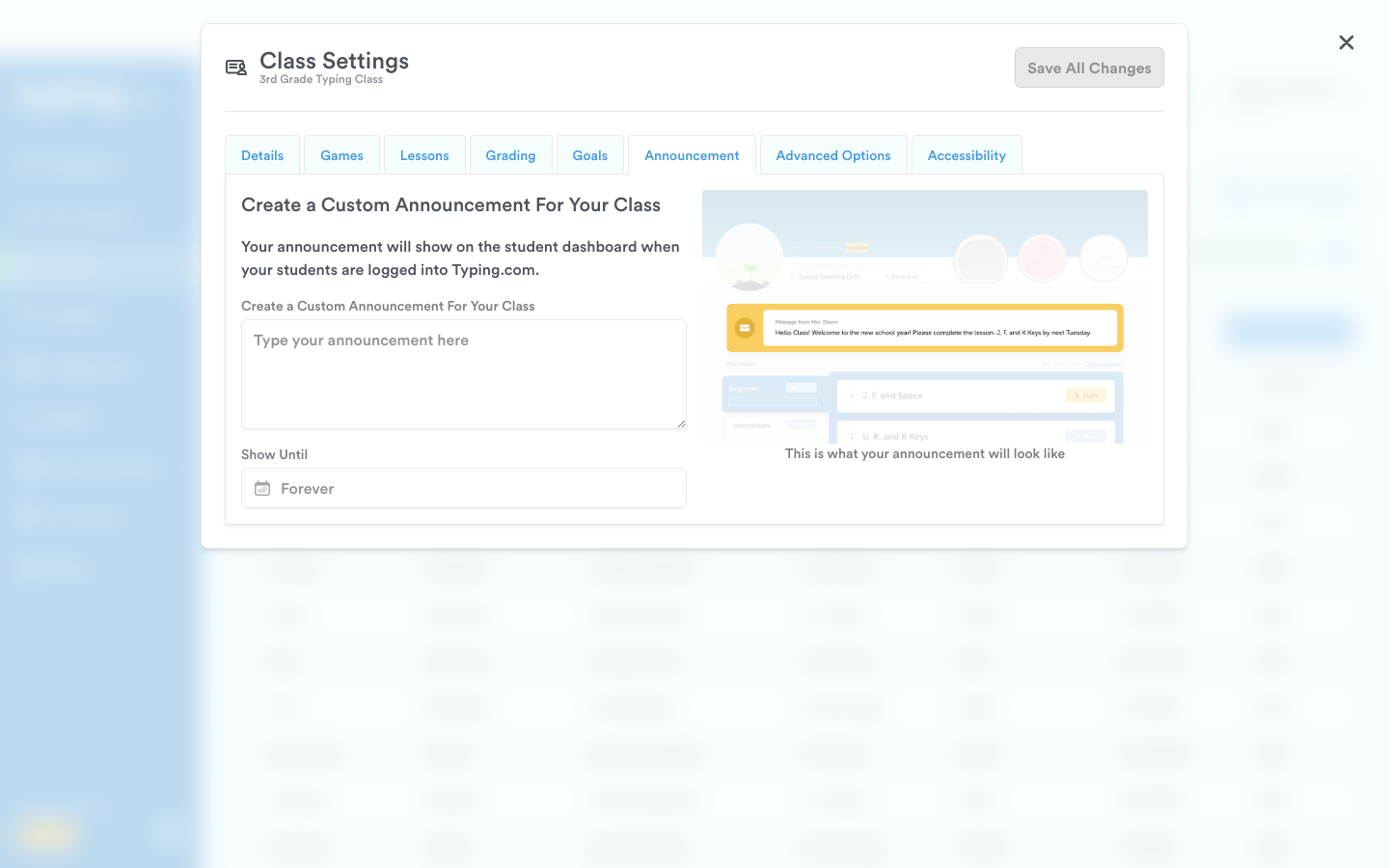
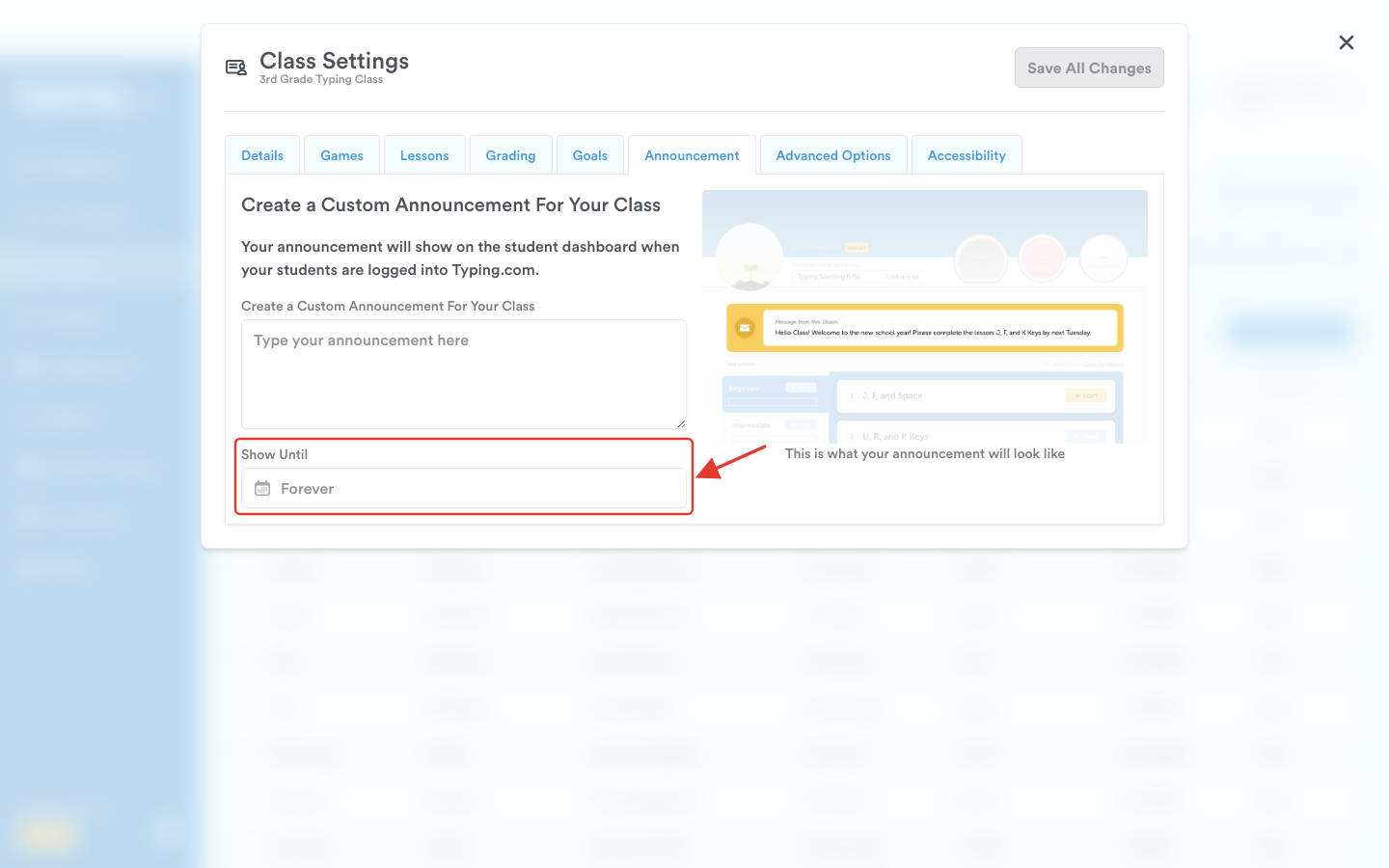
Set a Show Until date to control how long the announcement stays up. A preview underneath shows exactly what your students will see.
'Advanced Options' Tab
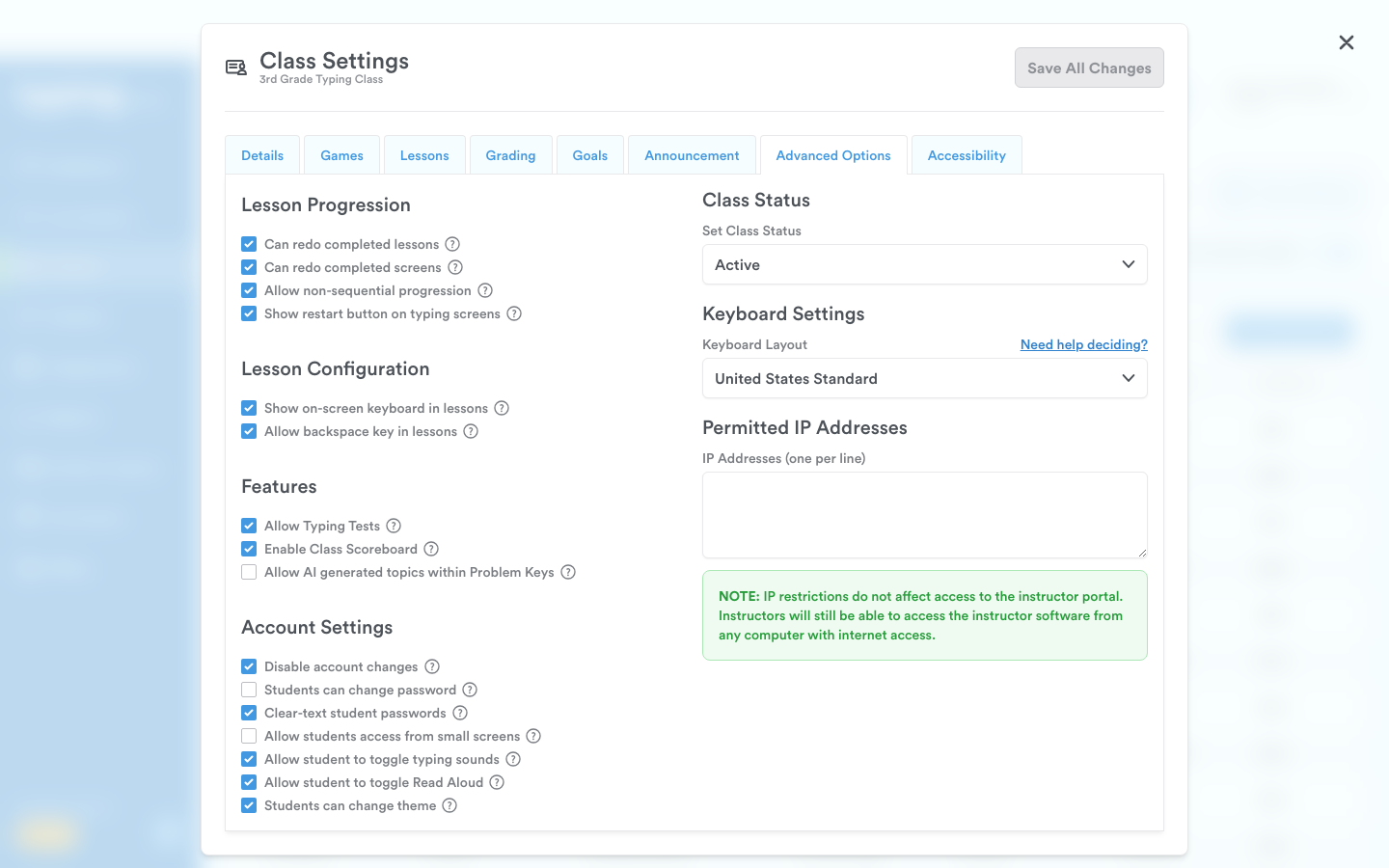
This tab contains various settings you can enable or disable to customize the learning experience. Check or uncheck the box to enable or disable the setting. Below is a list of the settings you can choose to disable.
Lesson Progression
Can redo completed lessons
Can redo completed screens
Allow non-sequential progression
Show restart button on typing screens
Lesson Configuration
Show on-screen keyboard in lessons
Allow backspace key in lessons
Features
Allow Typing Tests
Enable Class Scoreboard
Allow AI generated topics within Problem Keys
Account Settings
Disable account changes
Students can change password
Clear-text student passwords
Allow students access from small screens
Allow student to toggle typing sounds
Allow student to toggle Read Aloud
Students can change theme
Disable account changes and Students can change password carry (non-SSO) after them on a class whose students sign in through a provider, because neither setting applies to those students.
Class Status
You can choose to have your class 'Active, 'Pause,' or 'Active During Set Times.' Click HERE to learn more.
Keyboard Settings
This allows you to change the keyboard layout. There are 30 to choose from, covering regional layouts as well as Dvorak, Colemak and a Numeric Keypad. For more details review THIS article.
Permitted IP Addresses
You can enter a list of IP addresses that the students will be able to access Typing.com. If the IP address is not listed, students will not be able to access their accounts.
'Accessibility' Tab
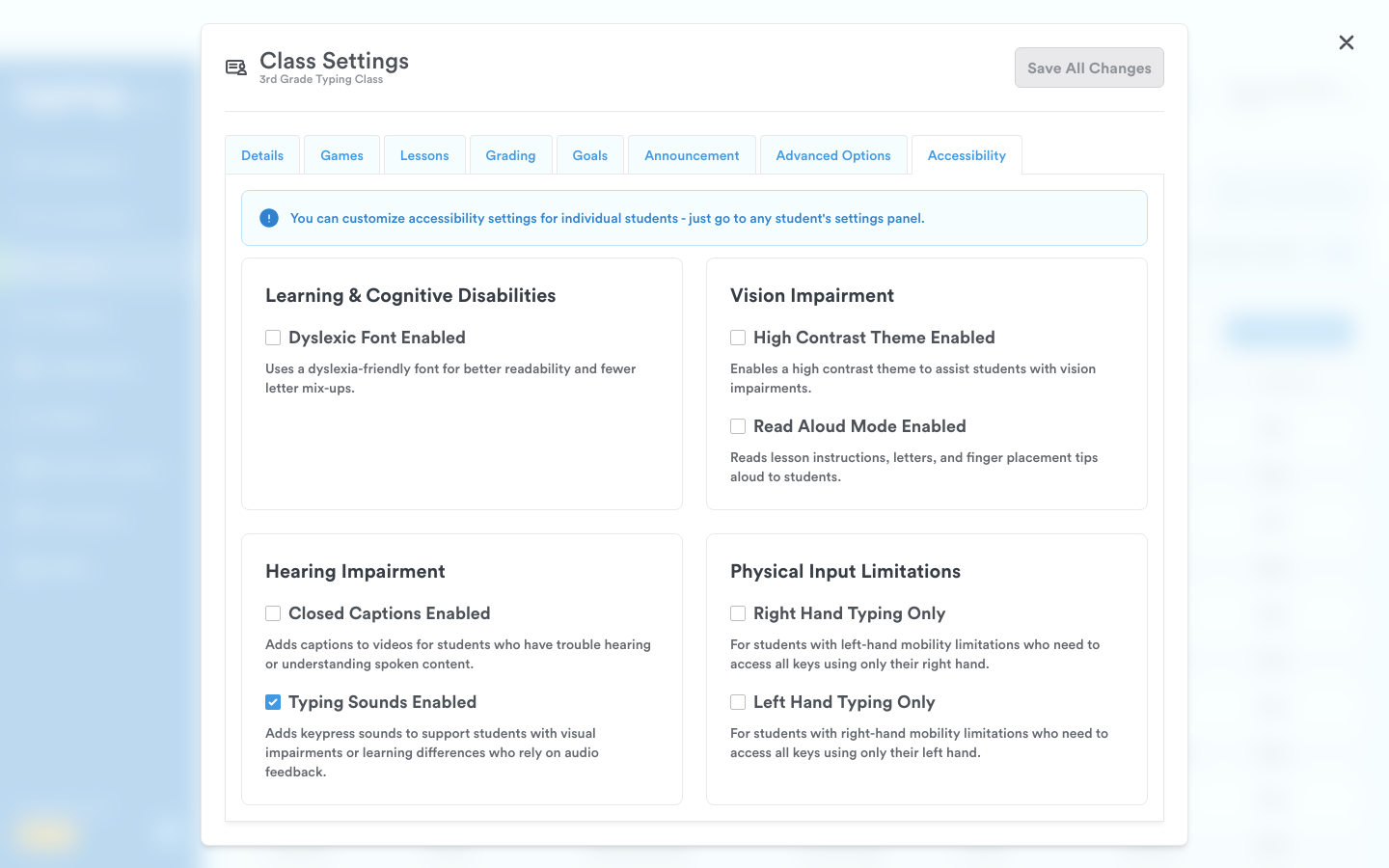
This tab turns accessibility features on for the whole class. The settings are grouped by the need they address, and each one can also be set for a single student from that student's settings panel.
Learning & Cognitive Disabilities
Dyslexic Font Enabled - uses a dyslexia-friendly font for better readability and fewer letter mix-ups.
Vision Impairment
High Contrast Theme Enabled - enables a high contrast theme to assist students with vision impairments.
Read Aloud Mode Enabled - reads lesson instructions, letters and finger placement tips aloud to students.
Hearing Impairment
Closed Captions Enabled - adds captions to videos for students who have trouble hearing or understanding spoken content.
Typing Sounds Enabled - adds keypress sounds to support students with visual impairments or learning differences who rely on audio feedback.
Physical Input Limitations
Right Hand Typing Only - for students with left-hand mobility limitations who need to reach all keys with their right hand.
Left Hand Typing Only - for students with right-hand mobility limitations who need to reach all keys with their left hand.
Accessibility or Advanced Options? These two tabs do different jobs. Accessibility is where you, the teacher, turn a feature on for the class - Read Aloud Mode and Typing Sounds included. The similarly-named settings in Advanced Options ('Allow student to toggle Read Aloud' and 'Allow student to toggle typing sounds') do something else: they decide whether students are allowed to switch those features on and off for themselves.
Final Steps
After making your desired adjustments, don’t forget to click Save All Changes to finalize your settings.
That's it! You now know how to adjust your Class Settings to create a tailored and dynamic learning environment. Keep exploring these options to make the most of Typing.com for your students.
For more tips and assistance, explore our resources or contact us at support@typing.com.