

Billing: Reading Your Orders and Invoices
Billing is where Typing.com keeps your license and every order raised against your account. This article explains the tabs, which table your receipt is in, what the columns mean, and how to get a copy of an order to send to your finance office.
Open Billing
Step 1: Log in to your Teacher Portal HERE.
Step 2: Click Billing at the foot of the left-hand menu. It is also in the menu under your name.

The tabs you see
License Information is the tab this article is about, and every account has it. Manage Licenses appears when your account has a license it can hand out, and is where you decide which schools, grades or students get your seats; How Do I Assign Licenses To Students? covers it. Billing Admins shows how many billing admins your account has, in the tab’s own label.

Typing.com remembers which tab you were last on and brings you back to it the next time you open Billing.
Your license at a glance
License Information opens with a card naming your license and the account it belongs to. Expiration Date gives the day it runs out, with Renew Your License beneath it, and Seats Usage shows how many of your seats are in use, with Purchase Additional Seats and Free All Seats. A license that is already set to renew carries a note at the foot of the card giving the renewal date and the number of seats it will move to. Beside the card, New license starts a fresh one.

Price Quotes, Invoices, Receipts and Canceled
Below the card come your orders, sorted into four tables. Each table appears only when it has something in it, so most accounts see one or two of them.
Price Quotes - quotes raised for you and not yet paid.
Invoices - orders that are waiting for payment.
Receipts - everything that has been paid.
Canceled - orders that were canceled.
A price quote is good for 90 days, while the Price Quotes table goes on listing it for 180. A quote can therefore still be on the page after it has stopped being valid; Upgrade your Free Account to PLUS | Get a Quote covers asking for a new one.
What the columns mean
All four tables carry the same six columns.
Ref # - the order’s reference number, which is also what its own page prints.
License Type - Annual, Additional, or Annual & Additional where one order does both.
Price - what the order came to.
Purchased For - the account the seats were bought for, and whether that account is a school or a district.
Created By - who raised the order.
Created On - the day it was raised. An unpaid order that has run out of time is marked Expired here.

Open one order
Click any row to open that order on a page of its own, headed by what the order is: Receipt, Invoice or Price Quote.
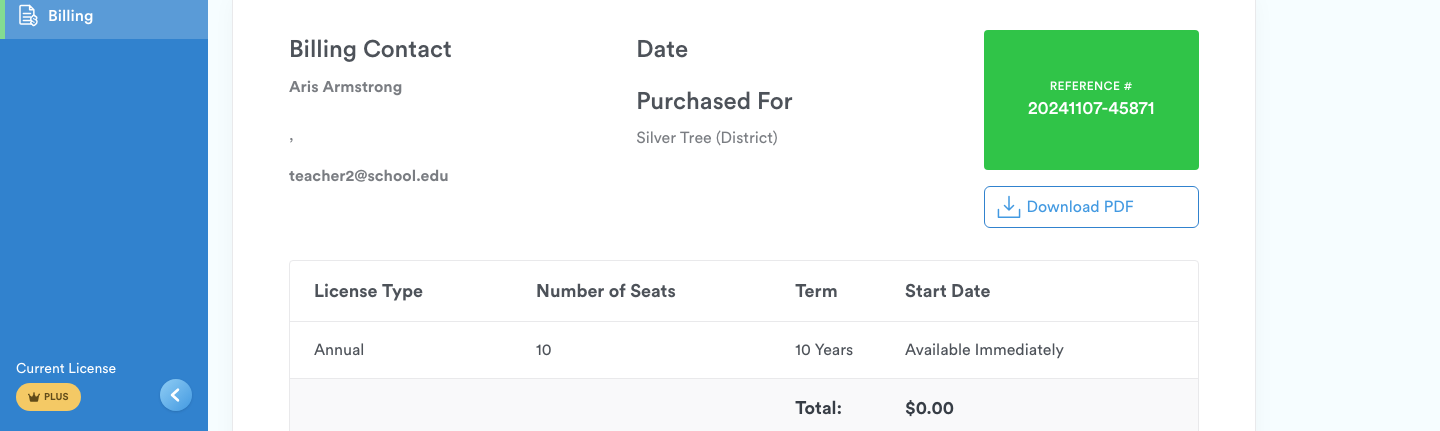
A receipt names the billing contact and the account the seats were purchased for, prints the reference number, and lists what was bought under License Type, Number of Seats, Term and Start Date, with a total underneath. Download PDF gives you a copy to pass on. A paid order also carries a note at the top saying that a copy was emailed to the billing contact.
Billing Admins
The Billing Admins tab lists the people on your account who are set up to deal with billing, in the same columns as the Faculty page. Being a billing admin sits alongside somebody’s role rather than replacing it, so a school admin who handles billing still shows as a school admin here.
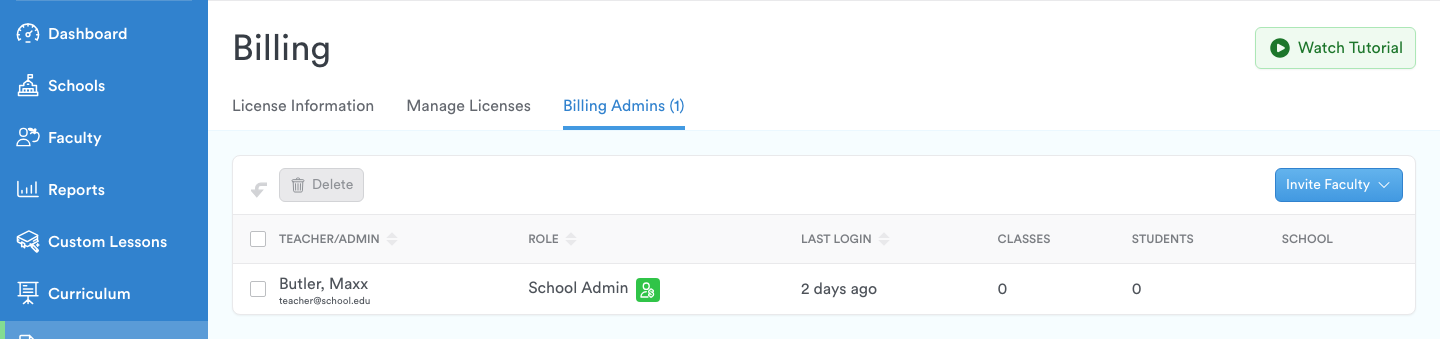
You add one from the Faculty page: see Invite Teachers to My School/District.
Pro-Tips
Billing carries a Watch Tutorial button at the top right, with a short video on buying Typing.com PLUS.
If your finance office needs a W-9 before it will pay, see Request a W-9 Form.