

Invite Teachers to My School/District
Hello, amazing educators and administrators! Inviting teachers to your Typing.com school or district account is easy and efficient. Follow the steps below to get your team on board. If you have a district account, scroll down to the 'For District Accounts' section.
Pro-Tip: If you're rostering through Clever or ClassLink, you’ll need to make changes with those providers and wait for the account to re-sync overnight.
Ensure Teacher Accounts are ready!
Confirm the teacher you want to invite has a Typing.com account.
If the teacher has the wrong account type (e.g., a school or district account), they will need to convert it to a teacher account. Learn more about converting a teacher account type here.
Only school and district accounts can invite teachers. If you need to convert your account, follow these steps.
If you have a school account
Step 1: Access your account here.
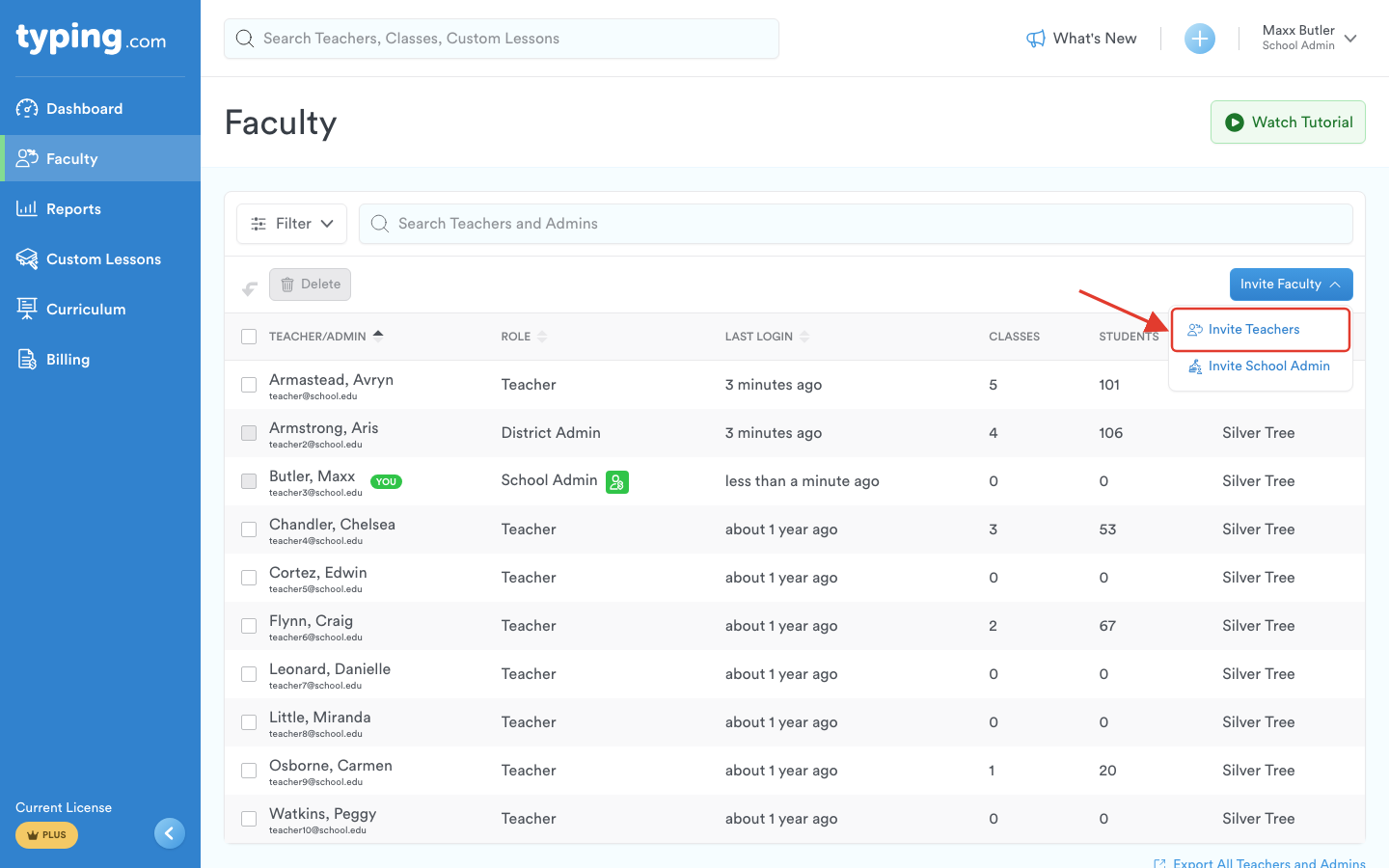
Step 2: Go to 'Faculty' on the left-hand side.

Step 3: Click 'Invite Faculty,' then choose what you're inviting - 'Invite Teachers' or 'Invite School Admin.'
Note: The teachers you invite must have an existing teacher account. If they don’t, they can create one here.
Step 4: Enter your teachers' work email addresses, one per line. You can paste a list straight from Word or Excel.

Step 5: Click 'Review Invites' and check the list of addresses.
Pro-Tip: Rather than typing addresses, click 'Copy Invite Link' in the same window and share that link with your staff.

Step 6: Click 'Send Invites.'

Step 7: The invited teacher needs to log into their account to accept the invitation.
If you have a district account
Step 1: Access your account here.
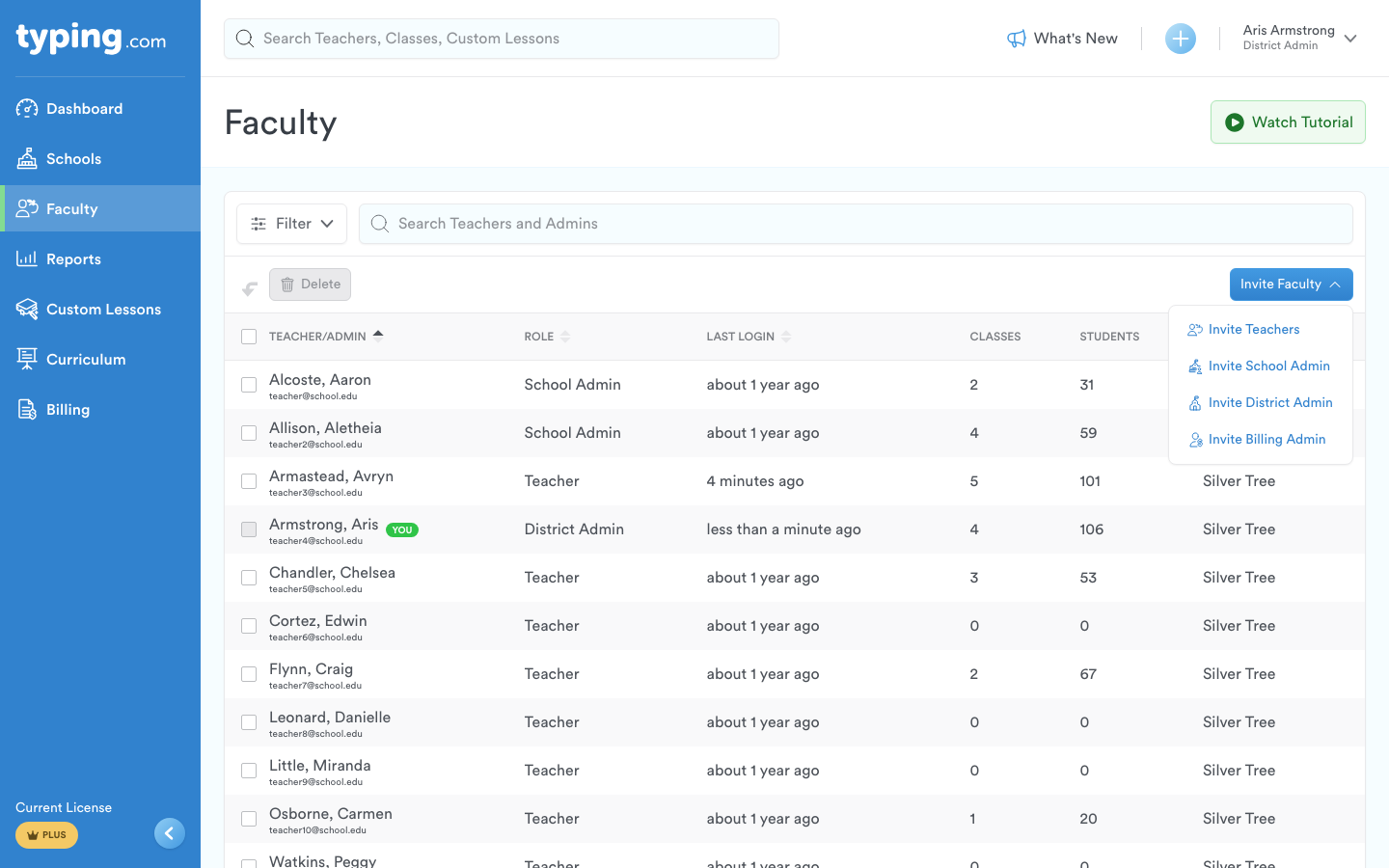
Step 2: (1) Go to 'Faculty' on the left-hand side. Faculty lists everyone across your district, with a School column and a filter. (2) You can also start from 'Schools' and open a school first - both routes reach the same invitation.

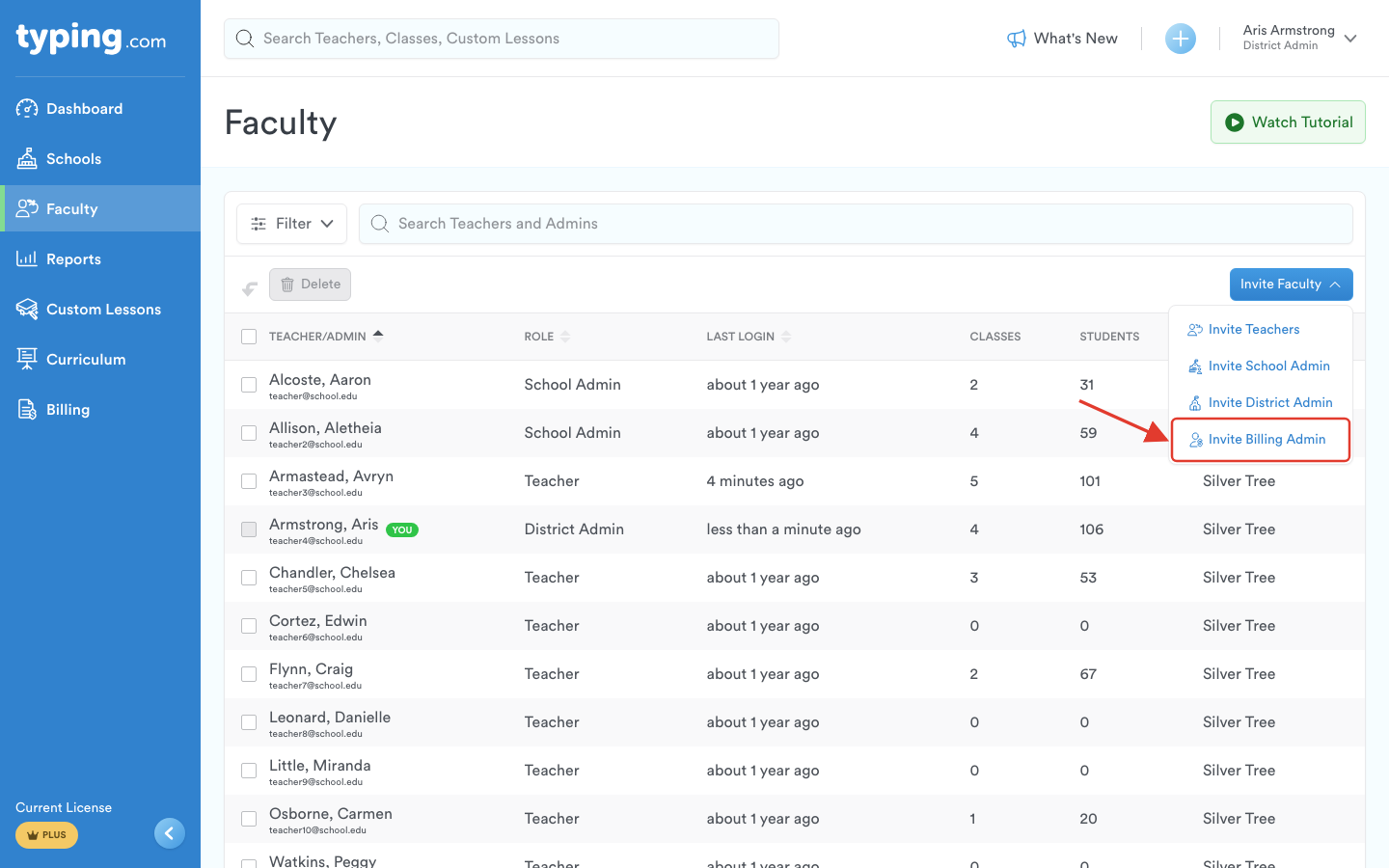
Step 3: Click 'Invite Faculty,' then choose what you're inviting - 'Invite Teachers,' 'Invite School Admin,' 'Invite District Admin' or 'Invite Billing Admin.'
Step 4: (1) Choose the school the teacher belongs to, then (2) click Next.
Note: Ensure the teacher has an existing teacher account. If not, they can create one here.

Step 5: Enter your teachers' work email addresses, one per line. You can paste a list straight from Word or Excel.

Step 6: Click 'Review Invites' and check the list of addresses.
Pro-Tip: If you want someone to manage Typing.com purchases, choose 'Invite Billing Admin' from the 'Invite Faculty' menu in step 3.
Step 7: Click 'Send Invites.'

Step 8: The invited teacher needs to log into their account to accept the invitation.
Keeping track of invitations
Invitations you've sent but that haven't been accepted yet appear in a Pending Invites section underneath your Faculty list, showing each person's role, school and the date they were invited.
From there you can click 'Re-send Invite' to send the email again, or 'Copy Link' to copy that person's invitation link so you can send it yourself.
Once you have added your teachers to your school or district account, teachers can add other teachers from the account to their classes as co-teachers. For instructions on how teachers can add other teachers as co-teachers, click here.
That’s it! You’re all set to invite teachers to your school or district account. If you have any questions or need further assistance, our support team is always here to help at support@typing.com!