

In-Product Tutorial Videos
Some pages in the Teacher Portal carry a green Watch Tutorial button. This article says what it does and where to find one.
What Watch Tutorial does
Watch Tutorial sits at the top right of a page, beside the heading.

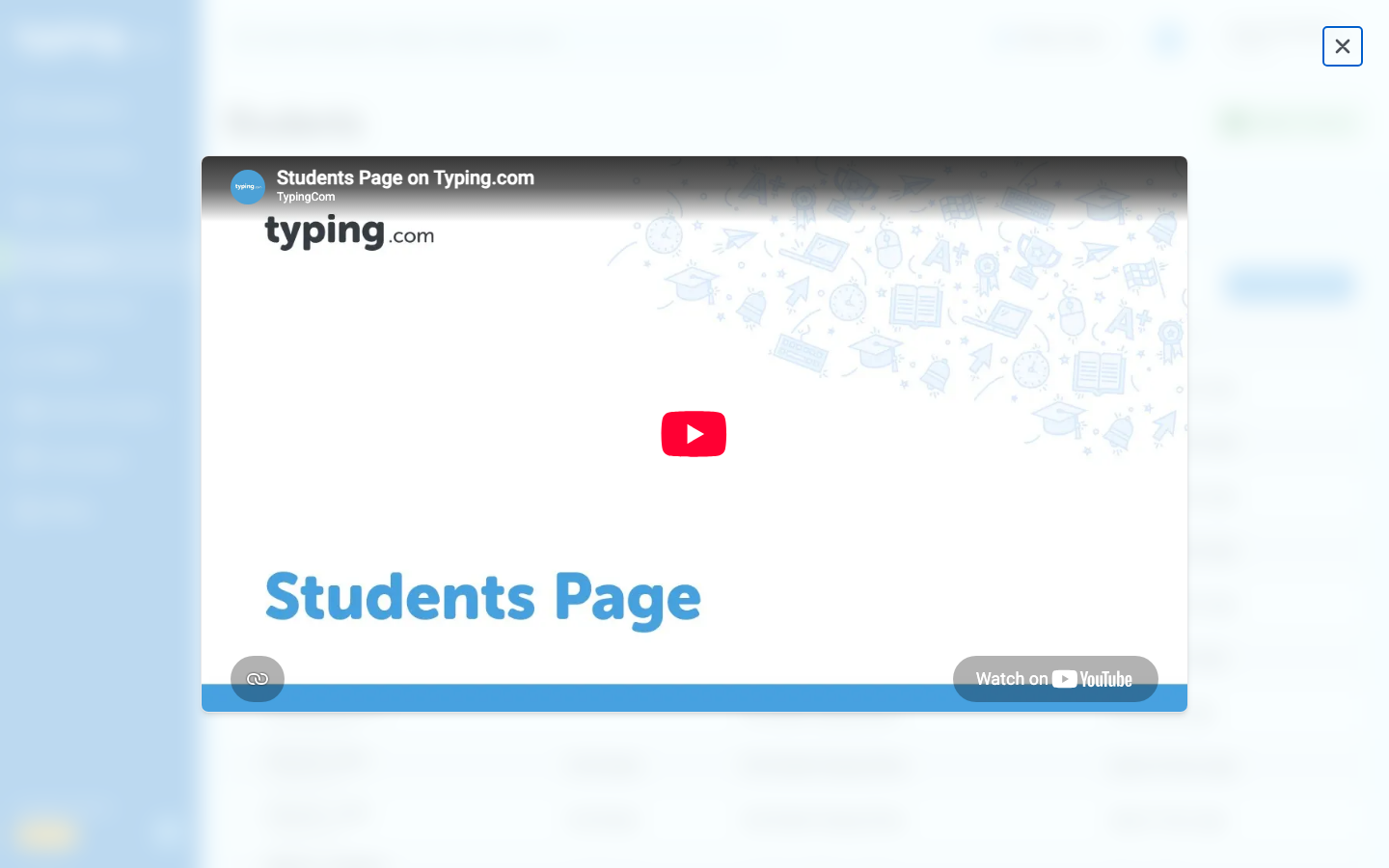
Clicking it plays a short Typing.com video in a window over the page you are already on, so you keep your place. Press Escape to close the window and carry on.
Where to find one
As a teacher you have one on Students, Assignments, Curriculum, Custom Lessons, Billing and Reports. Each covers the page it sits on: adding students, creating assignments, working through the curriculum, creating and sharing custom lessons, buying Typing.com PLUS, and running reports on your classes.
Archiving a class has one too, inside the confirmation window that opens when you click Archive on the Classes page.
School and district admins see an admin video on Reports instead, and have two more: on Faculty, and on their own District-wide Settings or School-wide Settings page.
Four inside Class Settings
Class Settings has four of its own on any class, each beside the setting it explains: on the Goals tab beside Restrict Games Until Daily Goal is Met, on the Grading tab beside Benchmarks, on the Lessons tab beside Make All Lessons Active, and on the Advanced Options tab beside the theme setting, which a student's own settings show too. How to Adjust Class Settings covers getting there.

Pro-Tip: The Test Improvement Summary report has one of its own, inside the report window. Reports on Student Progress covers opening it.
Every tutorial video
Every Watch Tutorial button in the Teacher Portal is listed below with the video it opens. All fifteen videos are on Typing.com's YouTube channel.
The Students page - Students Page on Typing.com
The Assignments page - Creating Assignments in Typing.com
The Curriculum page - Curriculum on Typing.com
The Custom Lessons page - Creating & Sharing Custom Lessons on Typing.com
The Billing page - Purchasing Typing.com PLUS
The Reports page, for teachers - Reports for Teachers
The Reports page, for school and district admins - How to Run School & District Admin Reports on Typing.com
The Faculty page - Teacher Join Link on Typing.com
The District-wide Settings or School-wide Settings page - District-wide & School-wide Settings on Typing.com
Class Settings, the Goals tab - Restrict Games Until Daily Goal is Met on Typing.com
Class Settings, the Grading tab - Automatic Grading & Benchmarks on Typing.com
Class Settings, the Lessons tab - Hiding Lessons & Games on Typing.com
Class Settings, the Advanced Options tab - Themes
The Test Improvement Summary report window - Test Improvement Summary Report in Typing.com
The Archive confirmation window on the Classes page - Archiving Classes