

Managing Schools in Your District
A district account on Typing.com keeps its teachers, classes and students inside schools. This article shows you what the Schools page lists, how to add a school, and where the Unique School ID your import file needs is stored.
Note: Adding, editing and deleting schools belongs to a district admin. A school admin who opens the page sees their own school. Differences Between Teacher, School and District Accounts explains the difference.
What the Schools page shows you
Step 1: Log in to your Teacher Portal HERE.
Step 2: Click Schools in the left-hand menu.

The page is headed with your district’s name and lists every school in it, with the number of Teachers/Admins, Classes and Students each one has. A search box sits above the table, and Export below it downloads the list as a CSV file.

Add a school
Step 1: Click Add a School above the table.
Step 2: Fill in School Name, Country, State, City, Zip/Postal Code and Phone. Address is optional, and the State list follows the country you pick.

Step 3: Click Create School.
The Unique School ID
The last field in the window is Unique School ID - Required for importing students. You can create a school without it, but a district import file matches its School_ID column against this value, so a school needs one before students can be imported into it.

Import a List of Students to Your Account covers the import itself, and Create a File Using the Comma Separated Values (.CSV) Format covers building the file.
Change a school’s details
Every row carries a Settings button, which opens Edit School: the same fields as Add a School, filled in with what the school already has. Change what you need and click Save Changes.
Open a single school
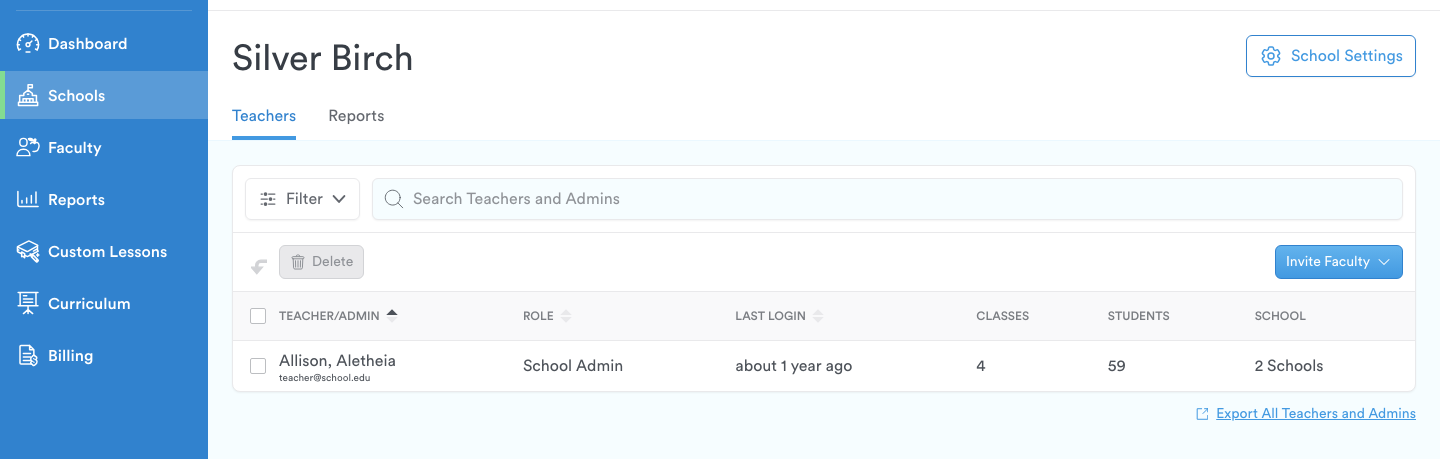
Clicking a school’s name opens that school on its own page, with Teachers and Reports tabs and a School Settings button. The Teachers tab holds that school’s faculty, together with Invite Faculty and Export All Teachers and Admins.
Delete a school
Step 1: Tick the box beside the school you want to remove.
Step 2: Click Delete above the table.

Step 3: Type the word CONFIRM into the Confirm field and click Delete.
Typing.com keeps at least one school in every district, so the last school on the list stays where it is.
Pro-Tips
Reports and faculty can both be read one school at a time. Open the school from the list rather than filtering the whole district.
To bring teachers and admins into a school, see Invite Teachers to My School/District.