

Add Co-teachers to a class
Adding a co-teacher to your class on Typing.com allows for seamless teamwork and shared responsibilities. Follow these fun and engaging steps to enhance your classroom experience.
Important: To add a co-teacher to your class, you must have a School or District Account. If you need to convert your account, follow these steps.
If you're rostering through Google Classroom, Clever, or ClassLink, you need to make the changes with those providers first and wait for the account to re-sync (overnight).
Once you convert your Classroom account to a School or District account, you’ll receive a secondary Admin profile. To switch profiles, click your name in the upper-right corner and use the drop-down menu:
Choose your Teacher profile to manage your classes.
Choose your Admin profile to manage the teachers in your school or district.
Two profiles, one convenient menu—it’s easy to switch hats whenever you need to!
If you know a teacher already has a Typing.com account but you’re still unable to add them, they may have the wrong account type, such as a School or District account. To be added to a School or District profile, the teacher must have a Classroom account.
If this is the case, the teacher should contact our support team at support@typing.com so we can change their account back to a Classroom account.
Click here to learn more about converting a teacher account type.
Pro-Tip: Be sure to select the account type that best fits your school’s needs. If you manage only one school, we recommend choosing a School account. Selecting a District account may add unnecessary complexity, as it includes advanced options designed for managing multiple schools. A School account offers a simpler and more streamlined experience for managing a single school.
Now that your account type is set up, you can add other teachers to your School or District account.
Steps to Add a Teacher under Your School Account
Click your name in the upper-right corner and select Admin from the drop-down menu.
From the Admin dashboard, select Faculty.
Click Invite Faculty.
Enter the email address associated with the teacher’s Typing.com account and choose their role: Teacher, Admin, or Billing Admin.
Click Review Invites, confirm the information, and send the invitation.
The teacher must sign in to their Typing.com account and accept the invitation.
Once the teacher accepts the invitation and joins your school, you’ll be able to add them as a co-teacher to your classes. Teamwork unlocked!
Steps to Add a Co-Teacher
Step 1: Log in to your Teacher Portal HERE.
Step 2: Navigate to “Classes.”
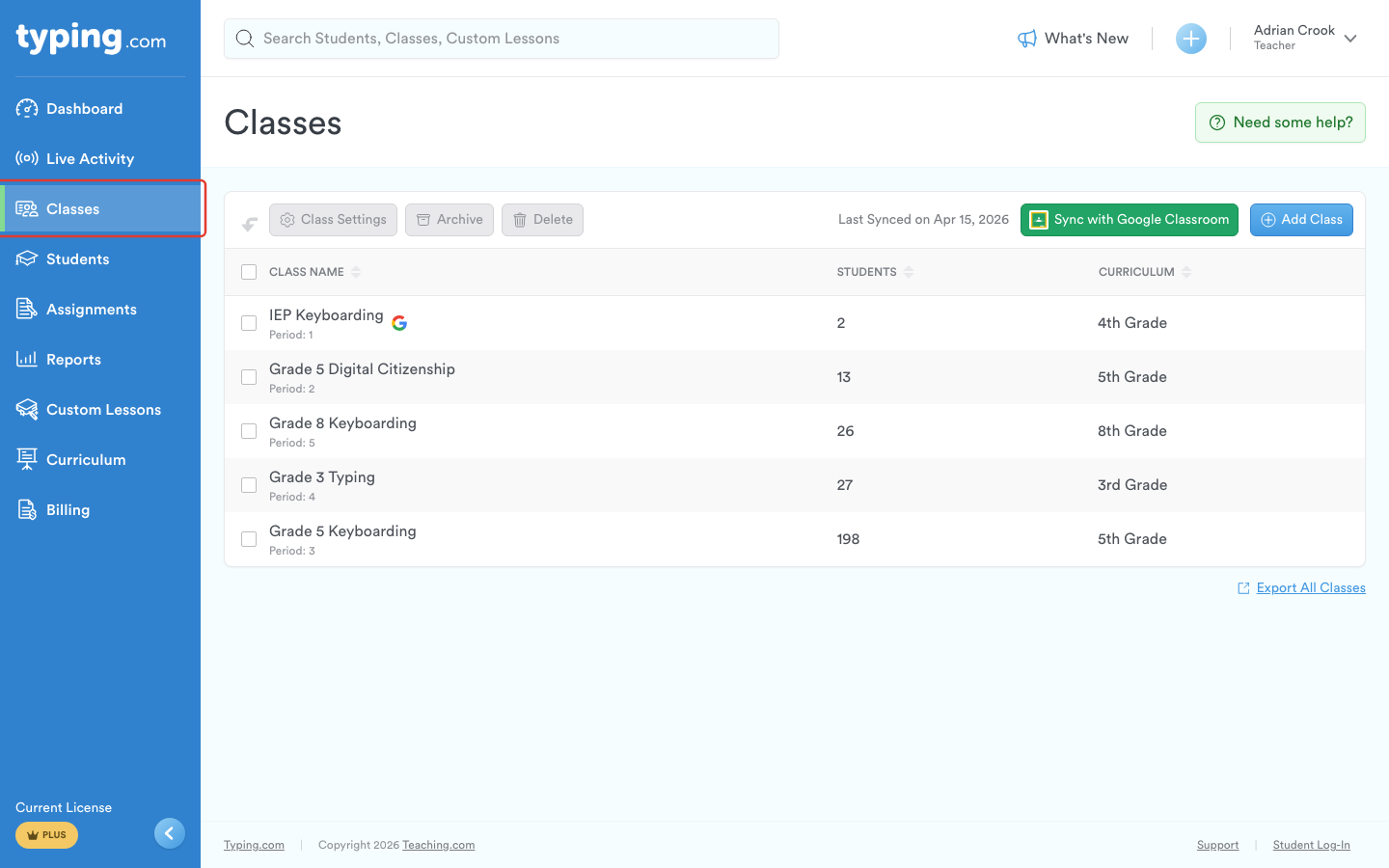
Step 3: Select the class you want to add a co-teacher to.
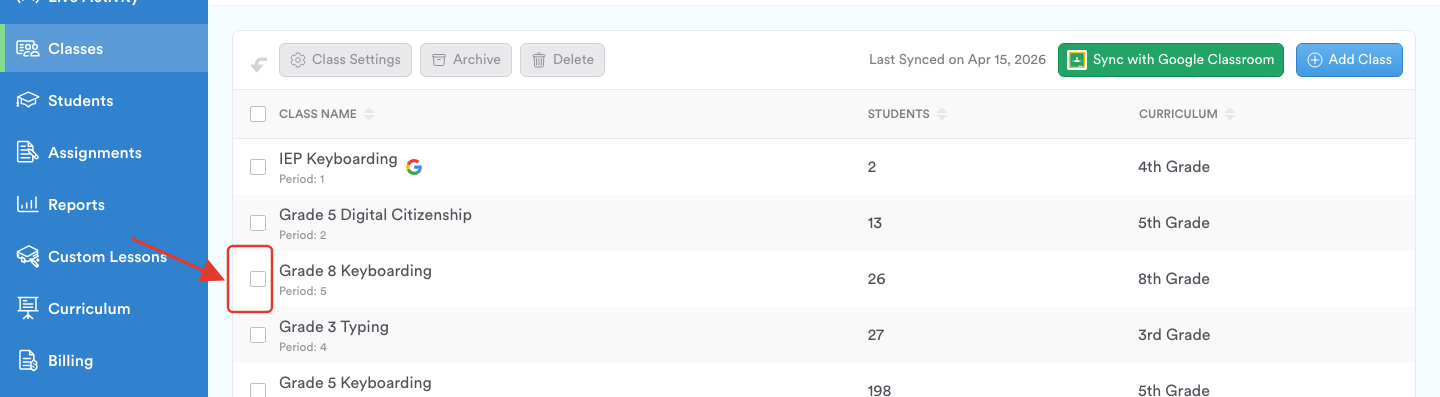
Step 4: Click on the "Teachers" tab.
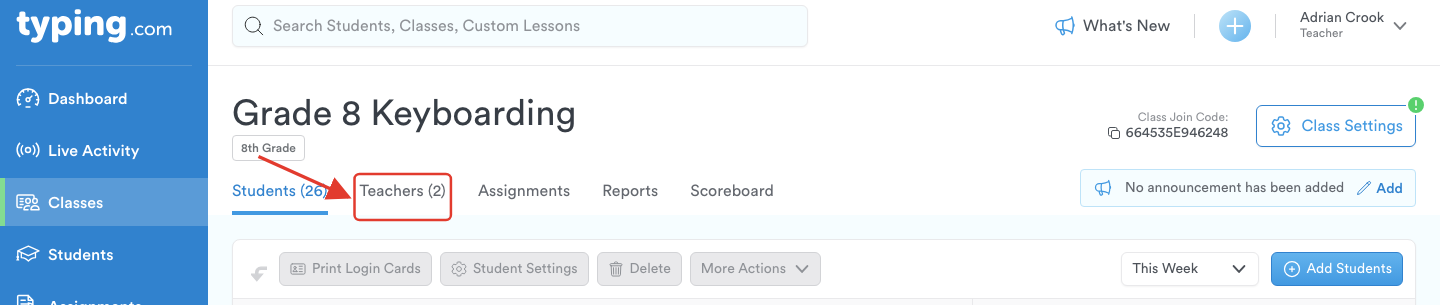
Step 5: Click the blue "Add Teachers" button with the plus sign on the right-hand side.
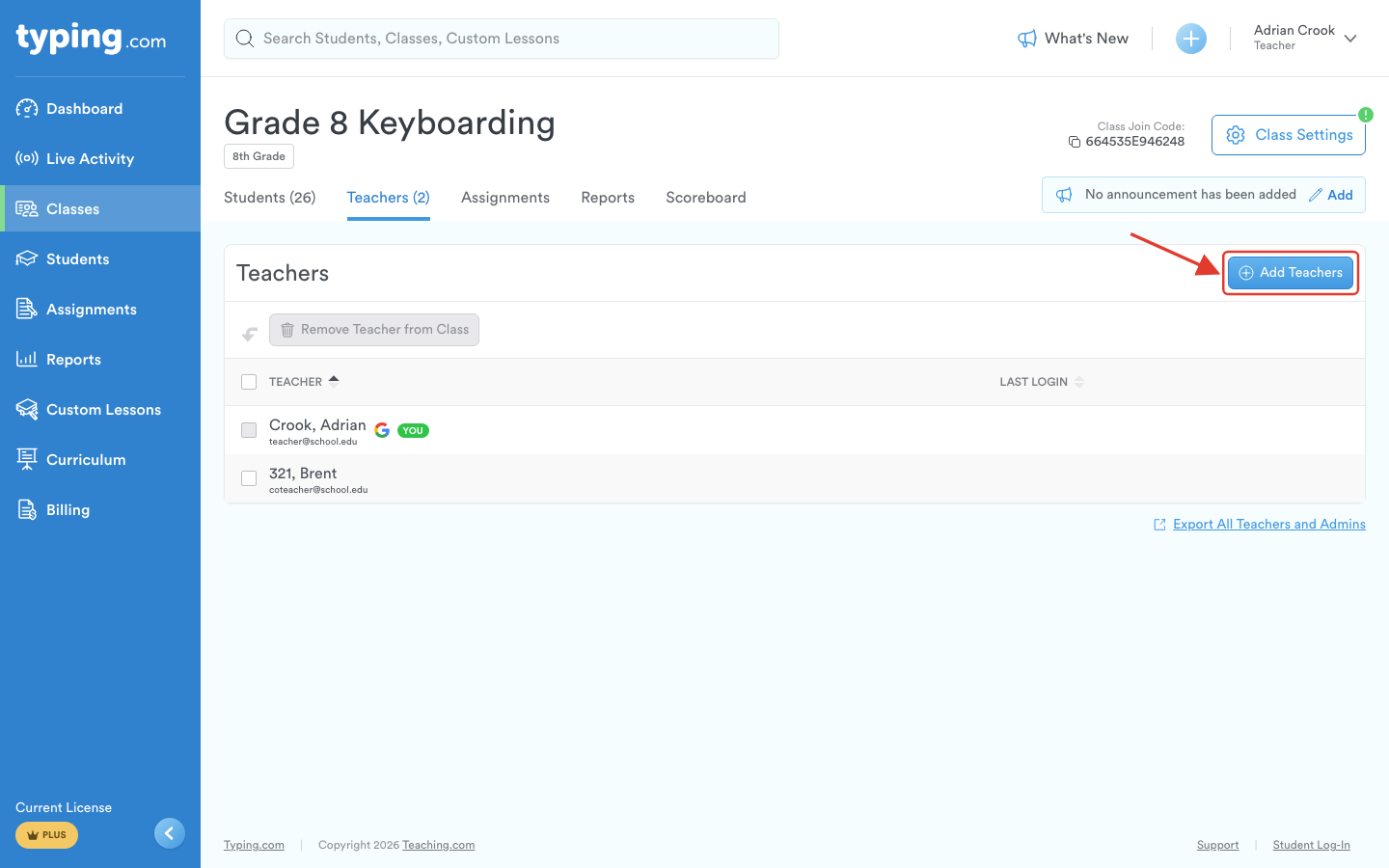
Step 6: Click the "Add Teachers" field.
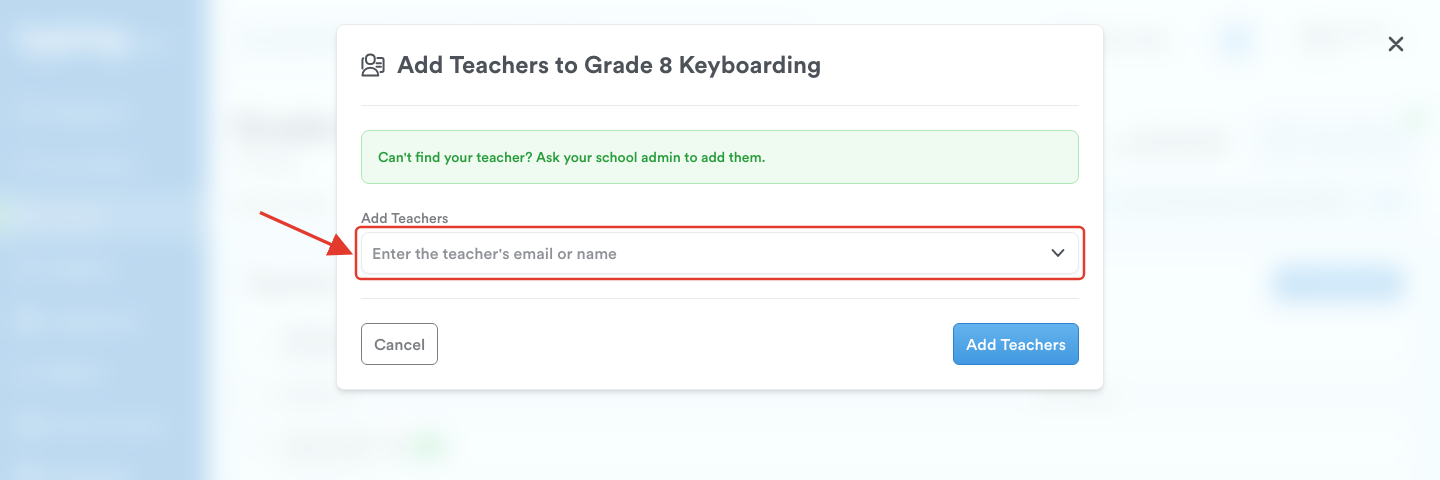
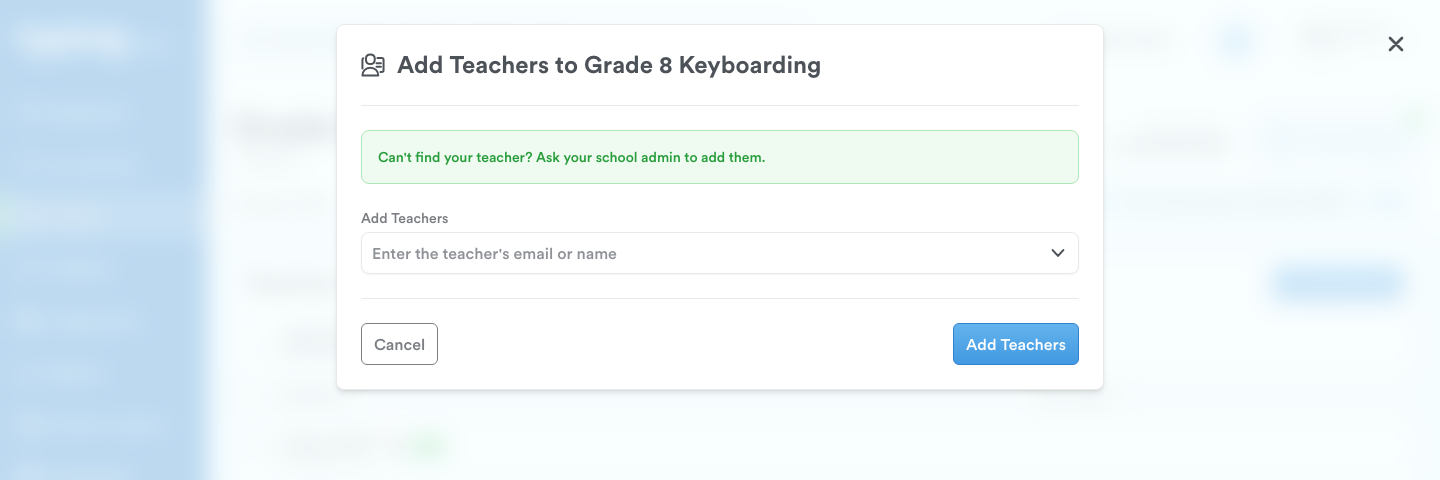
Step 7: You'll see a drop-down list with all of the teachers in your organization. Select or type the teacher's name or email.
Note: If you do not see the teacher on the list, it means they haven't been added to your organization. Invite the teacher by following the steps in this article.
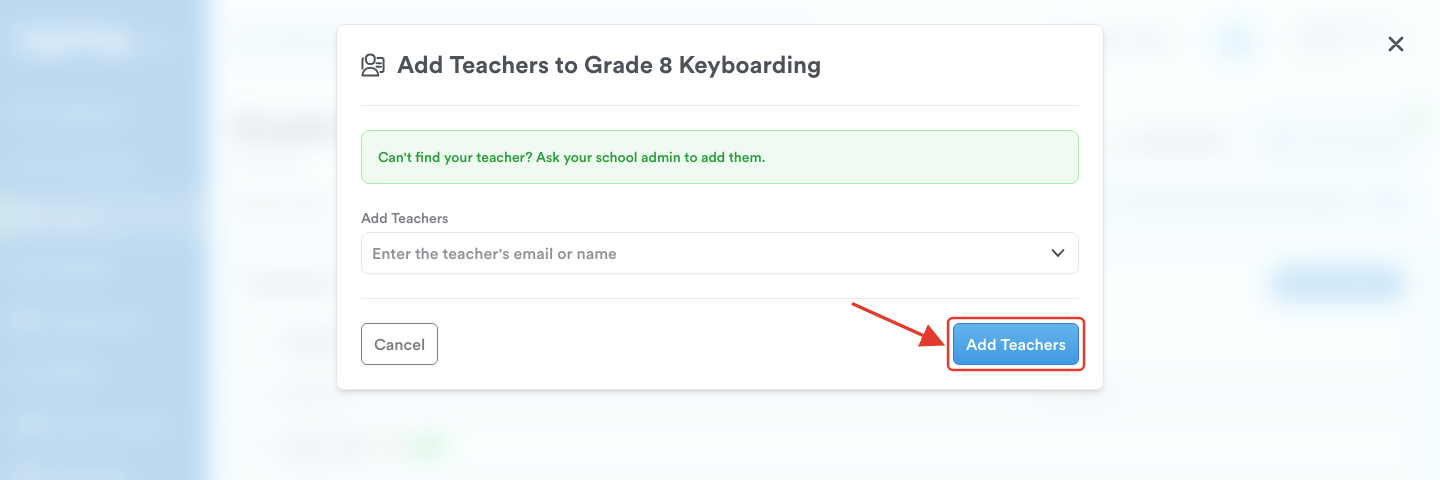
Step 8: Click "Add Teachers."
Remove a Teacher from a Class
Step 1: Log in to your Teacher Portal HERE.
Step 2: Navigate to “Classes.”
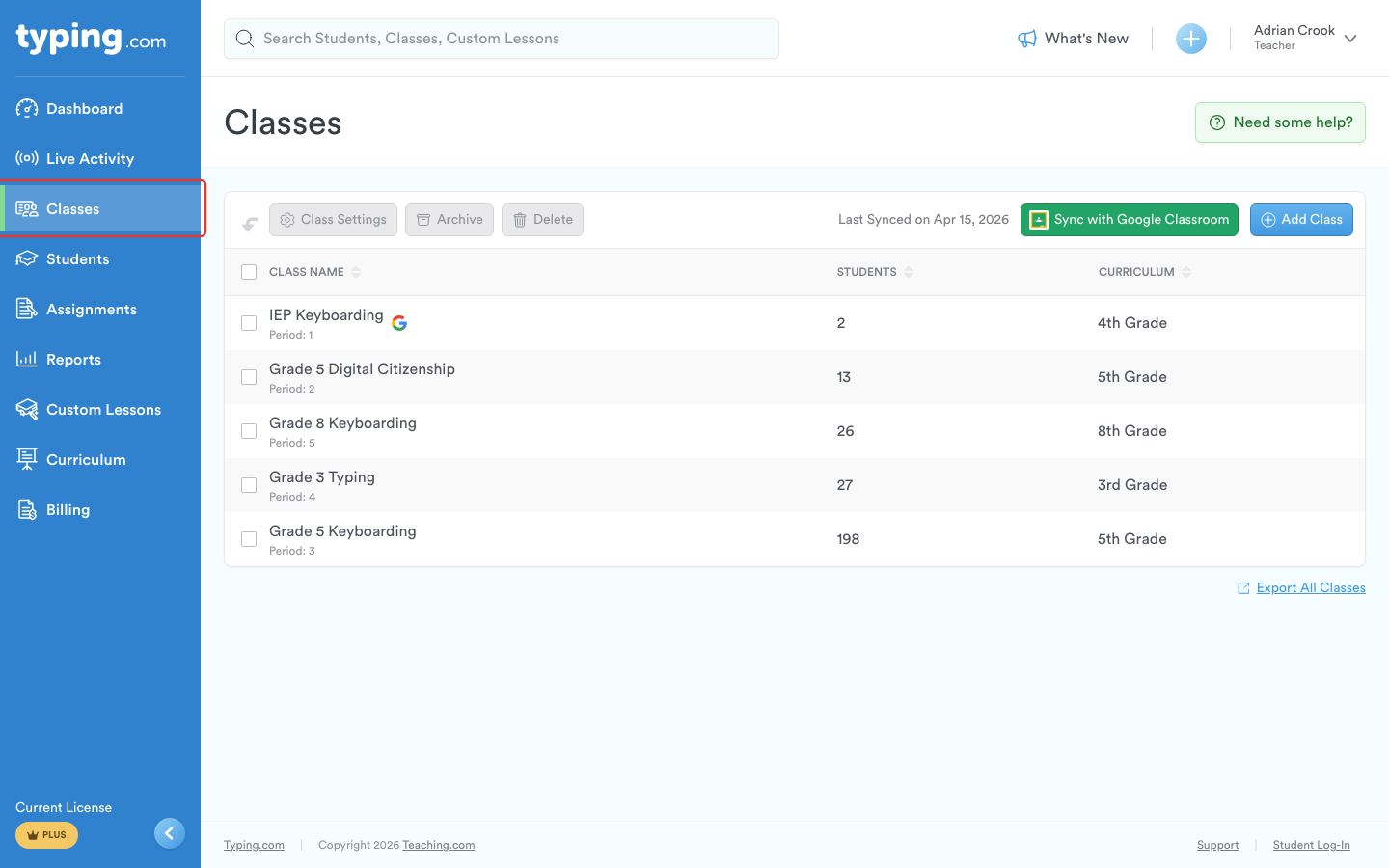
Step 3: Select the class you want to manage.
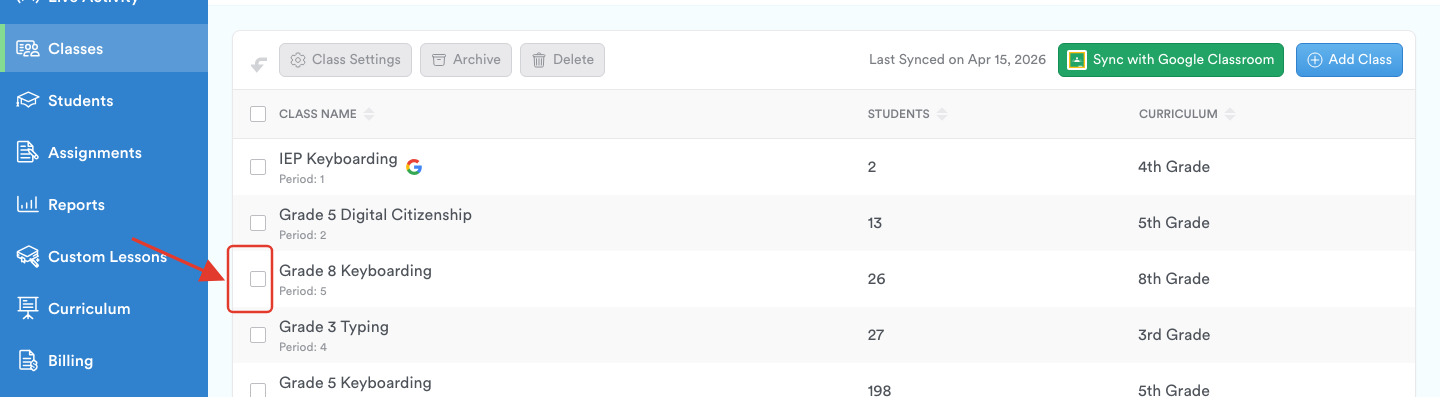
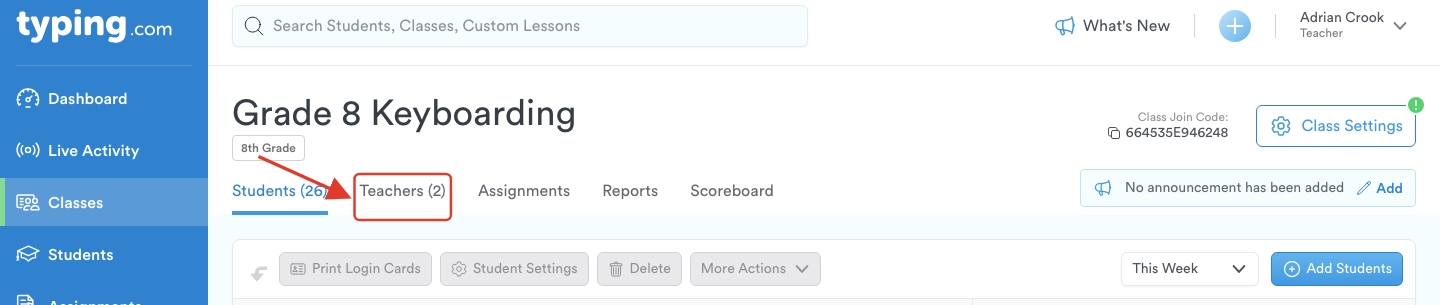
Step 4: Click on the "Teachers" tab.
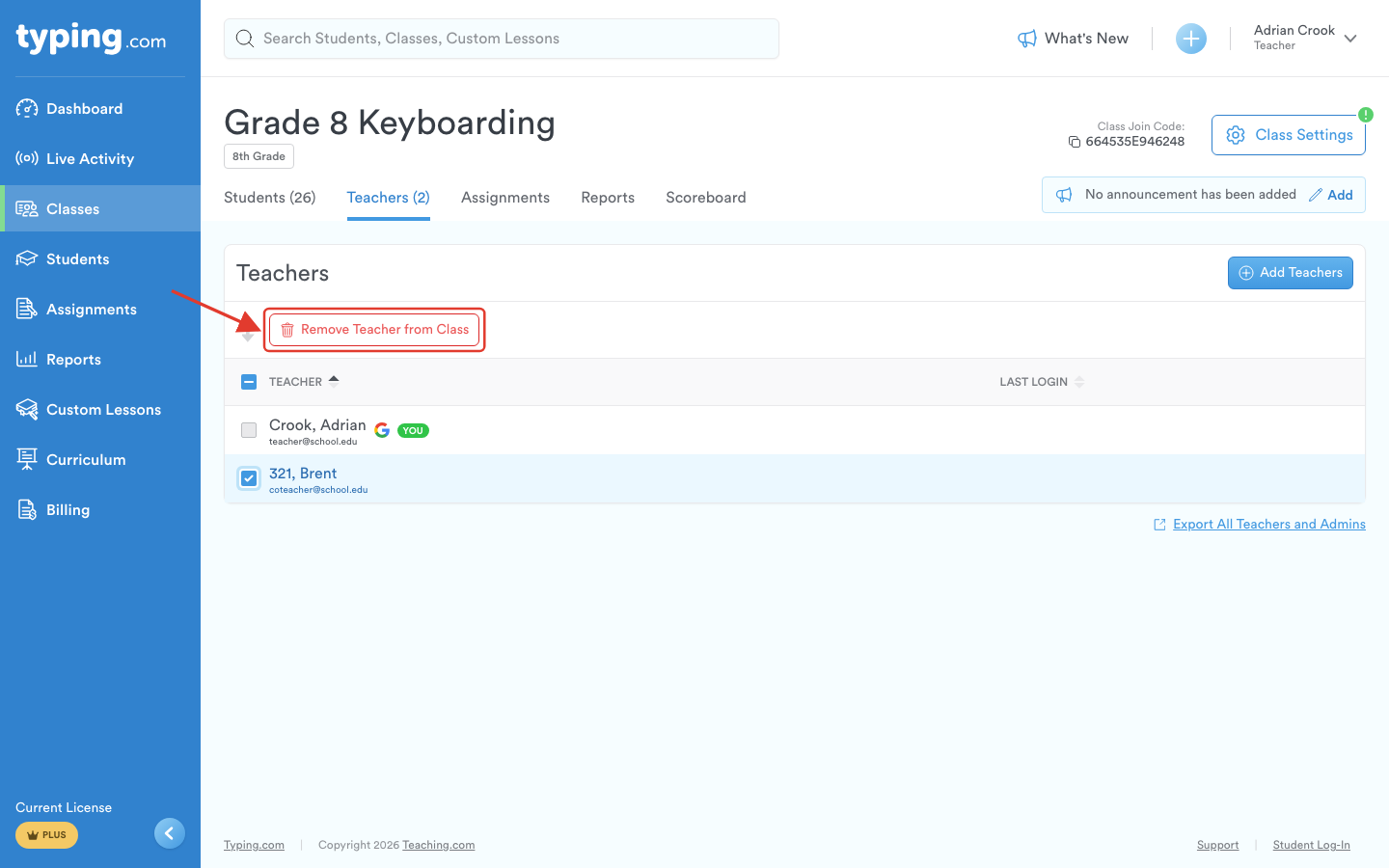
Step 5: Hover your mouse over the teacher's name and click on the X icon on the right-hand side.
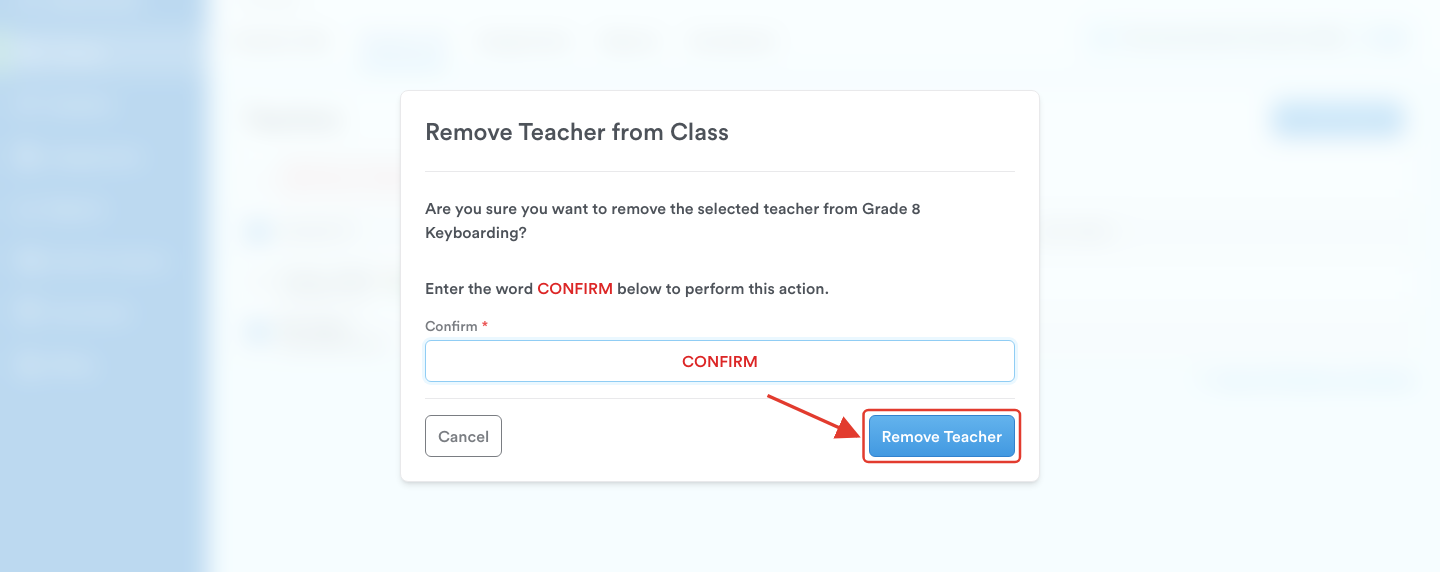
Step 6: Type "Confirm" in the field and and click "Remove Teacher."
That's it! You've successfully added or removed a co-teacher from your class. This feature allows for enhanced collaboration and shared teaching responsibilities, making your classroom more dynamic and effective. Keep up the great work and enjoy the benefits of teamwork! 😊
For more tips and assistance, explore our resources or contact us at support@typing.com.