

The Students Page
Students in the left-hand menu of the Teacher Portal opens one list of every student you teach, across every class. This article is about that page: how to find someone in it, and what the toolbar does to the students you tick. To work with the students in a single class instead, open the class from Classes and use its Students tab.

What the Students page shows
The table has four columns: Student, Grade, Class and Last Active. Student prints a student's name with their username underneath it, and Class names the class they belong to, which is what makes this one list rather than several. Student and Last Active carry sort arrows in their headings.
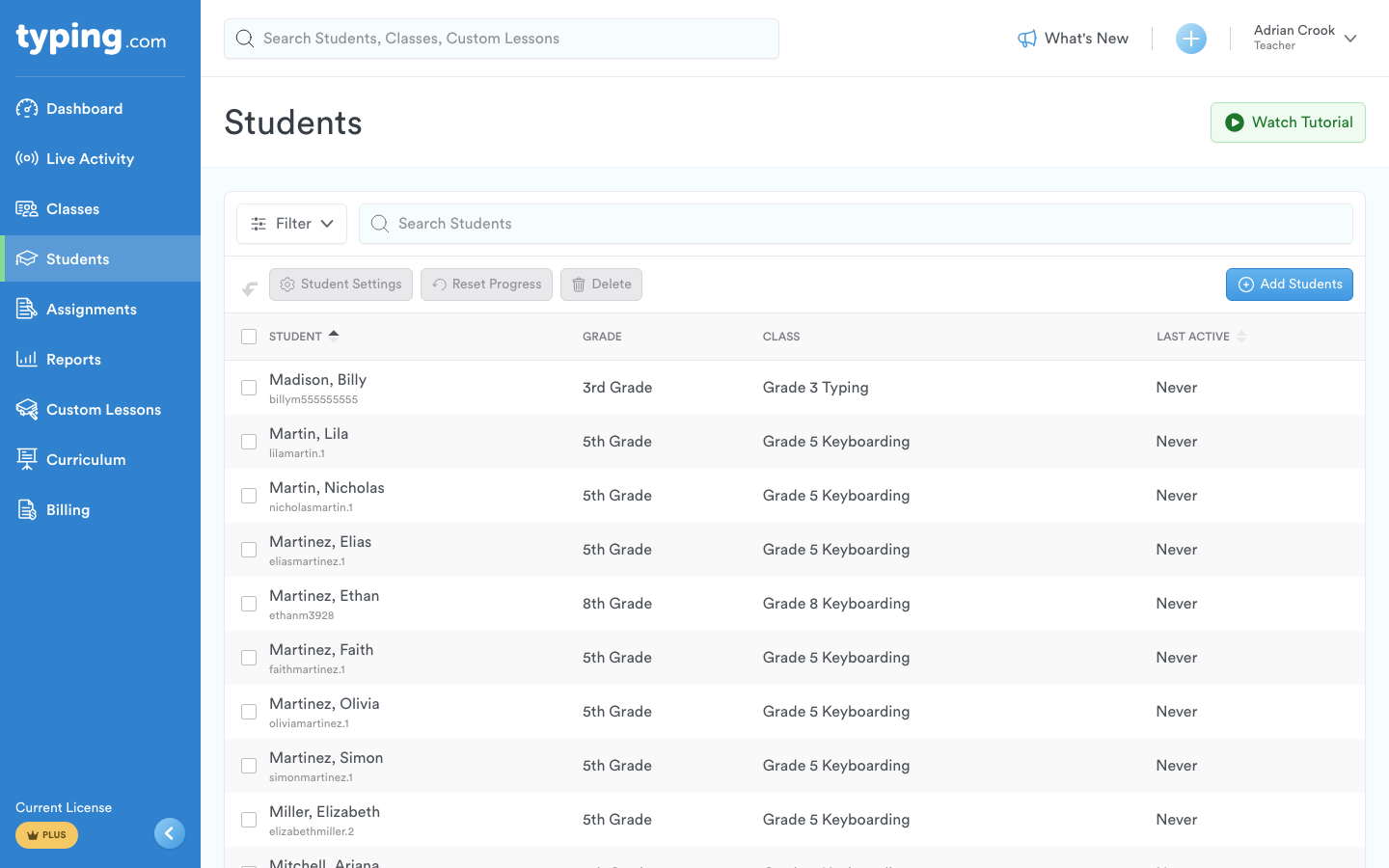
The page shows 50 students at a time. The item count and the page controls sit under the table, and the Show list beside them raises that to 75, 100, 150 or 200.

A green exclamation mark beside a name means that student's settings differ from the class defaults. Hover it and it says so: "This user setting has been uniquely modified for this student."
Finding a student
The Search Students box narrows the table as you type, so a surname is usually enough to get down to one row.
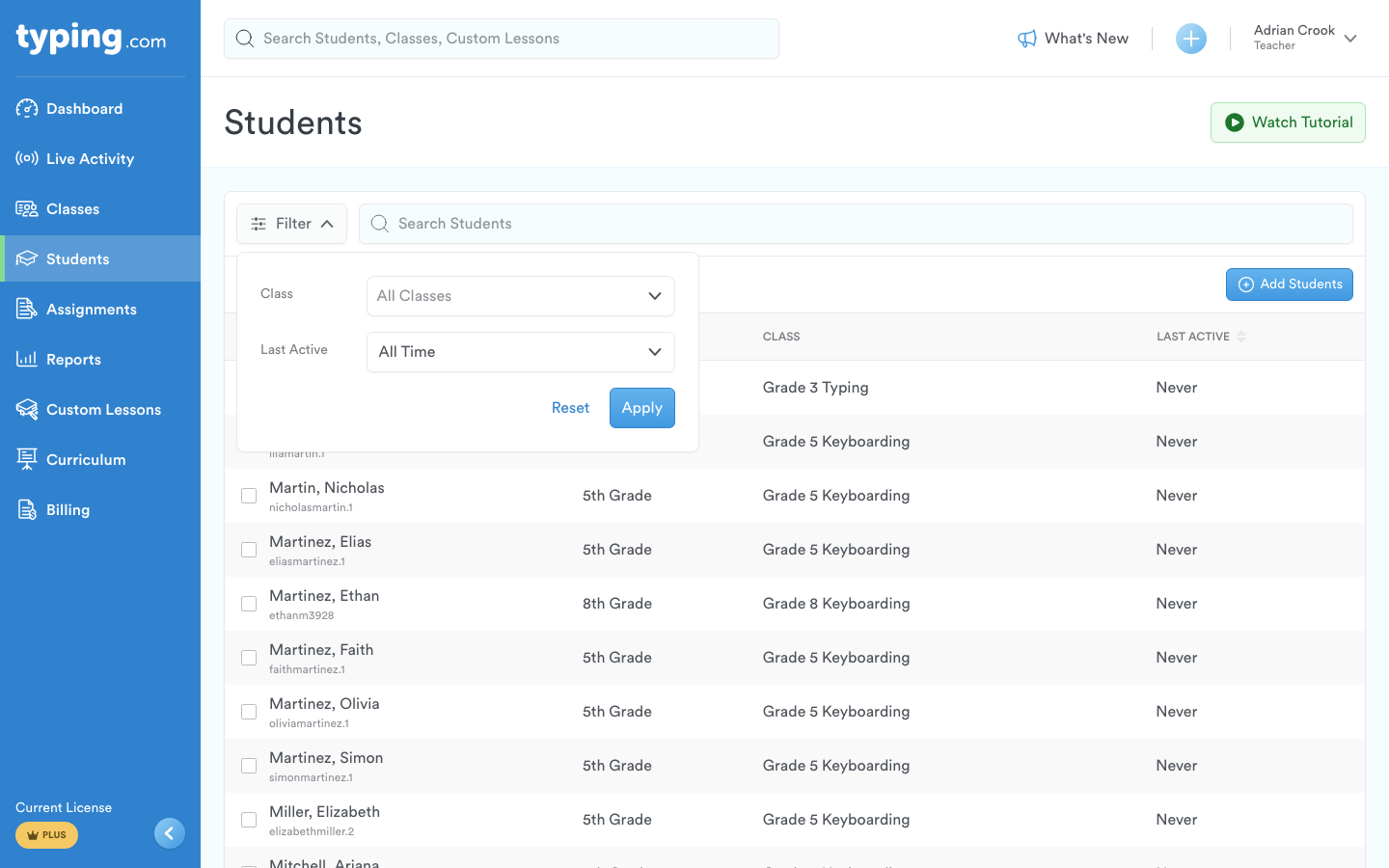
Filter, at the left-hand end of the toolbar, opens a panel with two dropdowns - Class and Last Active - and a Reset and an Apply beneath them.
Choosing who to act on
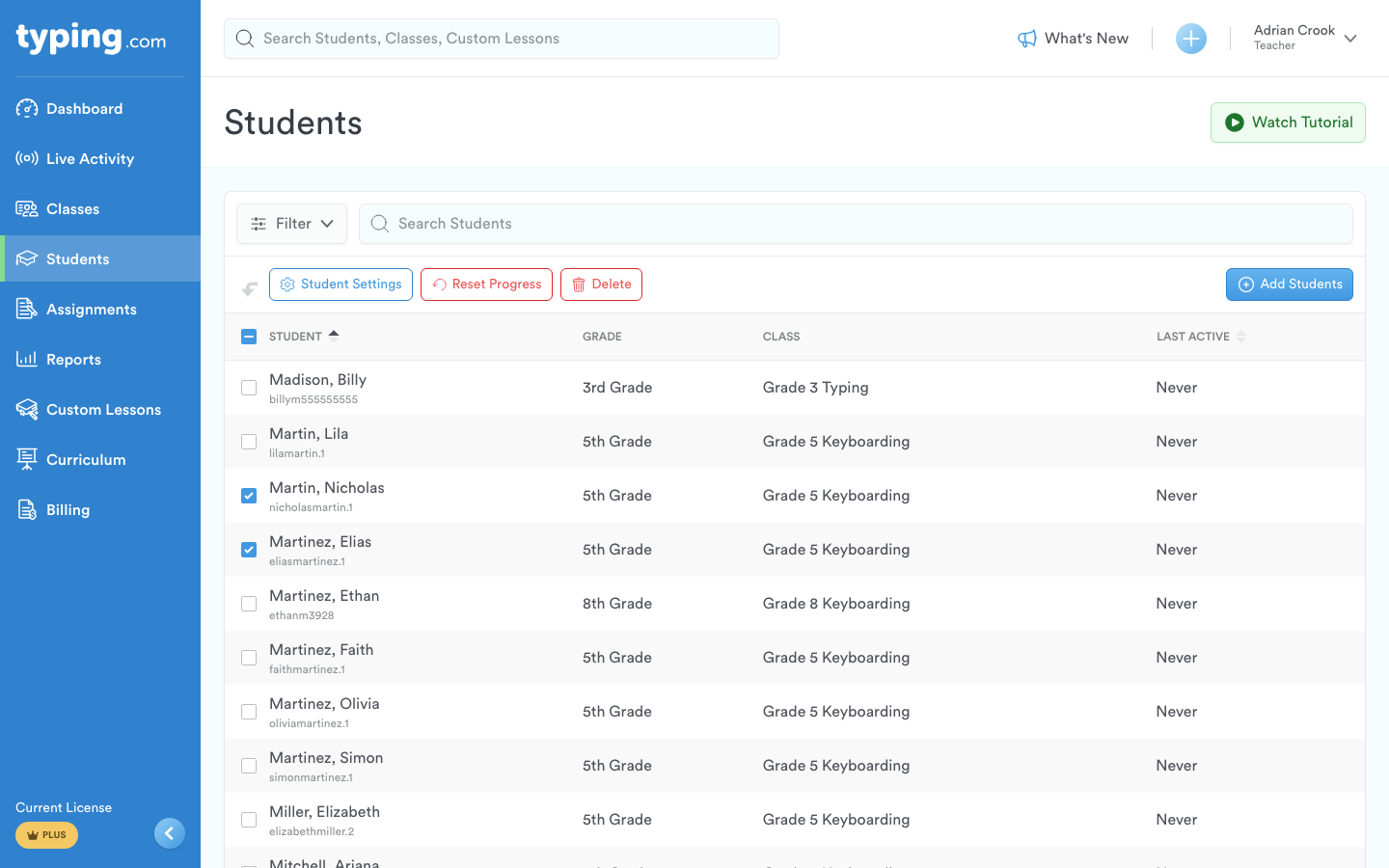
Tick the box at the left of a student's row to choose them, or use the checkbox in the header row to select all. Student Settings, Reset Progress and Delete stay grayed out until at least one student is ticked; Filter, the search box and Add Students work either way.
Student Settings
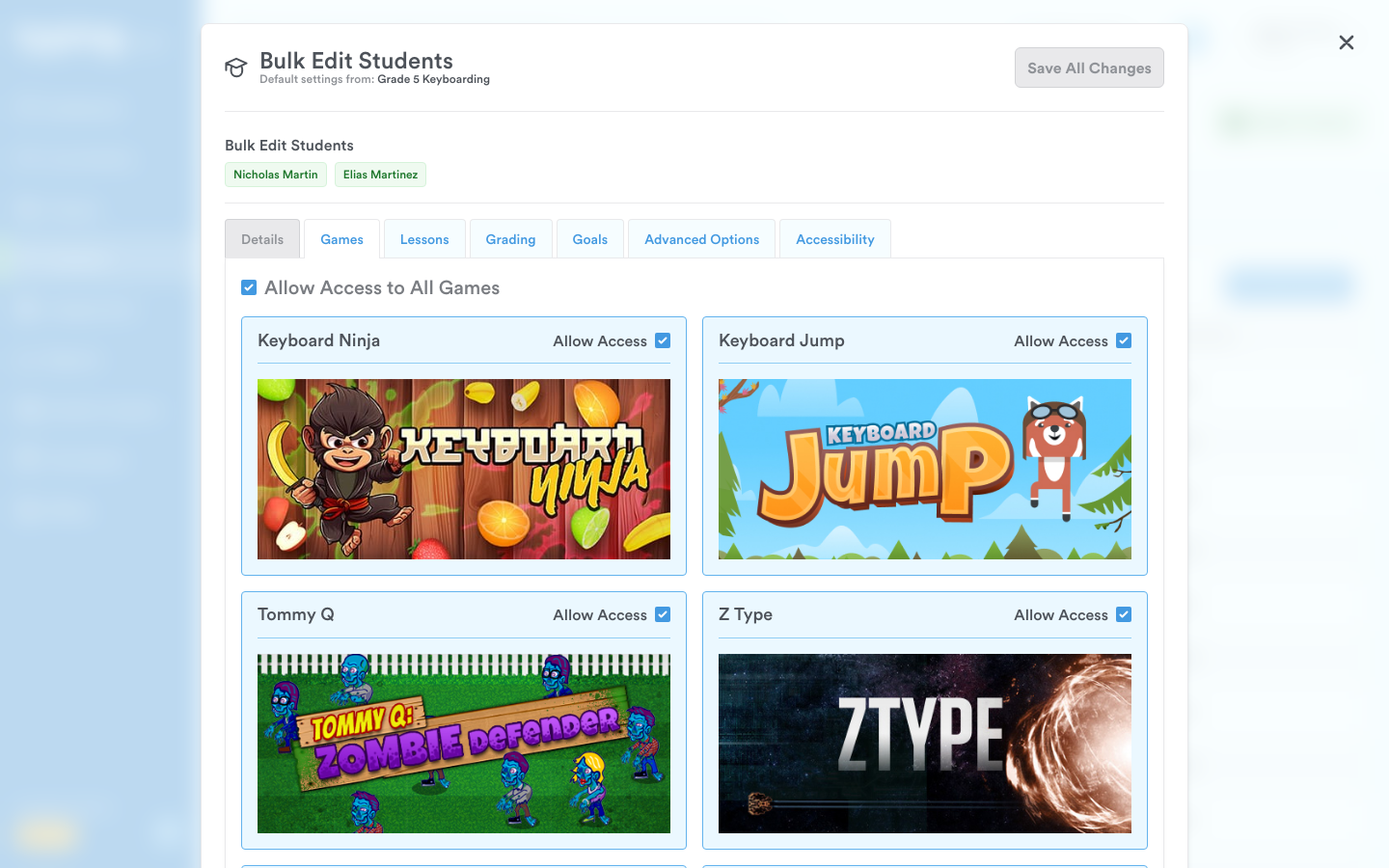
Student Settings opens Bulk Edit Students, which lists the students you ticked and carries Details, Games, Lessons, Grading, Goals, Advanced Options and Accessibility tabs. What you change there applies to every student in that list. Change Individual Student Settings covers the settings themselves.
Reset Progress
Reset Progress opens a dialog with a curriculum dropdown and five checkboxes in two groups. Under For the selected curriculum sit Lesson Progress and Typing Tests, which are cleared only for the curriculum you choose above them. Under For all curricula sit Games Progress, Achievements Progress and Typing Activity, which are cleared across every curriculum whichever one is selected. The dialog says of itself, "This action is final and cannot be undone."
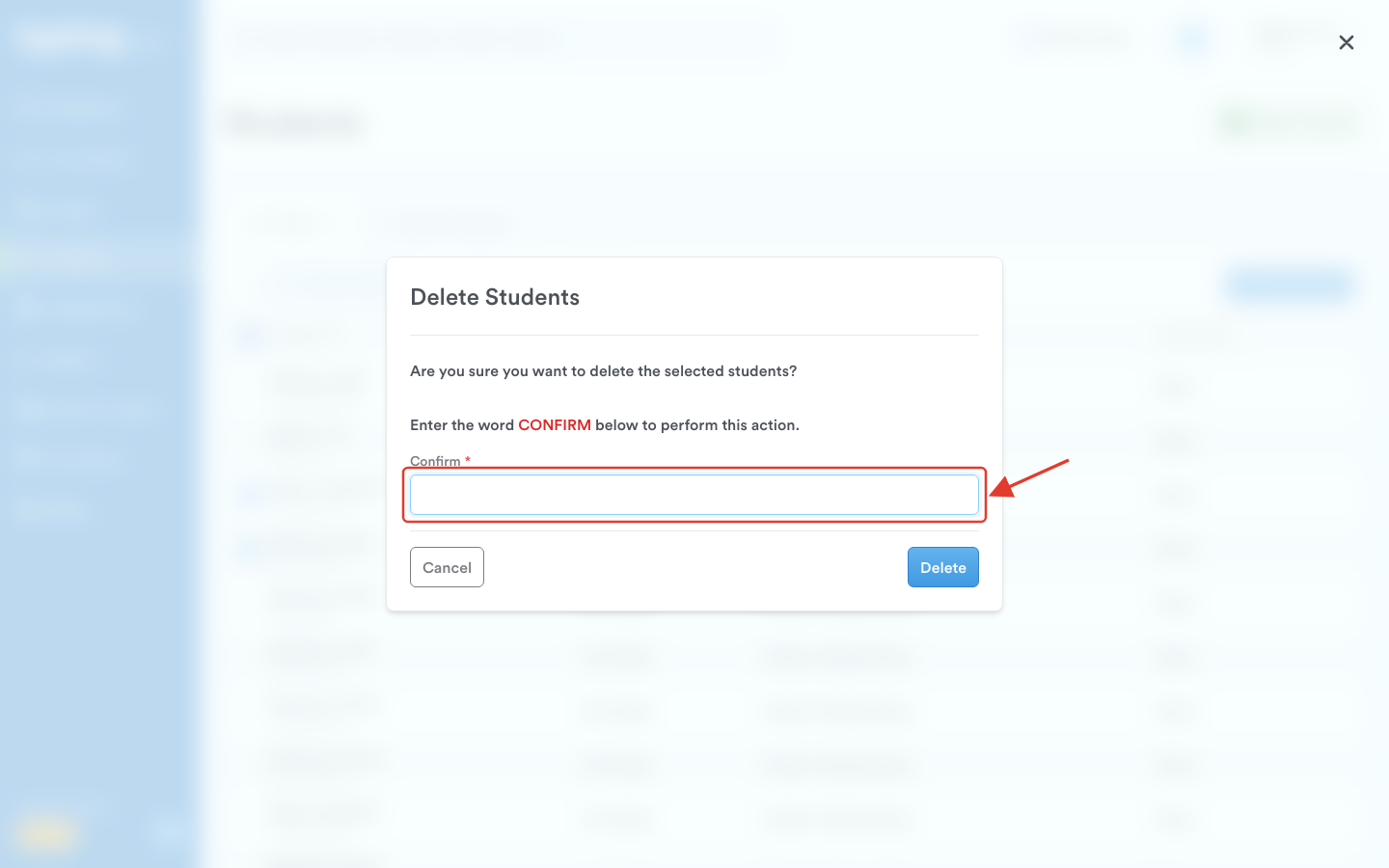
Both Reset Progress and Delete ask you to type the word CONFIRM into a Confirm field before they will run, and both offer Cancel.

For what a reset does to a student's account, see Reset Student Progress.
Delete
Delete opens a dialog headed Delete Students, asking "Are you sure you want to delete the selected students?"
How to Delete Students from Your Class walks that through.
Adding students from this page
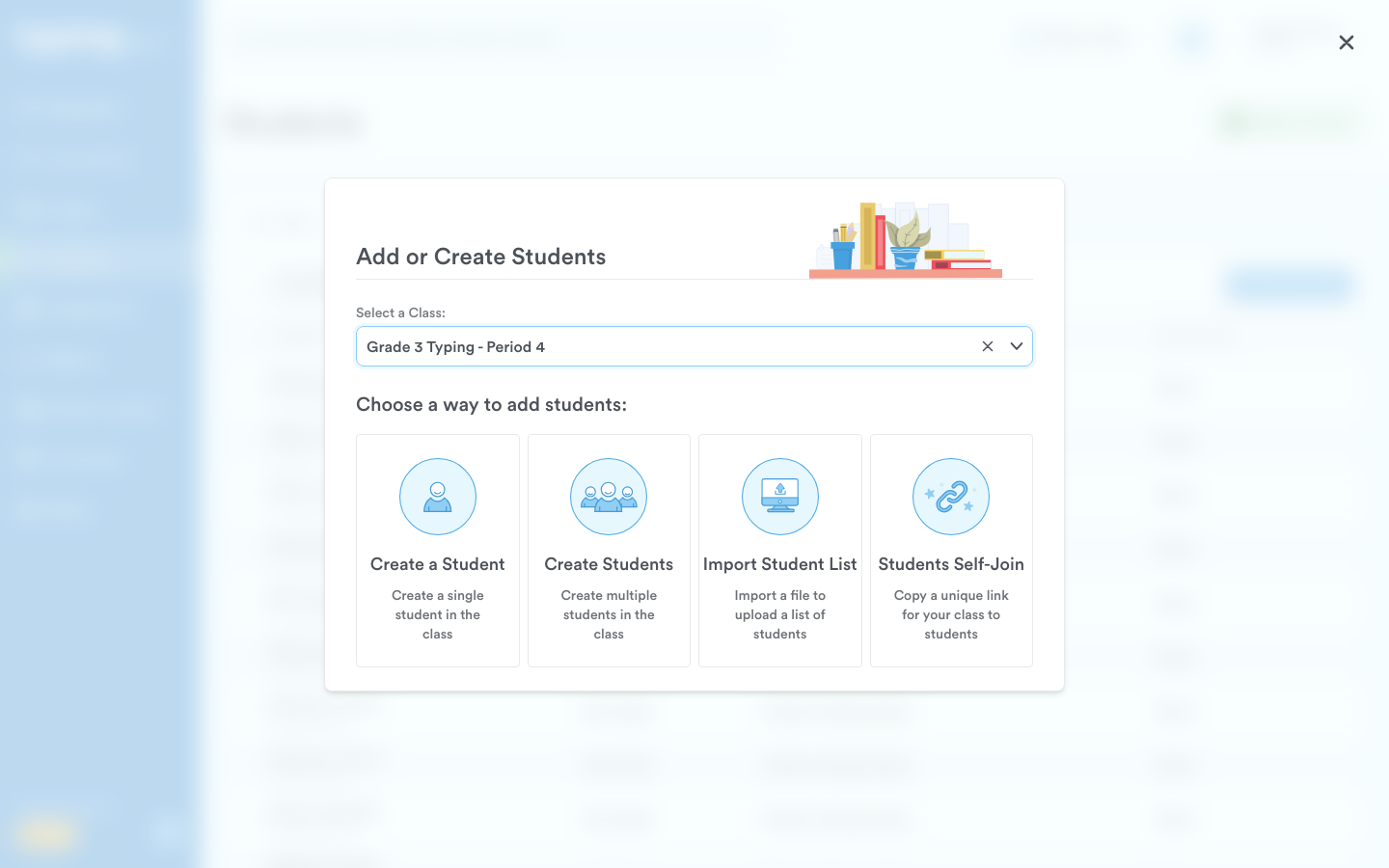
Add Students, at the right-hand end of the toolbar, opens Add or Create Students.

Pick a class in Select a Class first; the four cards below it stay inactive until you do. Then choose one of them: Create a Student, Create Students, Import Student List or Students Self-Join. How to Know the Best Way to Add Students compares them.
Watch Tutorial, at the top of the page, opens a short video covering the same ground.